How to Master Essential Excel Functions
TL;DR
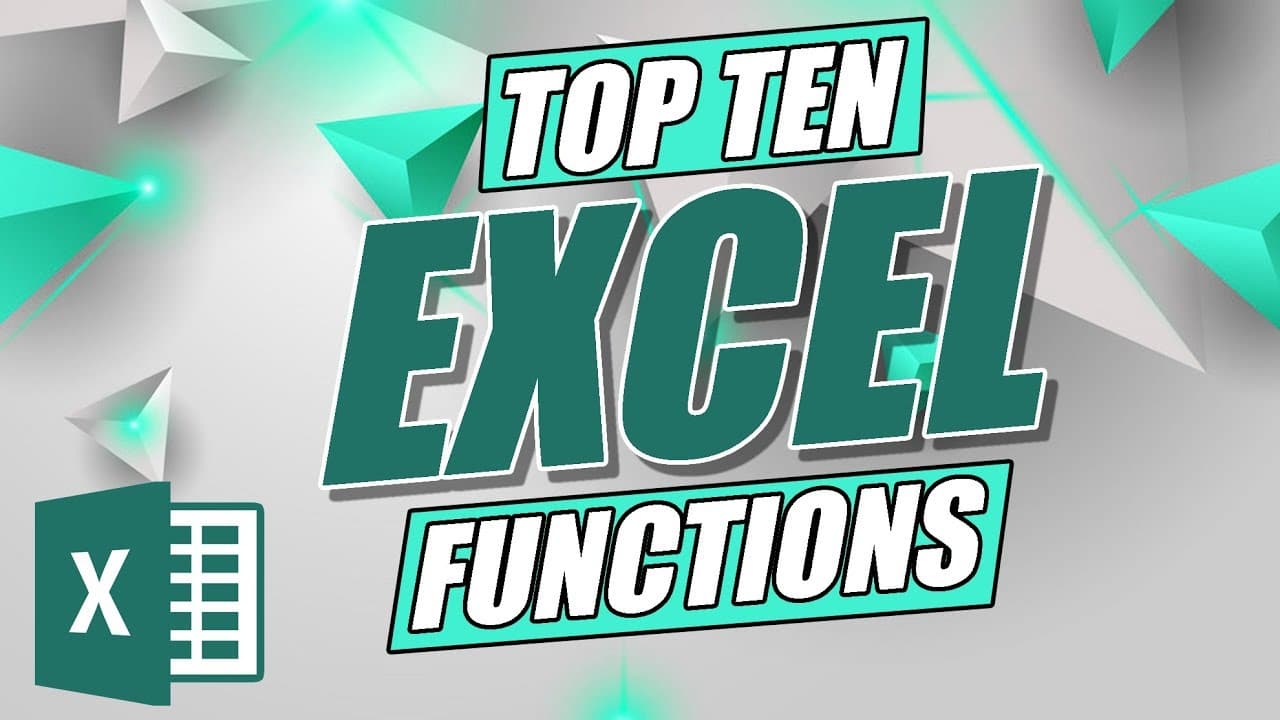
Unlock the full potential of Excel with essential functions like SUM, AVERAGE, and VLOOKUP, along with text manipulation and conditional logic techniques. Learn efficiency tips such as keyboard shortcuts and absolute referencing to enhance your data analysis and streamline your workflow.
Transcript
welcome everyone take two of her top ten functions or formulas in Excel thank you so much to everybody who's joining us again now let's just jump straight into the agenda that we're going to be running through today so we're gonna start with the very basic and then we're gonna move through to some of the more complex formulas and functions we're go... Read More
Key Insights
- Excel offers over 450 functions, but knowing a few key ones like SUM, AVERAGE, MIN, MAX, and COUNT can significantly enhance spreadsheet efficiency.
- Using keyboard shortcuts like Ctrl + Shift + Down can speed up data selection, especially for large datasets.
- Absolute referencing, using dollar signs, is crucial when you want to maintain a fixed cell reference while copying formulas.
- Text functions such as PROPER, UPPER, and LOWER are useful for cleaning up data, while LEN and TRIM help manage text length and remove unnecessary spaces.
- IF statements allow for conditional logic in Excel, and can be nested to handle multiple conditions, although the IFS function offers a more streamlined approach.
- The PMT function is valuable for calculating loan payments, and can be combined with Goal Seek to determine borrowing capabilities based on desired monthly payments.
- VLOOKUP and HLOOKUP are essential for finding data in tables, with VLOOKUP being vertical and HLOOKUP horizontal, while INDEX MATCH offers more flexibility.
- The status bar in Excel can provide quick insights like sum, average, and count without needing to write formulas, enhancing quick data analysis.
Install to Summarize YouTube Videos and Get Transcripts
Explore YouTube Video Summarizer or Get YouTube Transcript Extractor
Questions & Answers
Q: How can keyboard shortcuts improve efficiency in Excel?
Keyboard shortcuts in Excel, like Ctrl + Shift + Down, can greatly improve efficiency by allowing quick selection of large data ranges. This is especially useful when working with extensive datasets, as it eliminates the need to manually drag and select data, thus saving time and reducing the potential for errors.
Q: What is the importance of absolute referencing in Excel formulas?
Absolute referencing in Excel is crucial when you need a cell reference to remain constant, even when a formula is copied to another cell. This is achieved by using dollar signs in the cell reference (e.g., $A$1). It ensures that the formula consistently refers to the same cell, which is important for calculations that depend on fixed values or constants.
Q: Why are text functions useful in Excel?
Text functions in Excel, such as PROPER, UPPER, LOWER, LEN, and TRIM, are essential for cleaning and formatting data. They help standardize text appearance, manage text length, and remove unnecessary spaces, which is vital for preparing data for analysis, ensuring consistency, and enhancing readability in reports and presentations.
Q: What is the role of IF statements in Excel?
IF statements in Excel are used for conditional logic, allowing users to perform different actions based on whether a condition is true or false. They are fundamental for decision-making processes within spreadsheets, enabling dynamic data analysis and reporting by automatically updating results based on specific criteria.
Q: How does the PMT function assist in financial calculations?
The PMT function in Excel is used to calculate the monthly payment required to repay a loan, based on a constant interest rate and a fixed number of periods. It is particularly useful for financial planning, allowing users to determine the affordability of loans and mortgages, and can be combined with Goal Seek to adjust loan parameters based on desired payment amounts.
Q: What are the differences between VLOOKUP and INDEX MATCH?
VLOOKUP and INDEX MATCH are both used for looking up data in Excel, but INDEX MATCH offers more flexibility. VLOOKUP searches vertically and requires the lookup value to be in the first column of the table, while INDEX MATCH can look up values in any direction and does not have this limitation, making it more versatile for complex datasets.
Q: How can the Excel status bar enhance data analysis?
The Excel status bar can enhance data analysis by providing quick calculations such as sum, average, count, minimum, and maximum values for selected cell ranges without the need to write formulas. This feature allows users to gain immediate insights into data, facilitating faster decision-making and reporting, especially when quick answers are needed.
Q: What is the advantage of using the IFS function over nested IF statements?
The IFS function in Excel provides a more streamlined and efficient way to handle multiple conditions compared to nested IF statements. It allows users to evaluate multiple conditions in a single formula without the complexity of nesting, which simplifies the formula structure, reduces potential errors, and enhances readability, making it easier to manage and update.
Summary & Key Takeaways
-
This tutorial covers essential Excel functions starting with basic ones like SUM, AVERAGE, MIN, MAX, and COUNT which are foundational for data analysis. It emphasizes efficiency with keyboard shortcuts and absolute referencing.
-
Text functions such as PROPER, UPPER, LOWER, LEN, and TRIM are introduced for data cleanup. The tutorial also explains the use of IF statements for conditional logic, highlighting nested IFs and the newer IFS function for streamlined conditions.
-
Advanced functions like PMT for loan calculations and VLOOKUP/HLOOKUP for data retrieval are explored. INDEX MATCH is presented as a more flexible alternative to VLOOKUP, and the tutorial concludes with practical tips for using Excel's status bar for quick insights.
Read in Other Languages (beta)
Share This Summary 📚
Summarize YouTube Videos and Get Video Transcripts with 1-Click
Try YouTube Summary with ChatGPT & Claude or YouTube Transcript Generator
Explore More Summaries from Simon Sez IT 📚



Summarize YouTube Videos and Get Video Transcripts with 1-Click
Try YouTube Summary with ChatGPT & Claude or YouTube Transcript Generator