How to Insert and Customize Checkboxes in Microsoft Word
TL;DR
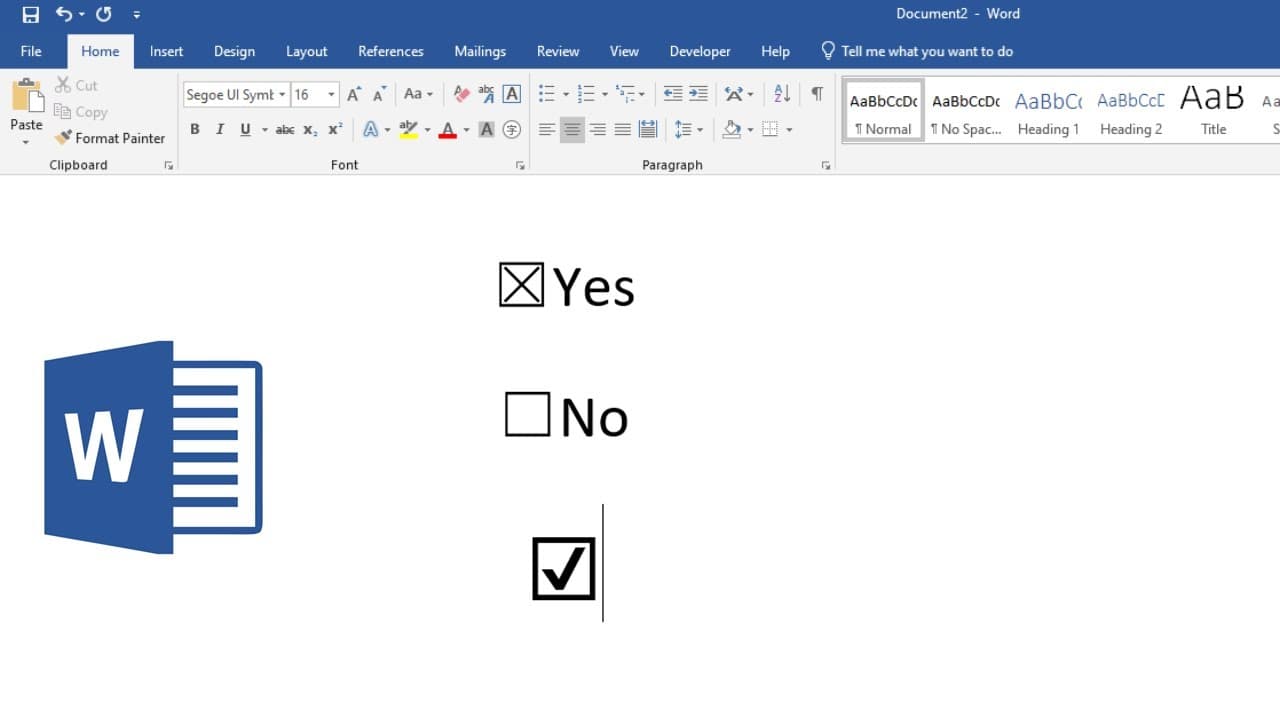
To insert and customize checkboxes in Microsoft Word, first enable Developer Mode via the Options menu. Then, you can add checkboxes and change their symbols, such as selecting a check mark or emoticon. You can also create dynamic checkboxes that toggle each other based on user interaction, enhancing the interactivity of your documents.
Transcript
hello this time I will show you how to insert a checkbox nervous into Microsoft Office Word so you click it it will be checked ok so to do that you need enable the developer mode go to file then options then you need go to customize button then from the right side you will see developer manual let's check it then click OK after that you will see th... Read More
Key Insights
- 📜 Enabling developer mode is essential for accessing advanced features in Microsoft Word, facilitating the creation of interactive documents.
- 🤬 Checkboxes can be customized to feature different symbols, enhancing the visual appeal and functionality of forms.
- 👤 The tutorial outlines a potentially complex feature where checkboxes can be conditioned to alter states based on user interaction, broadening their usability.
- 🤬 Customizing fonts not only applies to the checkbox symbols but can also improve overall document aesthetics.
- 🦻 This process can aid in creating forms, surveys, or checklists that require user engagement and interactivity.
- 👤 Utilizing developer tools in Word can significantly streamline document creation, especially for users familiar with programming concepts.
- 📼 The video sets the premise for future tutorials, indicating that more advanced functionalities and techniques will be covered later.
Install to Summarize YouTube Videos and Get Transcripts
Explore YouTube Video Summarizer or Get YouTube Transcript Extractor
Questions & Answers
Q: How do I enable developer mode in Microsoft Word?
To enable developer mode, go to the 'File' menu, select 'Options,' and then click on 'Customize Ribbon.' In the right pane, find the checkbox for 'Developer' and check it. Click OK, and the developer tab will appear on the ribbon, granting access to various developer tools including checkboxes.
Q: Can I use different symbols for checkboxes?
Yes, you can customize the symbol displayed when a checkbox is checked. After inserting a checkbox and selecting it, go to 'Properties.' There you can find the 'Checked Symbol' option where you can choose from various symbols such as a check mark, sad face, or any other character available in your system.
Q: How do I create checkboxes that interact with each other?
To create interlinked checkboxes, you can use the 'True' and 'False' options in the checkbox properties. By setting one checkbox to be checked automatically when the other is unchecked, you can create a mutually exclusive selection, ensuring that only one option in a set can be selected at a time.
Q: Is it possible to change the font of the check symbol?
Yes, you can change the font and size of the symbol that represents the checked state of your checkbox. Simply highlight the checkbox, go to the properties, and adjust the font settings to achieve the desired appearance for your checkbox symbol.
Summary & Key Takeaways
-
The tutorial explains how to enable developer mode in Microsoft Word to access checkbox features. By navigating to the file options and customizing the toolbar, users can activate the developer tab, granting them access to add checkboxes.
-
Users can customize checkboxes to display various symbols, such as check marks or emoticons, by accessing the checkbox properties. This allows for creating personalized forms or documents with specific visual indicators.
-
The video hints at forming a dynamic checkbox system, where selecting one checkbox will automatically affect the status of another. This feature enhances user interactivity and is useful for creating lists or form responses.
Read in Other Languages (beta)
Share This Summary 📚
Summarize YouTube Videos and Get Video Transcripts with 1-Click
Try YouTube Summary with ChatGPT & Claude or YouTube Transcript Generator
Explore More Summaries from E Micro Tech 📚

Summarize YouTube Videos and Get Video Transcripts with 1-Click
Try YouTube Summary with ChatGPT & Claude or YouTube Transcript Generator