Blender Bend Object using Curve Modifier Blender 2.8
TL;DR
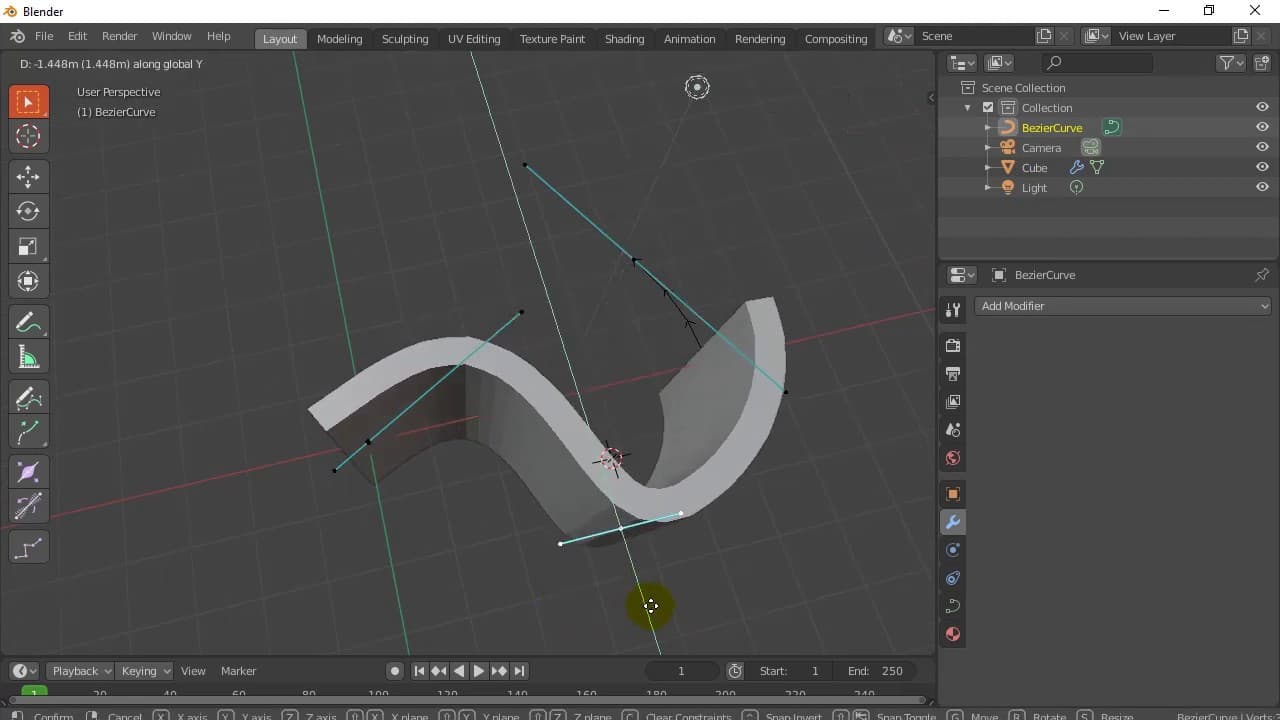
Learn to bend objects in Blender using the curve modifier.
Transcript
hey everybody welcome back in this video we are going to take a look at how to start with a flat object like the plane here and how to make it follow a curve that you design like that little black curve you see there and so that you can make it form to any shape you want once you have that curve set out it's pretty easy you can just go into... Read More
Key Insights
- The tutorial explains how to start with a flat object and make it follow a designed curve in Blender 2.8.
- Adding loop cuts is crucial for providing bending points along the object, enabling it to bend smoothly.
- The origin of the object should be moved to one end to ensure the object follows the curve accurately from the start.
- A Bezier curve is used to define the shape the object will follow, and its origin should align with the object's origin.
- The tutorial highlights the importance of setting the correct axis in the curve modifier for the desired bending effect.
- Adjusting the object's position along the deformation axis allows for fine-tuning the bending effect.
- The tutorial emphasizes experimentation with axis settings to achieve the desired deformation results.
- Editing the curve in Blender's edit mode allows for dynamic adjustments to the object's bending shape.
Install to Summarize YouTube Videos and Get Transcripts
Explore YouTube Video Summarizer or Get YouTube Transcript Extractor
Questions & Answers
Q: How do you prepare an object for bending in Blender?
To prepare an object for bending in Blender, you need to add multiple loop cuts to provide bending points. This is done by entering edit mode, using Ctrl+R to add loop cuts, and ensuring the object has enough edges to bend smoothly.
Q: Why is it important to move the object's origin?
Moving the object's origin to one end is crucial because it sets the starting point for the object to follow the curve accurately. This alignment ensures that as the curve is followed, the object bends correctly from the desired starting point.
Q: What type of curve is used in this Blender tutorial?
In this Blender tutorial, a Bezier curve is used to define the shape that the object will follow. Bezier curves allow for precise control over the bending shape through adjustable control points and handles.
Q: How do you align the origins of the object and the curve?
To align the origins, you select the end face of the object, snap the cursor to it, and then set the object's origin to the 3D cursor. Similarly, select the first point of the curve, snap the cursor, and set the curve's origin to the cursor.
Q: What role does the axis setting play in the curve modifier?
The axis setting in the curve modifier determines the direction in which the object will bend. Experimenting with different axis settings (X, Y, Z) is necessary to find the correct one that aligns with the object's orientation and the curve's direction.
Q: How can you adjust the bending effect after applying the curve modifier?
After applying the curve modifier, you can adjust the bending effect by moving the object along the deformation axis (e.g., G and Y for the Y axis). This allows for fine-tuning the object's position relative to the curve.
Q: What happens if the curve does not cover the entire length of the object?
If the curve does not cover the entire length of the object, the object will bend according to the curve's shape, but beyond the curve's endpoint, the object will continue in the last direction set by the curve, potentially extending straight.
Q: How can you modify the curve after bending the object?
To modify the curve after bending the object, enter edit mode for the curve and adjust the control points and handles. This allows for dynamic changes to the bending shape, instantly affecting the object's deformation.
Summary & Key Takeaways
-
This tutorial covers how to bend a flat object in Blender 2.8 using the curve modifier. It involves creating a curve and making the object follow it, requiring loop cuts for smooth bending.
-
The process includes moving the object's origin to one end and aligning it with the curve's origin. A Bezier curve is used to define the bending shape, and axis settings are crucial.
-
Experimentation with axis settings helps achieve the desired effect. Adjusting the deformation axis fine-tunes the bend, and editing the curve allows for dynamic shape adjustments.
Read in Other Languages (beta)
Share This Summary 📚
Summarize YouTube Videos and Get Video Transcripts with 1-Click
Try YouTube Summary with ChatGPT & Claude or YouTube Transcript Generator