How to Blur Content in Videos Using Wondershare Filmora
TL;DR
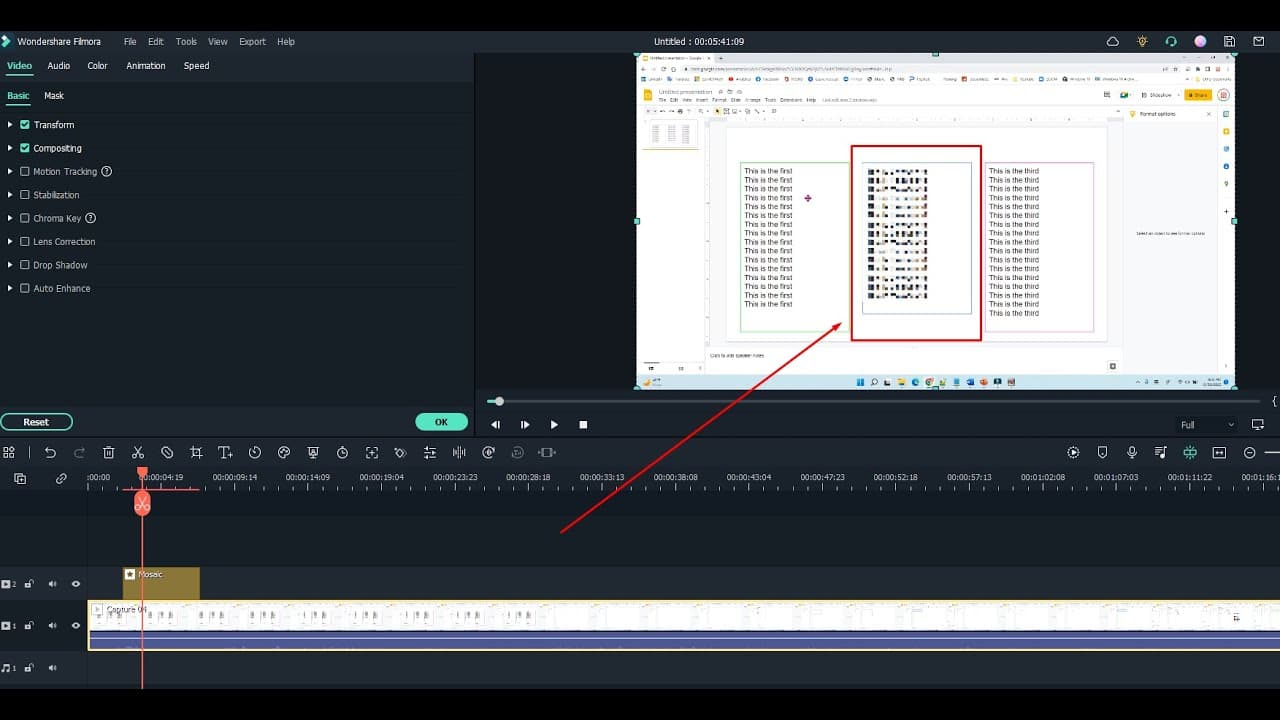
To blur content in videos with Wondershare Filmora, start by creating a new project and importing your video. Apply the Mosaic effect from the utilities section, adjust the blur strength, and customize the area you want to obscure. This allows you to effectively hide sensitive information while maintaining video clarity.
Transcript
hello in this video I will show you how to uh blur uh contents using wondershare field Roma okay so let's open uh video so you can see with this video I have my Gmail accounts here I want to blur all the parts here so to do that let me show you within the software so let's open wondershare field model and create a new project let's drag that file t... Read More
Key Insights
- 👤 Wondershare Filmora is a user-friendly video editing software with a variety of effects for content manipulation.
- 💌 Blurring sensitive information, such as email addresses, is crucial for maintaining privacy in video content.
- 🥳 The Mosaic effect offers high customization, allowing users to determine which parts of a video should be blurred and to what extent.
- 🗯️ Users are encouraged to explore different levels of blur to achieve the right balance between obscuring content and maintaining visual continuity.
- 😚 The tutorial emphasizes the importance of careful selection and adjustment to effectively obfuscate sensitive text without losing overall video clarity.
- 🚙 Filmora's effects library is comprehensive, providing tools under utilities that make video editing easier for beginners.
- 😄 The user interface is designed for ease of navigation, facilitating a smoother editing process even for those new to video editing.
Install to Summarize YouTube Videos and Get Transcripts
Explore YouTube Video Summarizer or Get YouTube Transcript Extractor
Questions & Answers
Q: What is the main purpose of the video tutorial?
The video tutorial aims to instruct viewers on how to effectively use Wondershare Filmora to blur specific parts of a video, particularly for obscuring private information like email addresses or sensitive text. By following the steps outlined, users can enhance their video privacy while maintaining the overall flow of their content.
Q: How do you initiate the blurring process in Wondershare Filmora?
To start blurring content in Wondershare Filmora, you open the software, create a new project, and then import your preferred video file. After placing the video in the timeline, you access the effects panel and choose the Mosaic effect from the utilities section. This sets the foundation for further adjustments needed for blurring.
Q: What effect is recommended for blurring in this tutorial, and why?
The tutorial recommends using the Mosaic effect for blurring content in Wondershare Filmora. This effect allows users to obscure specific parts of the video while retaining others, making it ideal for selectively hiding sensitive information. It offers flexibility in adjusting the level of blur and the specific area to be obscured.
Q: Can you control the area that gets blurred in the video?
Yes, users can control the area that gets blurred in their video by selecting and adjusting the Mosaic effect. You can decide to apply the effect to the entire video timeline or just a section by dragging it accordingly. This precision means you can blur just the necessary parts while keeping the rest of the video clear.
Q: What additional adjustments can you make to the blur effect in Wondershare Filmora?
Aside from selecting the area to blur, users can adjust the intensity of the Mosaic effect by modifying its parameters. You can change the level of blurring—like small or large amounts—typically between values like 10 and 75. This versatility allows you to achieve the desired obscurity, ensuring text remains unreadable while fitting the video's style.
Q: What are the key differences between the Mosaic effect and other blurring options available in Filmora?
The Mosaic effect is specifically tailored for selectively blurring certain areas, allowing more control compared to other blur options like the Massac effect. The Massac effect, meanwhile, blurs the entire video uniformly without the option to specify areas. Thus, the choice largely depends on the specific editing needs of a project.
Summary & Key Takeaways
-
The video tutorial demonstrates how to use Wondershare Filmora to blur content, specifically focusing on obscuring text in videos.
-
Users are guided to create a new project in the software and import the video they wish to edit for blurring sensitive information.
-
The tutorial highlights how to apply the Mosaic effect, adjust its properties, and ensure only the desired text or images are blurred.
Read in Other Languages (beta)
Share This Summary 📚
Summarize YouTube Videos and Get Video Transcripts with 1-Click
Try YouTube Summary with ChatGPT & Claude or YouTube Transcript Generator
Explore More Summaries from E Micro Tech 📚

Summarize YouTube Videos and Get Video Transcripts with 1-Click
Try YouTube Summary with ChatGPT & Claude or YouTube Transcript Generator