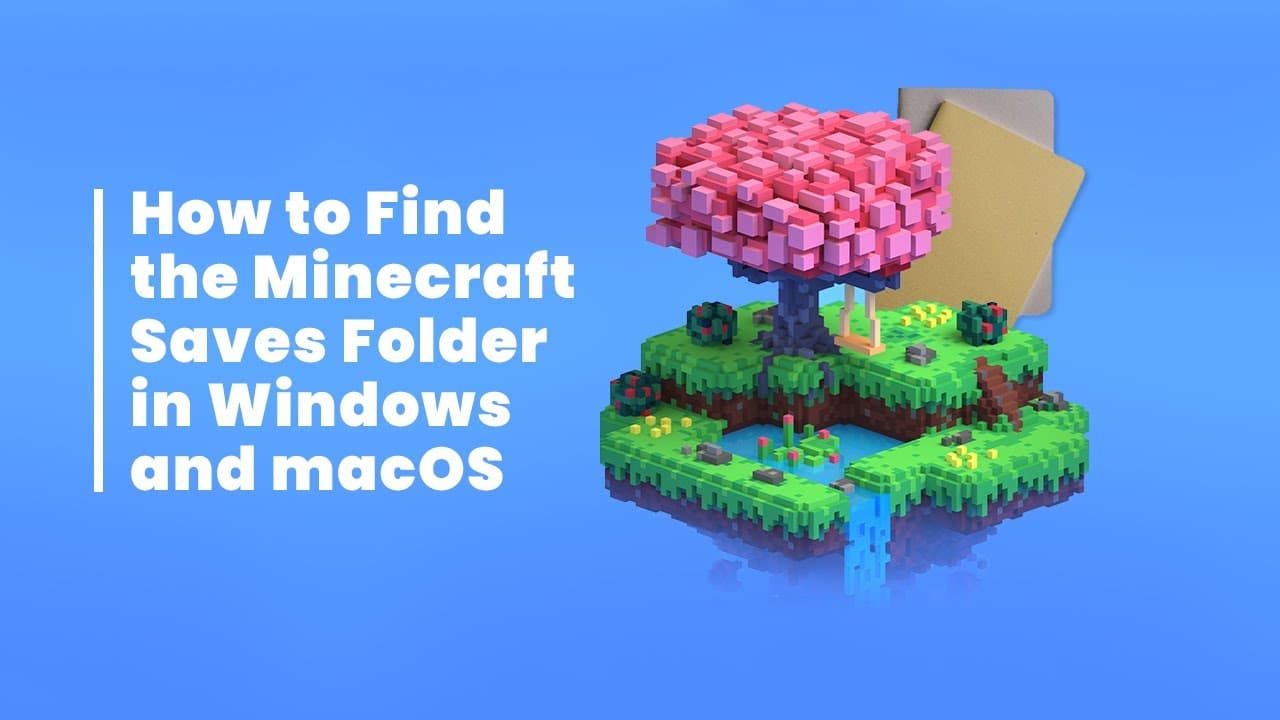
How to Access the Minecraft Worlds Folder on Windows and Mac
TL;DR
To access the Minecraft worlds folder on Windows, use the game launcher to open a specific world folder or search for '%appdata%' in Windows Search. For macOS, you can easily reach the folder by selecting a world in the game and clicking 'Open World Folder'. Remember, both systems require unhiding certain directories to access these folders.
Transcript
hi whether you just want to do a backup of your favorite worlds or you need to get those freshly downloaded mods installed you need to get to the actual minecraft folder and here's how you do that as fast as possible in both windows and mac os all the code snippets i mentioned in the video are listed down in the video description for easy copy and ... Read More
Key Insights
- 📁 Accessing Minecraft folders involves understanding the operating system pathways for both Windows and Mac OS.
- 👤 Quick navigation methods significantly enhance user experience, saving time for players managing their worlds and mods.
- 🎮 Windows users need to unhide the AppData folder to access Minecraft’s main game files, impactfully guiding their mod and gameplay management.
- 🌍 The random naming conventions of Minecraft Bedrock folders can be confusing, requiring extra steps to identify world contents.
- 👤 Both operating systems require users to follow specific processes to access folder paths efficiently, maximizing usability for different user preferences.
- 🎮 The video aims to simplify file management for Minecraft enthusiasts, effectively addressing common navigational challenges.
- 👤 Providing code snippets helps users who may not be fully familiar with file system navigation, fostering a user-friendly approach.
Install to Summarize YouTube Videos and Get Transcripts
Explore YouTube Video Summarizer or Get YouTube Transcript Extractor
Questions & Answers
Q: What is the quickest way to open a specific Minecraft world folder in Windows Java Edition?
In Windows Java Edition, the fastest way is to click on the world in the Minecraft launcher, select "Edit" in the settings, and then click on "Open World Folder." This action takes you directly to the folder containing that specific world, streamlining the process of finding saved worlds.
Q: How can Windows users access the AppData folder where Minecraft's files are stored?
To access the AppData folder in Windows, users can press the Windows key and the letter 'S' to open the search function. Typing "%appdata%" and pressing enter will take you directly to the AppData/Roaming folder, where the .minecraft folder is located, allowing easy access to important game files.
Q: What challenges do players face when accessing the Minecraft Bedrock world folders in Windows?
Players face difficulties accessing the Minecraft Bedrock world folders due to the absence of a direct method from within the game. The folders contain random strings of letters and numbers, making it hard to identify which folder corresponds to a particular world. To view the contents, players must open "levelname.txt" files within those folders.
Q: Is there a method to view hidden files in the library on Mac OS?
Yes, on Mac OS, users can view hidden files in the library by pressing Command + Shift + Period. This shortcut un-hides hidden files and folders, allowing you to navigate to the Minecraft folder and access saved worlds stored there, which requires access to the library folder.
Summary & Key Takeaways
-
The video provides step-by-step instructions for accessing Minecraft's game folder and individual world folders on both Windows and Mac OS, emphasizing easy methods for users.
-
For Windows, users can quickly navigate to specific world folders through the game launcher or a search function, while getting to the app data folder requires unhiding it first.
-
Mac OS users can similarly access their worlds by selecting options in the game or using a code snippet, though the library folder must be unhidden for access.
Read in Other Languages (beta)
Share This Summary 📚
Summarize YouTube Videos and Get Video Transcripts with 1-Click
Try YouTube Summary with ChatGPT & Claude or YouTube Transcript Generator
Explore More Summaries from Get There Faster 📚

Summarize YouTube Videos and Get Video Transcripts with 1-Click
Try YouTube Summary with ChatGPT & Claude or YouTube Transcript Generator