Learn How to Use Adobe Audition in 8 minutes!
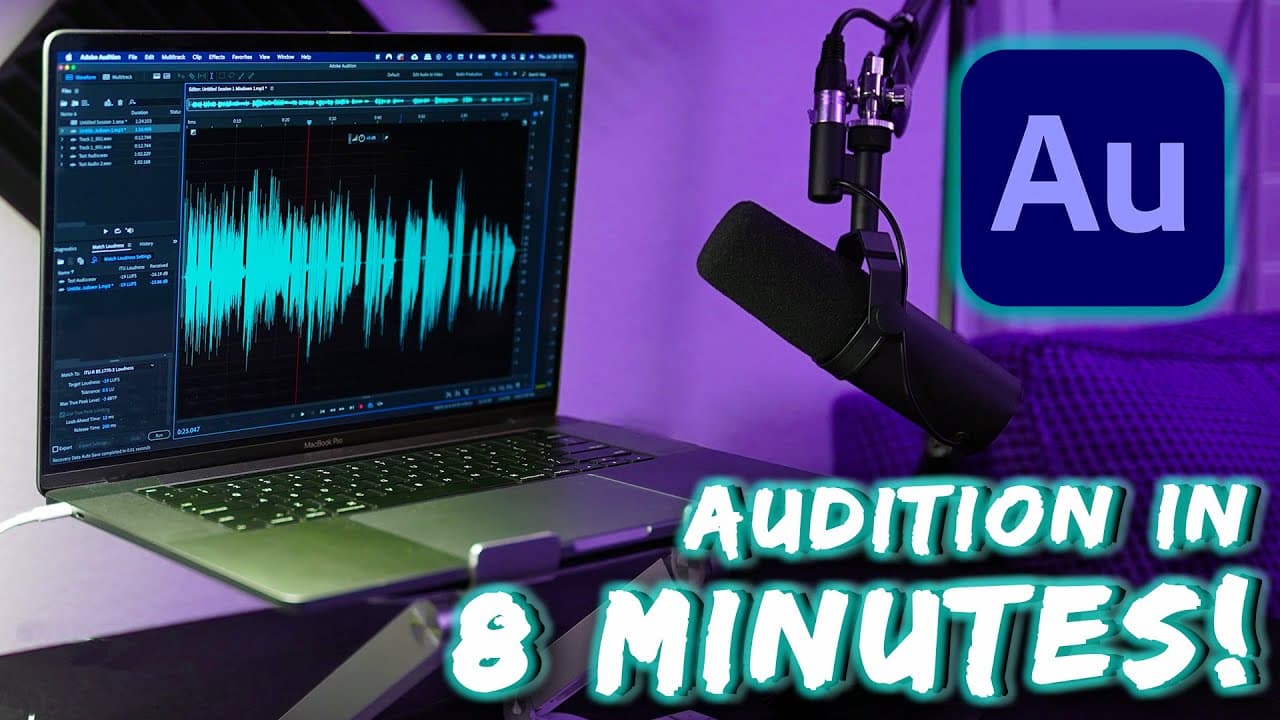
TL;DR
Quick guide to start using Adobe Audition efficiently.
Transcript
learning a new tool can sometimes be extremely overwhelming which makes it hard to get started that's why in this video i'm going to break down the absolute essentials on how to use adobe edition and get you up and running in just 8 minutes let's do this so the first thing i do before even opening audition is connect my mic ... Read More
Key Insights
- Connecting your microphone properly is crucial for optimal sound quality. USB mics connect directly, while XLR mics need an audio interface.
- Setting up audio hardware in Adobe Audition involves selecting the correct input device to ensure proper recording.
- Recording tips include monitoring levels to avoid clipping and ensuring the recording environment minimizes reverb.
- Sound optimization involves a series of effects: noise reduction, compression, normalization, EQ, and loudness optimization.
- The waveform editor in Audition allows for precise editing, including removing mistakes and silencing unwanted noise.
- The multitrack editor is useful for combining multiple audio files, syncing them, and making further adjustments.
- Creating a mixdown in the multitrack editor combines edited tracks into a single file, ready for final touches.
- Skillshare offers a more detailed course on Adobe Audition, focusing on advanced effects and techniques.
Install to Summarize YouTube Videos and Get Transcripts
Explore YouTube Video Summarizer or Get YouTube Transcript Extractor
Questions & Answers
Q: How do you connect a microphone for recording in Adobe Audition?
To connect a microphone, if it's a USB mic, plug it directly into the computer. For XLR microphones, connect them to an audio interface or mixer, then to the computer via USB. Ensure the correct channels are armed on the interface, especially for devices like the Zoom H6.
Q: What are the initial steps to set up audio hardware in Adobe Audition?
In Adobe Audition, go to the top bar, select 'Audition,' then 'Preferences,' and 'Audio Hardware.' Change the default input to your USB mic or audio interface's name, and confirm the settings. This ensures the software uses the correct device for recording.
Q: What is the recommended process for optimizing recorded audio in Adobe Audition?
The recommended process involves applying effects in this order: noise reduction, compression, normalization, EQ, and loudness optimization. Each step enhances audio quality by reducing unwanted noise, balancing volume levels, and ensuring the final output meets loudness standards.
Q: How does noise reduction work in Adobe Audition?
Noise reduction involves highlighting a silent section of the audio to capture a noise sample, then applying the noise reduction process to the entire clip. This helps eliminate ambient background noise, improving the clarity of the main audio content.
Q: What is the role of compression in audio editing within Adobe Audition?
Compression reduces the dynamic range of audio by making louder parts closer in volume to softer parts. This ensures consistent volume levels throughout the recording, making it easier for listeners to hear all parts clearly. The process involves setting a threshold and ratio based on the audio waveform.
Q: How can you use the multitrack editor in Adobe Audition?
The multitrack editor allows for combining multiple audio files, applying individual effects, and syncing them. You can cut, resize, and adjust volume levels using keyframes. It's particularly useful for editing podcasts or any project involving multiple audio sources.
Q: What is the process for creating a mixdown in Adobe Audition?
To create a mixdown, go to the multitrack menu, select 'Create Mixdown,' and confirm the settings. This combines all edited tracks into a single file. You can apply final adjustments like hard limiting and normalization to ensure the mix meets desired standards.
Q: Where can users find more detailed tutorials on Adobe Audition?
For more detailed tutorials, users can enroll in the Skillshare course linked in the video description. The course covers Adobe Audition basics in greater detail, including advanced effects like EQ and fine-tuned noise reduction, providing a deeper understanding of the software's capabilities.
Summary & Key Takeaways
-
This video provides a quick tutorial on getting started with Adobe Audition, covering microphone setup, recording, and audio optimization.
-
Key techniques include using noise reduction, compression, and normalization to enhance audio quality, with tips on avoiding common pitfalls.
-
The tutorial also introduces the waveform and multitrack editors, essential tools for editing and combining audio files efficiently.
Read in Other Languages (beta)
Share This Summary 📚
Summarize YouTube Videos and Get Video Transcripts with 1-Click
Try YouTube Summary with ChatGPT & Claude or YouTube Transcript Generator