How to play PowerPoint slide show within OBS live stream for youtube
TL;DR
Learn to integrate PowerPoint slideshows in OBS for streaming.
Transcript
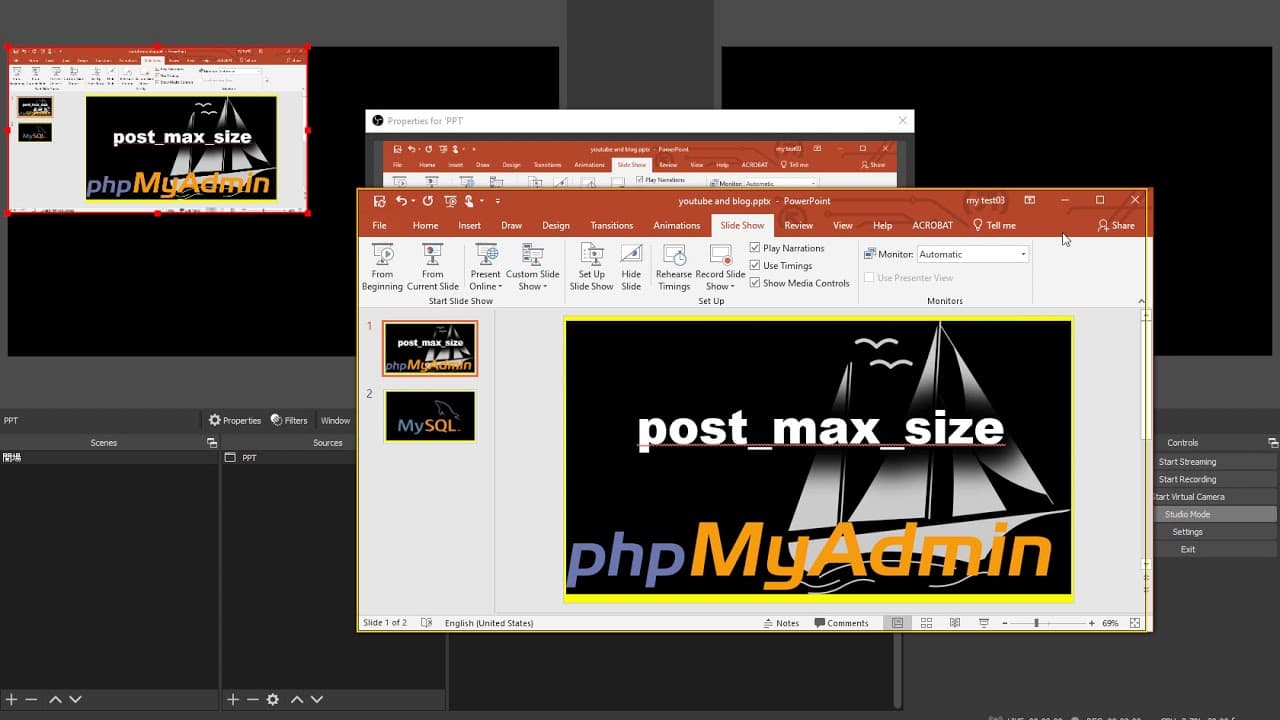
okay this time i will show you how to play powerpoint slideshow at the obs studio so the first thing you need to do is open ppt okay open a point point document then you need to make sure the ratio is 16 to 9 go to design size size make sure you have the wide screen ratio 16 to 9 select then you need to go to the slideshow setup slideshow make sure... Read More
Key Insights
- To integrate PowerPoint with OBS, ensure your PowerPoint document is set to a 16:9 widescreen ratio for optimal display.
- In PowerPoint, use the 'Set Up Slide Show' feature to select 'Browsed by an individual' to avoid full-screen mode.
- After setting up PowerPoint, bring OBS Studio to the front by clicking within its interface, not minimizing it.
- Utilize the 'Window Capture' feature in OBS to add your PowerPoint presentation as a source for your stream.
- Avoid minimizing PowerPoint, as it will not appear as a selectable source in OBS if minimized.
- Adjust the PowerPoint window within OBS to fit the screen properly, ensuring the presentation is visible to viewers.
- The tutorial provides a step-by-step guide for setting up PowerPoint slideshows within OBS for live streaming.
- The video encourages viewers to leave questions or comments for further assistance with the process.
Install to Summarize YouTube Videos and Get Transcripts
Explore YouTube Video Summarizer or Get YouTube Transcript Extractor
Questions & Answers
Q: How do you set up PowerPoint for OBS streaming?
To set up PowerPoint for OBS streaming, first open your PowerPoint document and ensure it is in a 16:9 widescreen format. Then, go to 'Set Up Slide Show' and select 'Browsed by an individual'. This prevents the slideshow from going full screen, which is necessary for OBS integration.
Q: Why should PowerPoint not be minimized during OBS setup?
PowerPoint should not be minimized during OBS setup because if it is, it will not appear as a selectable source in the 'Window Capture' dropdown menu. Keeping it open ensures that OBS can detect and display the PowerPoint window as part of your live stream.
Q: What is the purpose of the 'Window Capture' feature in OBS?
The 'Window Capture' feature in OBS is used to add specific windows, like a PowerPoint presentation, as sources in your live stream. This allows you to display the content of those windows to your viewers, integrating various media seamlessly into your broadcast.
Q: How can you adjust the PowerPoint display in OBS?
You can adjust the PowerPoint display in OBS by resizing and positioning the window within the OBS interface. This ensures that the presentation fits the screen properly, providing a clear and professional display for your audience during the live stream.
Q: What should you do if PowerPoint does not appear in OBS?
If PowerPoint does not appear in OBS, ensure it is not minimized and that you have selected 'Browsed by an individual' in the 'Set Up Slide Show' settings. Also, check that you have correctly added it as a source using the 'Window Capture' feature.
Q: What are the benefits of using PowerPoint with OBS for streaming?
Using PowerPoint with OBS for streaming allows you to present structured content visually, enhancing viewer engagement. It provides a professional look to your stream and enables you to share slideshows, infographics, and other visual aids seamlessly with your audience.
Q: Can you interact with viewers during the PowerPoint presentation in OBS?
Yes, you can interact with viewers during the PowerPoint presentation in OBS. OBS allows you to integrate various input sources, such as webcams and microphones, enabling real-time interaction and commentary alongside your slideshow presentation.
Q: What should viewers do if they have questions about the tutorial?
If viewers have questions about the tutorial, they are encouraged to leave comments or messages. The video creator has offered to respond to inquiries, providing further assistance and clarification to ensure users can successfully integrate PowerPoint with OBS for their streaming needs.
Summary & Key Takeaways
-
This tutorial demonstrates how to display a PowerPoint slideshow within OBS Studio for live streaming purposes. Key steps include setting the presentation to a 16:9 ratio and using the 'Set Up Slide Show' feature for optimal integration.
-
The process involves using the 'Window Capture' option in OBS to add PowerPoint as a source. It's important to keep PowerPoint open and not minimized to ensure it appears in OBS.
-
Adjusting the PowerPoint display within OBS is crucial for ensuring it fits the screen properly. The tutorial provides clear instructions and encourages viewer interaction for additional support.
Read in Other Languages (beta)
Share This Summary 📚
Summarize YouTube Videos and Get Video Transcripts with 1-Click
Try YouTube Summary with ChatGPT & Claude or YouTube Transcript Generator
Explore More Summaries from E Micro Tech 📚

Summarize YouTube Videos and Get Video Transcripts with 1-Click
Try YouTube Summary with ChatGPT & Claude or YouTube Transcript Generator