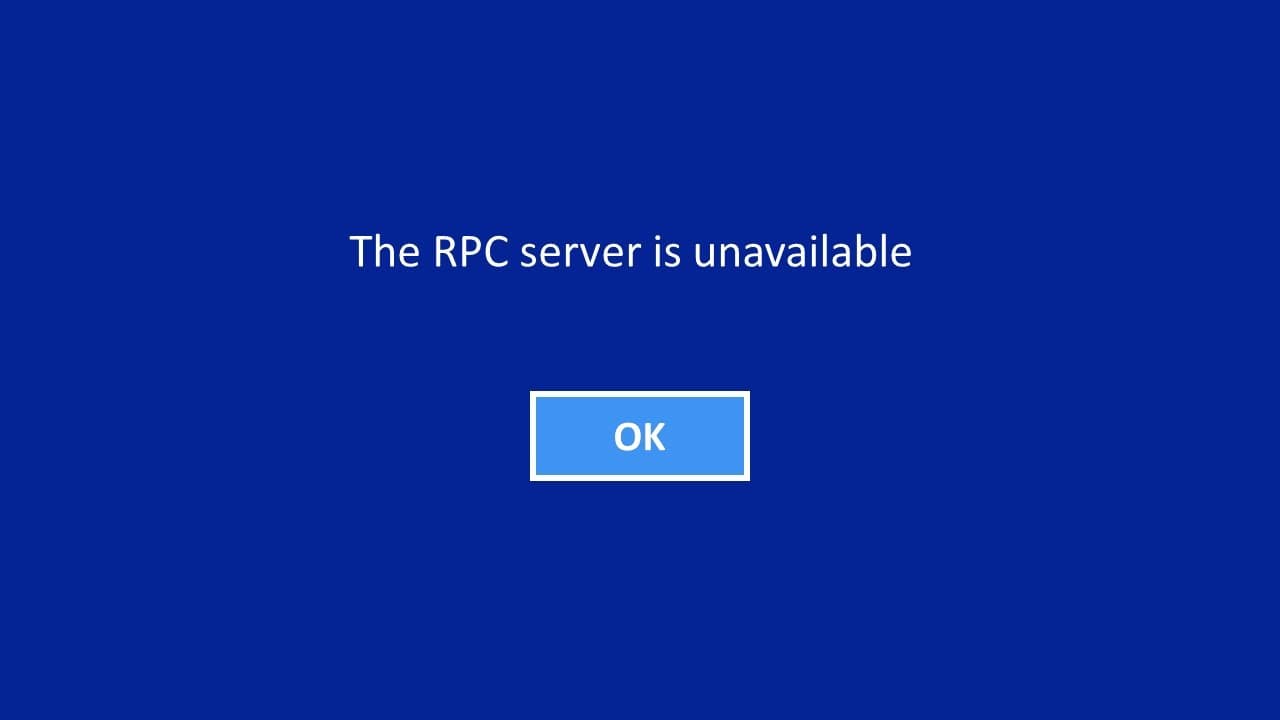
RPC server is unavailable windows 11 login
TL;DR
Instructions for troubleshooting the "RPC server not available" error on a computer.
Transcript
foreign when you try to log into your computer you'll see the RPC server not available so to solve the problem you can try to login the computer using the save mode okay to do that you click the power button and hold the shift key hold it and press restart now we see a option screen we go to the troubleshoot press enter then select the advanced opt... Read More
Key Insights
- 👻 Safe mode is a critical troubleshooting step for resolving the RPC server error, allowing users to diagnose and fix startup issues.
- 🐕🦺 Utilizing Task Manager to manage startup applications can help isolate the root cause of service interruptions related to RPC.
- 🐕🦺 Service settings, particularly for DCOM and RPC services, must be configured to run automatically to ensure system stability.
- 🖐️ Firewall settings play a significant role in the proper functioning of applications that rely on RPC, necessitating careful review.
- ❓ Network settings, including Internet Protocol versions, should be correctly configured for seamless connectivity and communication.
- 🐕🦺 Incremental troubleshooting by enabling services one at a time can assist in pinpointing specific application problems.
- 👤 Users should be cautious when modifying system settings and should document changes to revert if necessary.
Install to Summarize YouTube Videos and Get Transcripts
Explore YouTube Video Summarizer or Get YouTube Transcript Extractor
Questions & Answers
Q: What is the first step to take when encountering the RPC server not available error?
The initial step is to boot the computer into safe mode. This is done by holding the shift key and clicking the power button to access the restart options. From there, navigate to troubleshoot settings, select advanced options, then startup settings, and lastly choose the option for safe mode.
Q: How can you identify which startup apps may be causing the RPC issues?
Once logged into safe mode, right-click on the taskbar and open Task Manager. Navigate to the startup apps section and disable all enabled programs. This step is crucial as one of these applications could potentially be causing the RPC server issue during the normal startup process.
Q: What system services should be checked after getting into safe mode?
After successfully logging into safe mode, check the services related to RPC, specifically the DCOM Server Process Launcher and the Remote Procedure Call service. Both should be set to automatically start and be in running status. Adjusting these settings can resolve underlying issues affecting the RPC functionality.
Q: Why is it important to ensure the Windows Firewall settings are correct?
Proper Windows Firewall settings are essential for application communication across networks. You must verify that the related apps are allowed through the firewall for both private and public networks, ensuring that they are functioning correctly and not being blocked, which could lead to RPC errors.
Summary & Key Takeaways
-
The content outlines steps to resolve the "RPC server not available" error by initially booting the computer into safe mode.
-
It includes detailed procedures for checking various system configurations and services that may affect RPC functionality after logging into safe mode.
-
Additional checks on firewall settings and network configurations are advised, with a final recommendation to methodically enable applications to identify any problematic software.
Read in Other Languages (beta)
Share This Summary 📚
Summarize YouTube Videos and Get Video Transcripts with 1-Click
Try YouTube Summary with ChatGPT & Claude or YouTube Transcript Generator
Explore More Summaries from E Micro Tech 📚

Summarize YouTube Videos and Get Video Transcripts with 1-Click
Try YouTube Summary with ChatGPT & Claude or YouTube Transcript Generator