How To Use OnePlus 11! (Complete Beginners Guide)
TL;DR
A straightforward guide on using the OnePlus 11 smartphone features.
Transcript
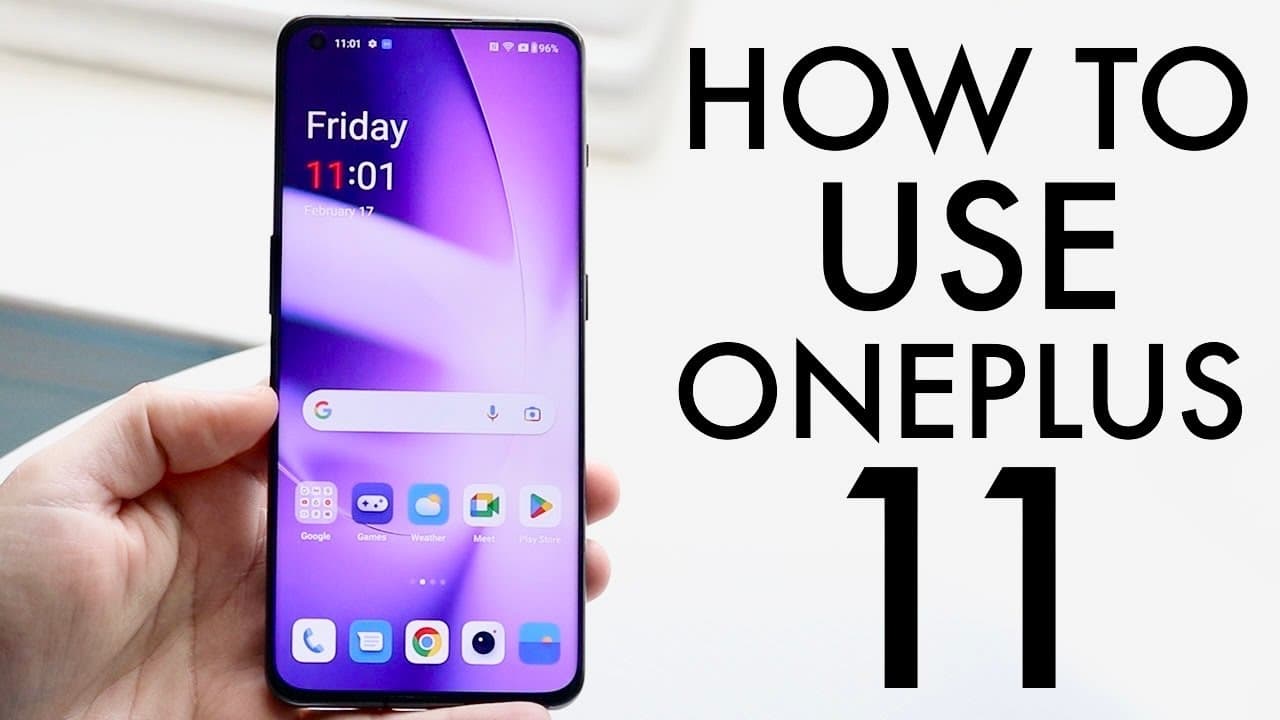
well everyone the OnePlus 11 has just came out so let me go ahead and show you exactly how to use this specific phone now luckily for you this is a pretty basic phone to use there's not really anything super crazy going on with it so you're in good hands trust me this phone is a pretty good phone that's going to last for quite a bit of time now on ... Read More
Key Insights
- 👊 The OnePlus 11 showcases a sleek design with a front-facing hole-punch camera and a beautiful display, appealing to users who appreciate aesthetics.
- 🆓 The device's gesture-based navigation replaces traditional buttons, allowing for a more immersive experience and freeing up screen space for apps and content.
- 👤 Users can quickly turn on the display using the power button or a double-tap gesture, demonstrating the phone's user-friendly capabilities.
- 🎨 The phone's back features a unique Sandstone design, adding a tactile element that enhances grip and gives it a premium feel.
- 😀 Multitasking is simplified by swiping up to access the multitasking menu, allowing users to switch between apps seamlessly without clutter.
- 💯 The settings application is vital for personalizing the user experience, providing access to Bluetooth, software updates, and other core functionalities.
- 🔒 Regular software updates are crucial for maintaining device performance and security, emphasizing the importance of navigating to the update section in settings.
Install to Summarize YouTube Videos and Get Transcripts
Explore YouTube Video Summarizer or Get YouTube Transcript Extractor
Questions & Answers
Q: What are the main controls available on the OnePlus 11?
The OnePlus 11 includes essential controls like volume buttons on the left side and a power button on the right. Additionally, there is a unique ringer/mute switch for quick sound adjustments. This combination allows users to manage phone settings effortlessly, which is particularly advantageous for those accustomed to physical controls instead of touchscreen interfaces.
Q: How can I quickly access notifications on the OnePlus 11?
You can access notifications by swiping down from the status bar. This action reveals your control center, displaying notifications and allowing quick adjustments like brightness and toggles for functions such as Wi-Fi and Bluetooth. It's an efficient way to manage alerts while using other apps without interrupting your workflow.
Q: What should I do if I want to switch SIM cards on the OnePlus 11?
To switch SIM cards, use a SIM eject tool to access the SIM card tray located on the phone’s left side. Insert the tool into the small hole near the tray to pop it out. After removing the current SIM card, insert your new SIM, ensure it's positioned correctly, and push the tray back in. This allows you to update your network service seamlessly.
Q: Can I customize my home screen and app layout on the OnePlus 11?
Yes, you can customize your home screen by holding down app icons to move them around or remove them. You can also add widgets to enhance functionality. The dock at the bottom is customizable as well, allowing you to keep your most-used apps accessible. This flexibility lets you organize your device according to your preferences.
Summary & Key Takeaways
-
The OnePlus 11 features a user-friendly design with essential buttons for volume control and a unique mute switch, enhancing ease of use.
-
Users can access various settings, notifications, and applications through intuitive gestures and a well-organized control panel, providing a seamless user experience.
-
The guide emphasizes utilizing the settings application and keeping the software updated to ensure optimal performance of the OnePlus 11.
Read in Other Languages (beta)
Share This Summary 📚
Summarize YouTube Videos and Get Video Transcripts with 1-Click
Try YouTube Summary with ChatGPT & Claude or YouTube Transcript Generator
Explore More Summaries from Simple Alpaca 📚


Summarize YouTube Videos and Get Video Transcripts with 1-Click
Try YouTube Summary with ChatGPT & Claude or YouTube Transcript Generator