Old Mac to New Mac | How to Transfer Everything
TL;DR
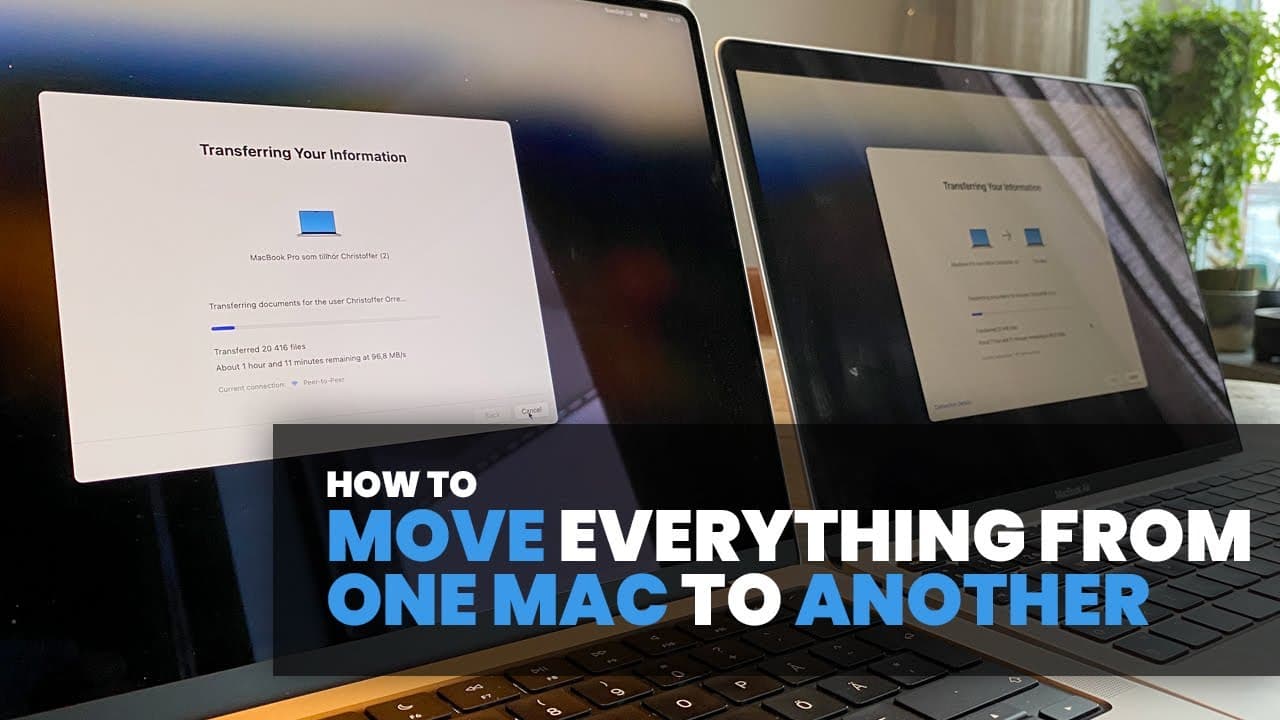
Migration Assistant allows seamless data transfer from one Mac to another.
Transcript
hi if you're moving from one Mac to another there is a neat built-in feature called migration assistant that lets you move basically everything from the old computer to the new one all in one go the only things I have found does not get transferred over is modification to system files something that normal users should not experience any issues wit... Read More
Key Insights
- 👤 Migration Assistant simplifies the process of transferring data between Macs, making it accessible for users regardless of their technical experience.
- 🚠 A stable connection between both devices, either wirelessly or via cable, is crucial for smooth data migration.
- 👶 Ensuring sufficient storage on the new Mac, along with proper setup, can greatly enhance the user experience during migration.
- 👶 Post-transfer, users might need to re-enter their Apple ID and verify certain applications for proper functionality on the new device.
- 📁 Users should monitor the migration process to ensure all desired files are being transferred and check for missing files at the end.
- ⚾ The transfer process is designed to be efficient, typically completing within a reasonable timeframe based on data volume.
- 👤 Familiarity with the Migration Assistant's steps will enable users to resolve any common issues during data transfer effortlessly.
Install to Summarize YouTube Videos and Get Transcripts
Explore YouTube Video Summarizer or Get YouTube Transcript Extractor
Questions & Answers
Q: What is Migration Assistant, and how does it work?
Migration Assistant is a built-in macOS tool that facilitates the transfer of data between two Macs. To use it, both Macs need to be connected to the same wireless network, or through a cable. The receiving Mac initiates the assistant during setup, which identifies the transmitting Mac, allowing users to choose the data they wish to transfer including applications, documents, and settings.
Q: What precautions should I take before starting the data transfer?
Prior to using Migration Assistant, ensure that the receiving Mac has sufficient available storage for all incoming files. It’s advisable to perform a factory reset on it for optimal performance. Additionally, connect both Macs to a power source to avoid interruptions during the transfer due to low battery, which can lead to incomplete data migration.
Q: Can the new Mac be used for anything else while transferring data?
It is not recommended to use the new Mac for other tasks while the data transfer is happening, as this could slow down the process or lead to potential data corruption. It’s best to leave the new Mac to focus on the transfer until the migration is finished, ensuring a smoother and faster experience.
Q: What types of files or settings might not get transferred?
While Migration Assistant transfers most files, some system files or settings related to specific applications may not transfer over due to compatibility issues. However, everyday users typically don't encounter these issues as most applications and user settings are fully migrated without any problems.
Q: How long does the migration process usually take?
The duration of the migration process can vary depending on the amount of data being transferred. In the example provided, the process took about an hour to an hour and a half. It's important to allow adequate time, especially if you're moving a large volume of files.
Q: What happens if some files do not transfer successfully?
If some files do not transfer, Migration Assistant will usually notify the user at completion. Users should verify the migration by checking key applications and files on the new Mac before deciding to erase or factory reset the old one. It’s typically safe if the missing files are non-essential or system-related.
Summary & Key Takeaways
-
Migration Assistant is a built-in feature for Macs that helps users transfer data, including apps and settings, from an old Mac to a new one seamlessly.
-
To commence the transfer, both Macs must be on the same wireless network, or you can connect them using a Thunderbolt or USB-C cable.
-
The process involves ensuring enough storage space on the new Mac, initiating Migration Assistant, and monitoring the transfer to ensure all desired files are moved correctly.
Read in Other Languages (beta)
Share This Summary 📚
Summarize YouTube Videos and Get Video Transcripts with 1-Click
Try YouTube Summary with ChatGPT & Claude or YouTube Transcript Generator
Explore More Summaries from Get There Faster 📚




Summarize YouTube Videos and Get Video Transcripts with 1-Click
Try YouTube Summary with ChatGPT & Claude or YouTube Transcript Generator