how to grab all the picture from MS Word
TL;DR
Learn how to extract all images from Word, PowerPoint, and Publisher documents quickly.
Transcript
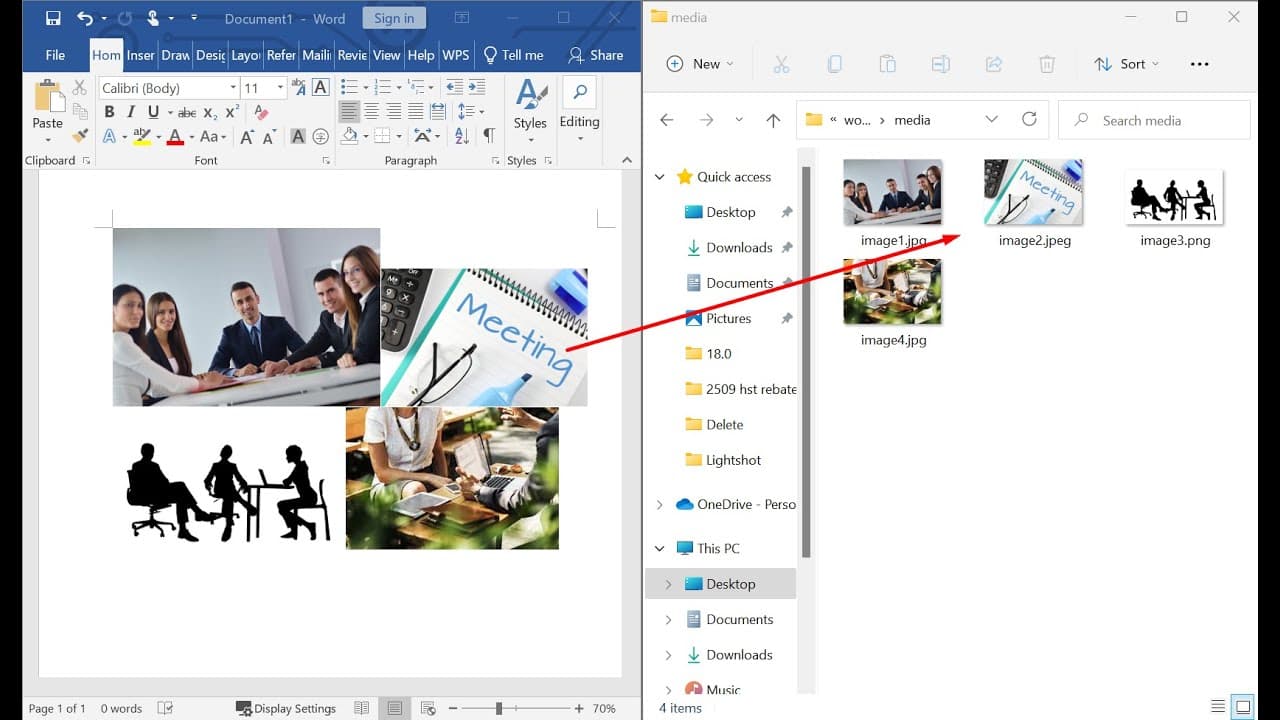
hello in this video i will show you how to grab all the pictures from the microsoft word our powerpoint our publisher so for example you have a document and you have let's go to the you'll have four picture in the word document okay so if you want to save a single picture you just click that and right click save as picture but if you want to save a... Read More
Key Insights
- 👤 Users can efficiently extract all images from various Microsoft Office applications, including Word, PowerPoint, and Publisher, using a straightforward method.
- 🌸 It is crucial to back up the original document before changing the file extension to avoid potential data loss during the extraction process.
- 💾 Extracting images is particularly helpful for users who need multiple images from a document without having to save each one individually, saving valuable time.
- 📜 Renaming the document and changing its file extension to .zip is a common technique to access embedded files within Microsoft Office documents.
- 👻 The process allows you to collect images in one operation rather than tedious manual clicks, enhancing productivity.
- 💦 Understanding file extensions and their purposes is important for users working with digital documents in extracting resources efficiently.
- 👤 This tutorial highlights practical skills that can empower users to manipulate Microsoft documents beyond the basic functionalities offered by the software itself.
Install to Summarize YouTube Videos and Get Transcripts
Explore YouTube Video Summarizer or Get YouTube Transcript Extractor
Questions & Answers
Q: What is the first step to extract images from a Word document?
The first step is to save the document containing the images you wish to extract. This ensures that you have a preserved version of the original document before making any modifications or extracting the images, which helps prevent accidental loss of data.
Q: Why is it necessary to change the file extension to .zip?
Changing the file extension to .zip allows you to access the document as a compressed file, which enables you to view its internal folders and files. Inside this compressed file, you will find a media folder where all the images are stored, making extraction easier.
Q: Can you extract images from PowerPoint and Publisher documents using the same method?
Yes, the method for extracting images applies to Word, PowerPoint, and Publisher documents alike. By following similar steps—saving the document, renaming it, and changing its file extension to .zip—you can access and extract images from these file types.
Q: What should you do if the document extraction process prompts a warning?
If you're prompted with a warning during the document extraction process, you should carefully read the message to understand the issue. If it suggests that the file is unusable, you might need to close the document and ensure that it is saved correctly before trying the extraction again.
Summary & Key Takeaways
-
This video tutorial explains the steps to extract all images from Microsoft Word, PowerPoint, or Publisher documents efficiently, focusing on saving time and effort.
-
The process involves saving the document, renaming it, and changing its file extension to access the media folder containing all images within the document.
-
It emphasizes the importance of backing up the original document before making any changes to avoid data loss or corruption.
Read in Other Languages (beta)
Share This Summary 📚
Summarize YouTube Videos and Get Video Transcripts with 1-Click
Try YouTube Summary with ChatGPT & Claude or YouTube Transcript Generator
Explore More Summaries from E Micro Tech 📚

Summarize YouTube Videos and Get Video Transcripts with 1-Click
Try YouTube Summary with ChatGPT & Claude or YouTube Transcript Generator