How to insert drop down list into MS excel - two methods
TL;DR
Learn two methods for creating dropdown lists in Excel.
Transcript
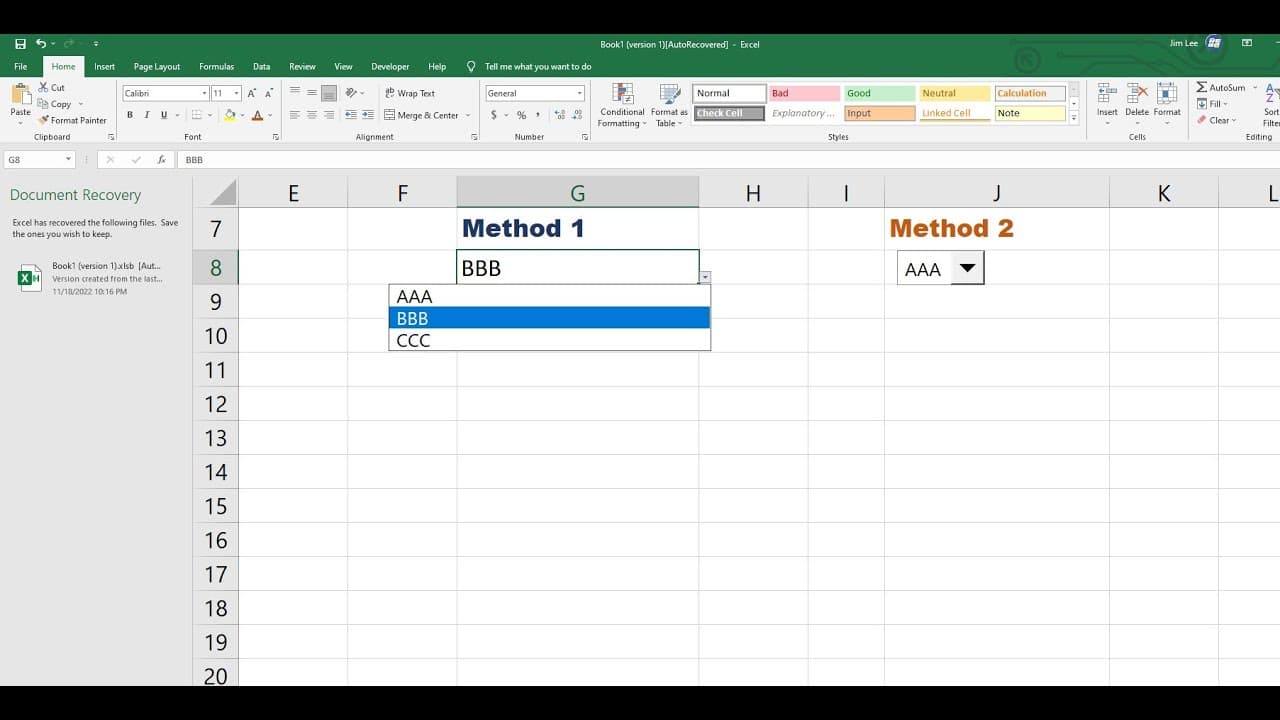
foreign drop down list into Microsoft Excel so there is two methods my message is like this so when you click the small Arrow here it shows the list and if you move your mouse to another another cell you won't see the drop down icon here only when you click this icon you'll show you can see the icon over here another drop down list is like this it'... Read More
Key Insights
- 👂 Excel provides multiple methods for creating dropdown lists, catering to different user preferences and needs.
- 👂 The basic data validation method is accessible and straightforward, suitable for quick lists.
- 🍱 The combo box method offers enhanced functionality with better visual cues and expanded customization options.
- 👤 Users must enable the Developer tab to access advanced controls, which improves spreadsheet interactivity.
- 🧡 Properly defining source ranges for dropdown options is essential for ensuring the accuracy and usability of data entry fields.
- 👤 Dropdowns can streamline the data entry process, reducing errors and providing users with defined choices.
- 👻 Familiarity with both methods enhances Excel proficiency, allowing users to choose the most appropriate tool for their needs.
Install to Summarize YouTube Videos and Get Transcripts
Explore YouTube Video Summarizer or Get YouTube Transcript Extractor
Questions & Answers
Q: What are the two methods for creating dropdown lists in Excel?
The two methods highlighted in the content are the basic data validation method and the combo box method. The data validation method is more straightforward, intended for simple lists, whereas the combo box method, accessed via the Developer tab, allows for custom sizing and a more integrated visual component in the spreadsheet.
Q: How do you create a dropdown list using the data validation method?
To create a dropdown list through data validation, first select the desired cell, navigate to the Data tab, and choose Data Validation. Within the settings, select "List" from the Allow dropdown, and specify the source range that contains the options for your dropdown list. Once configured, the dropdown will appear when the cell is activated.
Q: Why might someone prefer using the combo box method?
Someone might prefer the combo box method because it enhances user experience by providing a more visible and interactive dropdown option. This method minimizes confusion, as the combo box visually indicates its presence, reducing the chances of users overlooking the dropdown feature that can occur with standard data validation lists.
Q: How do you display the Developer tab in Excel?
To display the Developer tab in Excel, click on File, then Options, and navigate to Customize Ribbon. In the right pane of the dialog, check the box next to Developer to enable the tab. This will provide access to advanced features, including the option to insert combo boxes and controls.
Q: What is the importance of the input range in the combo box method?
The input range in the combo box method is crucial because it defines the source list from which users can select options. By selecting the appropriate range, users ensure the combo box accurately reflects available choices, enhancing the usability of the dropdown. Properly setting this range prevents errors and improves data entry accuracy.
Q: Can the dropdown options in Excel be edited after they are created?
Yes, the dropdown options can be edited after creation. For the data validation method, you can revisit the Data Validation settings, and modify the source list to include new options or changes. For the combo box method, adjustments can also be made by updating the input range or modifying the associated range of cells.
Summary & Key Takeaways
-
The content outlines two distinct methods for creating dropdown lists in Microsoft Excel: the basic data validation method and the more advanced combo box method.
-
The first method involves selecting the desired cell, accessing data validation, and specifying a source list for dropdown options.
-
The second method utilizes the Developer tab to insert a combo box, which provides an alternative dropdown interface, allowing for greater visibility and usability.
Read in Other Languages (beta)
Share This Summary 📚
Summarize YouTube Videos and Get Video Transcripts with 1-Click
Try YouTube Summary with ChatGPT & Claude or YouTube Transcript Generator
Explore More Summaries from E Micro Tech 📚

Summarize YouTube Videos and Get Video Transcripts with 1-Click
Try YouTube Summary with ChatGPT & Claude or YouTube Transcript Generator