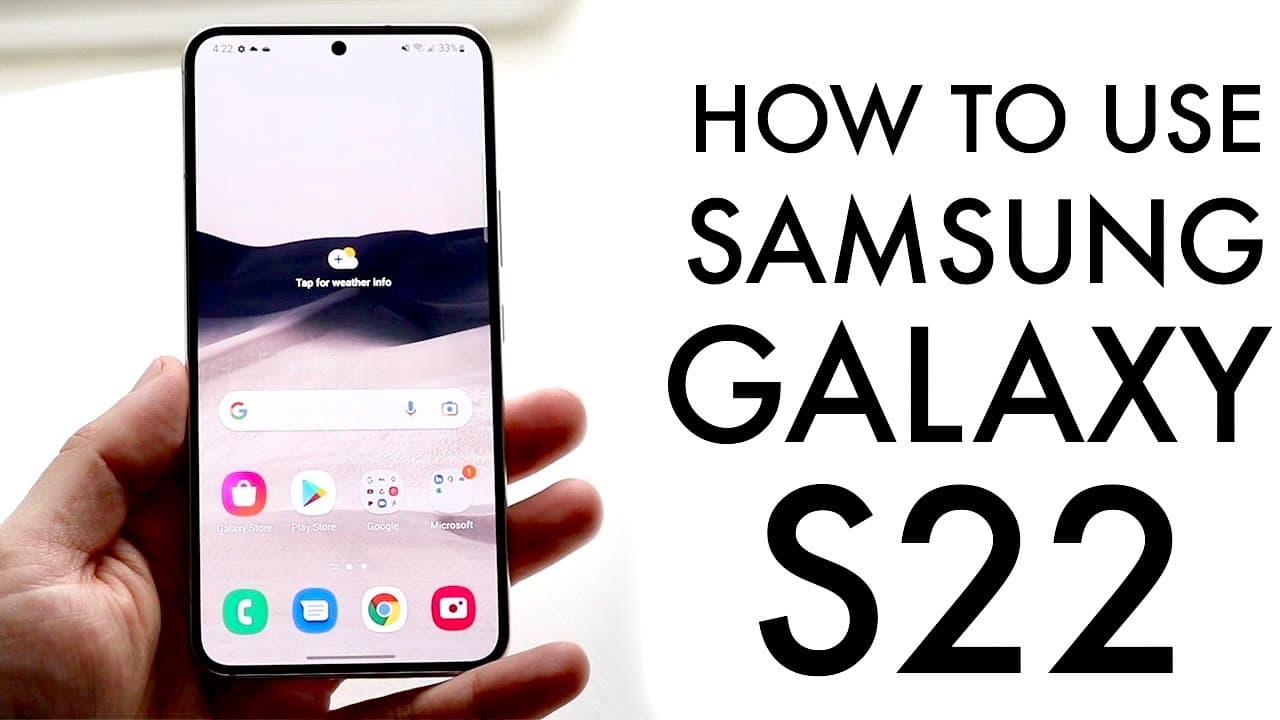
How to Use Samsung Galaxy S22 for Beginners
TL;DR
To use the Samsung Galaxy S22, start by setting up the phone, which involves inserting your SIM card and customizing your home screen. Familiarize yourself with basic features like making calls, sending texts, and downloading apps, all navigable through intuitive gesture controls or a navigation bar.
Transcript
well congratulations to you if you just picked up the samsung galaxy s22 this is a great phone and i'm sure you're going to love this phone in the future but you may be beginner to samsung or the s22 so let me go and show you how to use this phone it's nothing crazy it's a very basic phone to use luckily but basically on the outside we have a beaut... Read More
Key Insights
- 👤 The Samsung Galaxy S22 boasts a user-friendly design, making it particularly appealing to beginners and those transitioning from other phone brands.
- 👤 The phone features a robust dynamic display, which enhances visual quality and overall user engagement.
- 😀 Customization options available on the home screen allow users to arrange their apps and widgets according to personal preference.
- 🔔 The notification management system provides easy access to alerts and quick settings, facilitating efficient multitasking.
- 🤟 Gesture-based navigation offers a modern approach to interfacing with the device, catering to different user preferences.
- 👶 Software updates are essential to maintaining the phone's performance, security, and access to new features.
- 🎥 The camera functionality includes a variety of modes and settings, catering to amateur and more serious photography enthusiasts.
Install to Summarize YouTube Videos and Get Transcripts
Explore YouTube Video Summarizer or Get YouTube Transcript Extractor
Questions & Answers
Q: What features make the Samsung Galaxy S22 beginner-friendly?
The Samsung Galaxy S22 is designed with an intuitive interface, featuring a 6.1-inch dynamic display and easy access to essential functions. It supports both gesture navigation and a traditional navigation bar, making it flexible for users of varying experience levels. This accessibility enables new users to navigate the phone effectively without feeling overwhelmed.
Q: How do you insert a SIM card into the Galaxy S22?
Inserting a SIM card requires a SIM card eject tool, typically included in the box. Locate the small hole on the right side of the phone, press the tool into the hole, and the SIM tray will pop out. Place your SIM card in the tray appropriately, reinsert the tray gently, and your phone should recognize the SIM.
Q: What are the primary ways to customize the home screen?
Users can customize the home screen by long-pressing app icons to move them, create folders, or remove apps from the screen. Additionally, holding down on an empty space allows access to wallpaper, themes, and widgets, offering various ways to personalize the layout to one's preference.
Q: How can I manage my notifications on the Galaxy S22?
Swiping down from the top of the screen reveals the notification panel, displaying all recent notifications. Quick toggles for settings like Wi-Fi and Bluetooth are also accessible here. Users can swipe down again for further options like brightness adjustments and shortcuts to frequently used features, streamlining their experience.
Q: What options do I have for navigating between apps?
Users can navigate between apps using gestures by swiping up on the navigation bar or using the recent apps panel, accessible by a swipe up and holding from the bottom of the screen. This method allows quick switching between applications without needing to return to the home screen constantly.
Q: How do I update the software on my Galaxy S22?
To update the software, go to the settings panel, which can be accessed through the app drawer or the notification bar. Scroll to “Software Update” and tap it; this will check for any available updates. Keeping the phone updated is crucial for performance enhancement and security improvements.
Q: What should new users know about managing apps?
New users should learn to download apps through the Google Play Store, accessible from the home screen or app drawer. Once installed, apps can be managed by long-pressing to uninstall or move them. Organizing apps into folders or modifying the dock can further enhance user experience.
Q: How can users effectively use the camera functionality?
The camera app on the Galaxy S22 is straightforward, allowing users to take photos and videos easily. Users can access the camera directly from the lock screen or home screen. Familiarizing oneself with different camera modes and settings within the app can enrich the photography experience.
Summary & Key Takeaways
-
The Samsung Galaxy S22 is designed for ease of use and features a stunning 6.1-inch display, ideal for beginners looking for a reliable smartphone experience.
-
Users can easily access essential features like making calls, sending texts, and installing apps through a straightforward interface designed for navigation via gestures or a navigation bar.
-
Setting up the phone requires a simple process that includes inserting a SIM card, customizing the home screen, and familiarizing yourself with settings and applications.
Read in Other Languages (beta)
Share This Summary 📚
Summarize YouTube Videos and Get Video Transcripts with 1-Click
Try YouTube Summary with ChatGPT & Claude or YouTube Transcript Generator
Explore More Summaries from Simple Alpaca 📚

Summarize YouTube Videos and Get Video Transcripts with 1-Click
Try YouTube Summary with ChatGPT & Claude or YouTube Transcript Generator