How to Transfer Videos from iPhone to Mac
TL;DR
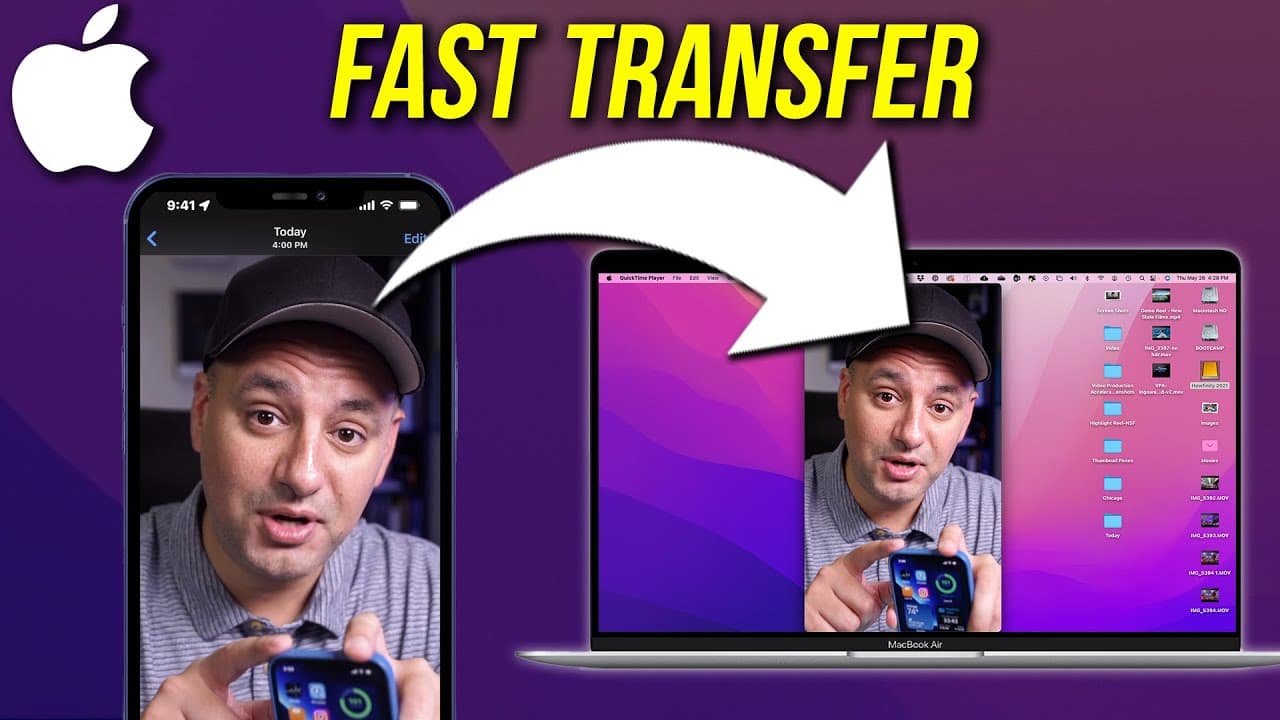
Learn two simple methods to transfer videos from iPhone to Mac wirelessly using Airdrop or via USB with Image Capture.
Transcript
let me show you two simple ways for taking any video file on your iphone or ipad and sending it to your mac computer and it works for any mac the very first step is wireless and it uses something called airdrop so all you have to do is make sure right here on your control center that you have wi-fi and bluetooth enabled and if you press and hold ri... Read More
Key Insights
- 👻 Airdrop allows wireless transfer of videos between iPhone and Mac by enabling Wi-Fi and Bluetooth.
- 🇲🇰 Image Capture on Mac facilitates video transfer from iPhone to Mac via USB connection.
- 🏪 Videos must be locally stored on the iPhone for them to appear in Image Capture for transfer.
- 💦 Airdrop works with all types of Mac computers for seamless video transfer.
- 🐎 Slow internet speed can be bypassed by using a USB connection for transferring videos.
- 🎮 Multiple videos can be transferred at once using Airdrop or Image Capture for efficiency.
- 🎮 Ensure proper settings and connections on both iPhone and Mac for successful video transfer.
Install to Summarize YouTube Videos and Get Transcripts
Explore YouTube Video Summarizer or Get YouTube Transcript Extractor
Questions & Answers
Q: How can I transfer videos from my iPhone to my Mac wirelessly?
To transfer videos wirelessly, enable Airdrop on both devices, select the video on your iPhone, press the up arrow, choose Airdrop, and select your Mac to send the video.
Q: Can I transfer multiple videos at once using Airdrop?
Yes, you can select and send multiple videos at once using Airdrop by pressing the up arrow on each video and choosing Airdrop to send them to your Mac.
Q: What do I need to do to transfer videos from my iPhone to my Mac via USB?
Connect your iPhone to your Mac with a USB cable, open Image Capture on your Mac, select the videos you want to transfer, choose a destination folder, and click download.
Q: Where can I find videos on my iPhone to transfer via Image Capture?
Videos that are locally stored on your iPhone will show up in Image Capture, not those stored in iCloud. Ensure the videos are saved on your device to transfer them.
Summary & Key Takeaways
-
Transfer videos from iPhone to Mac wirelessly using Airdrop by enabling Wi-Fi and Bluetooth, selecting the video, pressing the up arrow, and choosing Airdrop.
-
Use Image Capture on Mac to transfer videos via USB by connecting the iPhone to the Mac, opening Image Capture, selecting the videos, and downloading them to a chosen folder.
-
Ensure videos are locally stored on the iPhone for them to show up in Image Capture and not in iCloud.
Read in Other Languages (beta)
Share This Summary 📚
Summarize YouTube Videos and Get Video Transcripts with 1-Click
Try YouTube Summary with ChatGPT & Claude or YouTube Transcript Generator
Explore More Summaries from Howfinity 📚



Summarize YouTube Videos and Get Video Transcripts with 1-Click
Try YouTube Summary with ChatGPT & Claude or YouTube Transcript Generator