Awesome iPhone Keyboard Tricks! (2021)
TL;DR
Learn essential iPhone keyboard tips to enhance typing efficiency.
Transcript
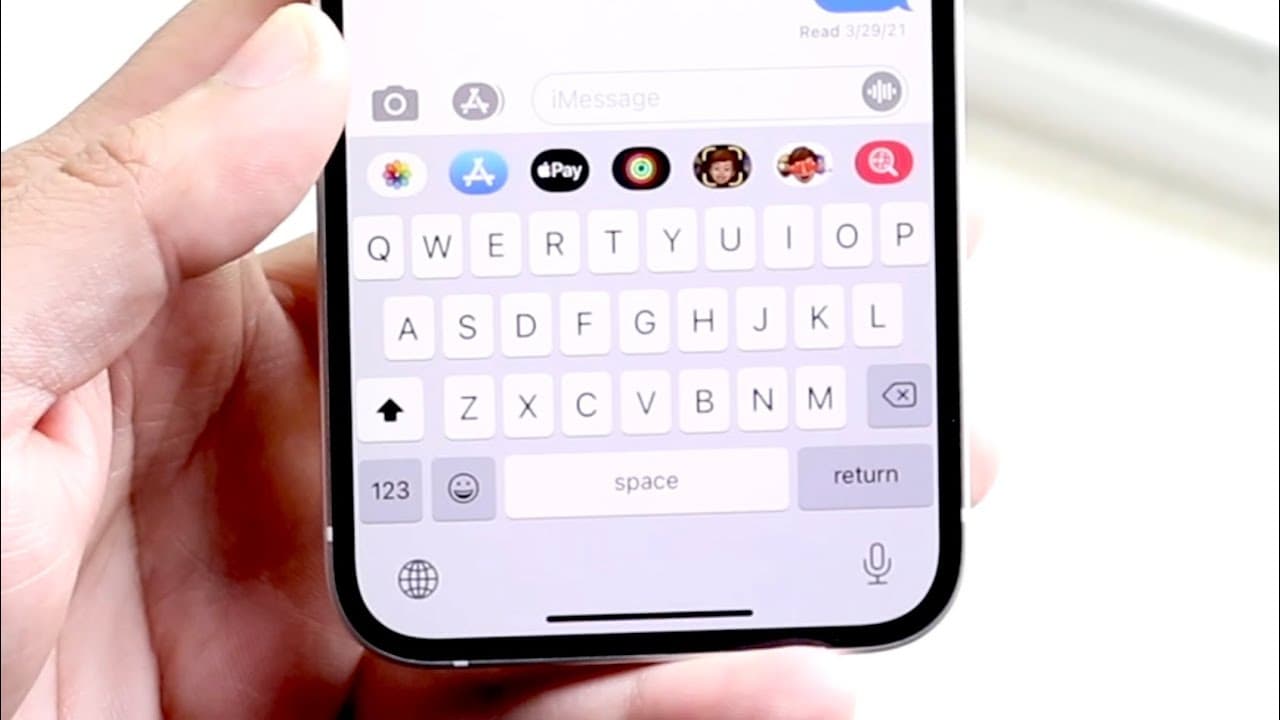
welcome back everyone let's go ahead and talk about some awesome iphone keyboard tricks and tips that you can utilize on really any iphone out there so i'll go ahead and get started i mean like i mentioned you can do these on pretty much any single iphone for really any single possibility the very first thing i'm going to show you is exactly how to... Read More
Key Insights
- 🏪 The iPhone keyboard has several hidden features that enhance typing convenience beyond standard typing.
- 🥳 Accessing special characters is a straightforward process, enriching the expressiveness of text without needing third-party applications.
- 🥌 Emoji representation can be personalized according to preferences by changing skin tones, promoting diversity in digital communication.
- 🤗 The one-handed keyboard feature is beneficial for users who find it challenging to type using both hands on larger devices.
- 👻 Transforming the keyboard into a trackpad allows for precise cursor movements, invaluable when editing text.
- 🔍 The recent inclusion of the magnifying glass feature improves usability when locating specific text in long passages.
- 🤩 Quickly navigating to websites using the period key saves time and simplifies online browsing activities for users.
Install to Summarize YouTube Videos and Get Transcripts
Explore YouTube Video Summarizer or Get YouTube Transcript Extractor
Questions & Answers
Q: What are special characters and how do I access them on my iPhone keyboard?
Special characters are unique symbols that can enhance your text, like é or ñ. To access them, press and hold the relevant key on your iPhone keyboard. A mini-menu will pop up displaying available special characters for that key, allowing you to select the one you need easily.
Q: How can I customize the skin tone of emojis on my iPhone?
To customize an emoji's skin tone, simply press and hold the emoji icon in the keyboard toolbar. This prompts the appearance of various skin tone options for human emojis, enabling you to choose the specific representation you'd like for your communication.
Q: What is the one-handed keyboard mode and how do I activate it?
The one-handed keyboard mode is designed for easier typing on larger iPhones. To activate this mode, press and hold the globe icon in the bottom-left corner of the keyboard. From the options that appear, select either the left or right one-handed keyboard, allowing for more accessible reach with one hand.
Q: How can I use my iPhone keyboard as a trackpad?
You can use your iPhone keyboard as a trackpad by holding down the spacebar. This will change the keyboard into a trackpad, allowing you to easily move the cursor around to place it accurately within your text, making editing much simpler and efficient.
Q: How does holding the period key assist with URL typing?
Holding down the period key brings up a menu that offers different domain options like .com, .net, and .org. Instead of typing out the full domain, like google.com, you can simply type "google," hold the period key, and select ".com" which speeds up the URL entering process significantly.
Summary & Key Takeaways
-
The content provides various tips for utilizing frequently overlooked features on the stock iPhone keyboard, most of which are applicable across different iPhone models.
-
One highlighted feature is the ability to access special characters by holding down specific keys and customizing emojis by changing skin tones for better representation.
-
Additional tricks include using a one-handed keyboard mode, transforming the keyboard into a trackpad, and quickly navigating URLs by holding the period key for different domain endings.
Read in Other Languages (beta)
Share This Summary 📚
Summarize YouTube Videos and Get Video Transcripts with 1-Click
Try YouTube Summary with ChatGPT & Claude or YouTube Transcript Generator
Explore More Summaries from Simple Alpaca 📚


Summarize YouTube Videos and Get Video Transcripts with 1-Click
Try YouTube Summary with ChatGPT & Claude or YouTube Transcript Generator