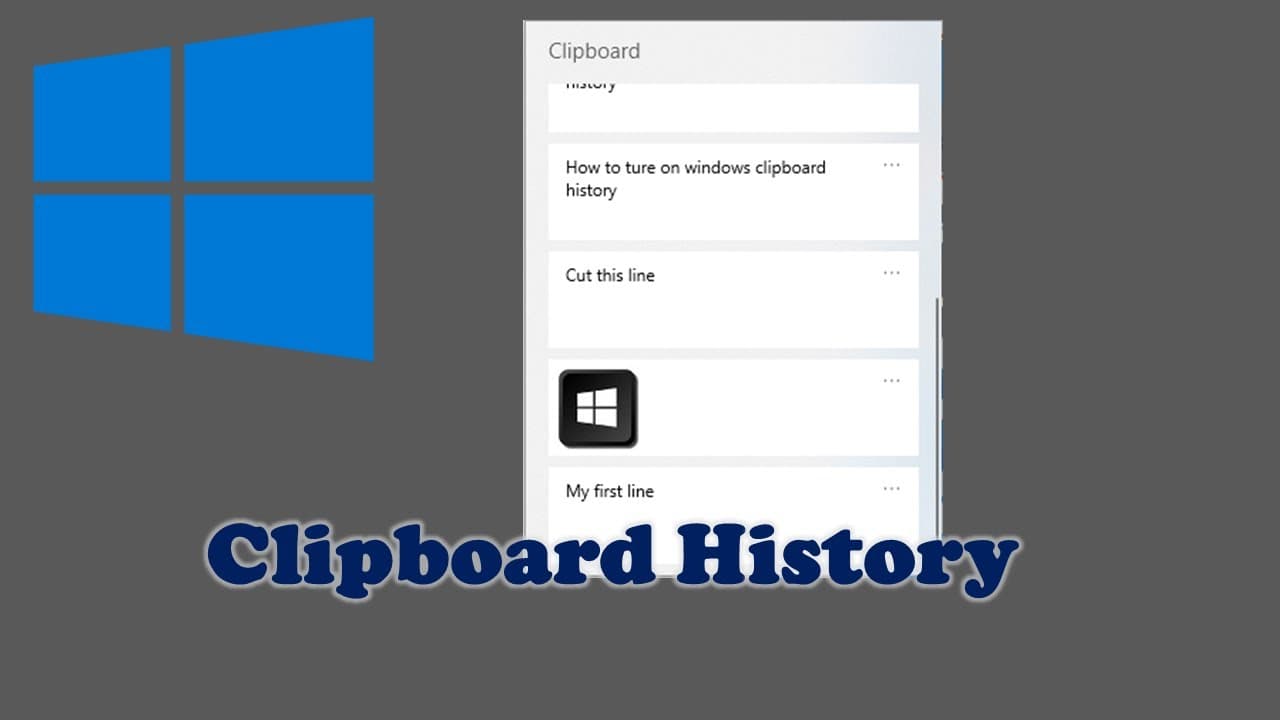
How to turn on windows clipboard history
TL;DR
Learn how to activate and use clipboard history in Windows.
Transcript
hello in this video i will show you how to turn on the windows clipboard history to do that you need sheet windows key and the v key together it will give your clipboard history option if you not turn on this before you need turn on it to enable it now you can see we have this the first one i may use the copy the copy the picture that's show that a... Read More
Key Insights
- 👻 Clipboard history is a useful feature in Windows that allows users to track their copied content easily, enhancing productivity.
- 🤩 Accessing clipboard history is as simple as pressing two keys, making it a quick tool for managing copied items.
- 💇 Users can cut and paste items directly from the clipboard history, providing more options for content management and retrieval.
- 🏪 The ability to store images along with text in clipboard history significantly broadens its functionality for various tasks.
- 💨 Clearing the clipboard history is straightforward, offering a way to maintain privacy and remove unwanted copied items.
- 👤 Disabling clipboard history can help users avoid tracking copied items when they prefer to keep things private or to reduce clutter.
- 📋 Clipboard history is automatically cleared after being turned off and seems to maintain a memory of only the most recent actions.
Install to Summarize YouTube Videos and Get Transcripts
Explore YouTube Video Summarizer or Get YouTube Transcript Extractor
Questions & Answers
Q: How do you access clipboard history in Windows?
To access clipboard history in Windows, simply press the Windows key and the V key together. This shortcut opens the clipboard history panel, showing a list of the most recent copied items, including text and images. If clipboard history hasn't been enabled before, you'll need to turn it on through settings.
Q: Can clipboard history retain images or just text?
Yes, clipboard history in Windows can retain both text and images. When you copy an image, for instance, it will appear in your clipboard history panel alongside any text you may have copied. This feature makes it convenient to manage different types of copied content without losing track of what you've saved.
Q: How can you clear your clipboard history?
You can clear your clipboard history by opening the clipboard history panel with the Windows key and V key, then selecting the "Clear all" option. This will remove all previously copied items from your clipboard history, ensuring that nothing remains if you want to start fresh.
Q: Is it possible to disable clipboard history?
Yes, you can disable clipboard history in Windows. Go to the Settings menu, navigate to the System section, and find the Clipboard option. There, you'll see a toggle switch to turn clipboard history on or off, allowing you to manage how your clipboard functions based on your preferences.
Summary & Key Takeaways
-
The video demonstrates how to enable Windows clipboard history by pressing the Windows key and V key together, allowing users to view their copied content.
-
Users can paste copied items directly from the clipboard history and even manage their clipboard by cutting, copying, or clearing history entries.
-
To turn off clipboard history, users can navigate to System settings and toggle the clipboard option, which also allows for clearing the entire clipboard history.
Read in Other Languages (beta)
Share This Summary 📚
Summarize YouTube Videos and Get Video Transcripts with 1-Click
Try YouTube Summary with ChatGPT & Claude or YouTube Transcript Generator
Explore More Summaries from E Micro Tech 📚

Summarize YouTube Videos and Get Video Transcripts with 1-Click
Try YouTube Summary with ChatGPT & Claude or YouTube Transcript Generator