iPhone Tricks You Have To Try!
TL;DR
Discover essential iPhone keyboard and camera tricks to enhance usability and personalization.
Transcript
welcome back everyone let's go ahead and talk about some more random iphone tricks that you need to go ahead and check out now most of these maybe you guys already know but i love doing these episode videos so here goes nothing so as always the first trick a little bit of a different one you don't have to download anything you don't have to do anyt... Read More
Key Insights
- 👤 iPhone users can easily customize their keyboard layout for one-handed typing, enhancing usability.
- 🥌 Emoji skin tones can be altered for better representation, adding a personalized touch to conversations.
- 📠 Document scanning via the Notes app simplifies the paperwork process without needing external hardware like scanners or fax machines.
- 📷 Hidden camera features, like live photo settings and filters, enhance photography options within the native camera app.
- 👻 Handwritten messages in iMessage allow for a more personal communication style, using a simple interface.
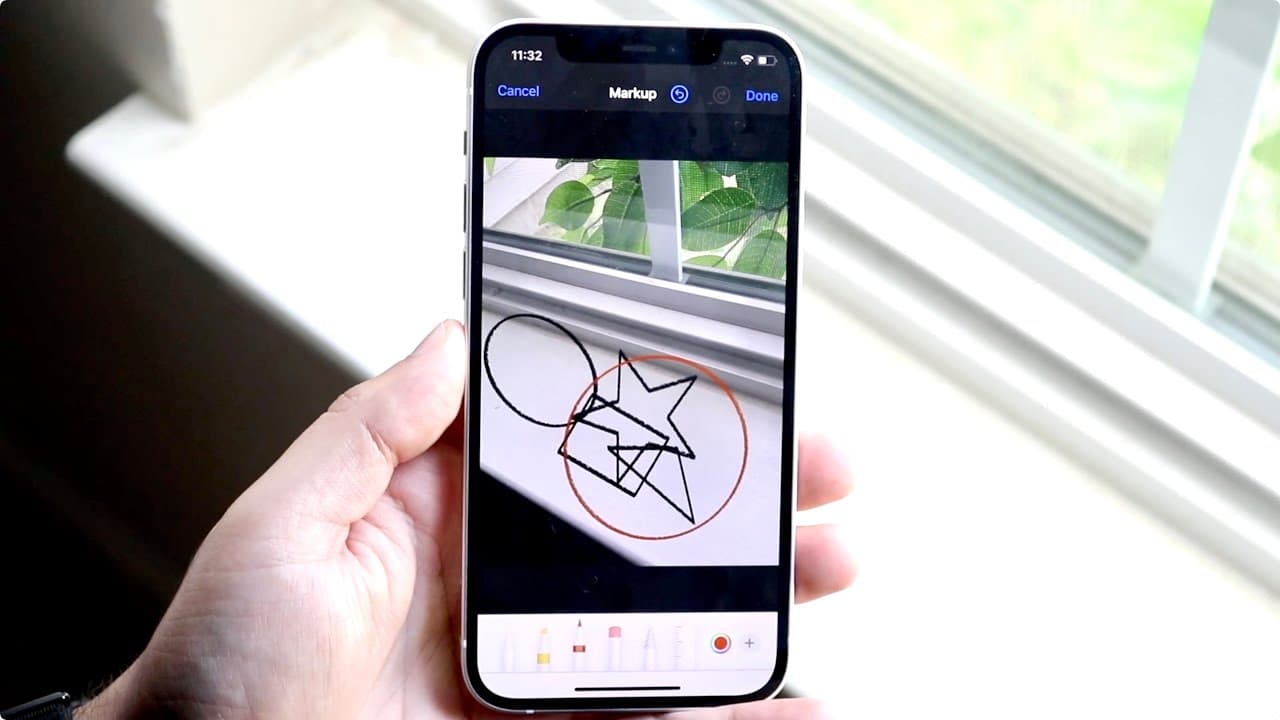
- 🥹 The Markup tool in photo editing enables users to draw perfect shapes by holding down their finger, streamlining creative processes.
- 💁 Utilizing these tips enriches the overall iPhone experience by making everyday tasks more efficient and enjoyable.
Install to Summarize YouTube Videos and Get Transcripts
Explore YouTube Video Summarizer or Get YouTube Transcript Extractor
Questions & Answers
Q: How can I adjust my iPhone keyboard for one-handed use?
To enable one-handed mode on your iPhone keyboard, hold down the globe icon on the keyboard. This will bring up an option to shift the keyboard to the left or right side, making typing easier with one hand. Simply choose your desired position, and the keyboard will adjust accordingly, providing a more comfortable typing experience on larger devices.
Q: What is the process for changing emoji skin colors on an iPhone?
To customize emoji skin tones, open the emoji keyboard and locate the emoji you wish to change. Hold down the emoji icon to reveal additional skin tone options. Select the preferred skin tone, and the emoji will update instantly. This feature enhances personalization and allows users to express themselves more accurately in their messages.
Q: How can I scan documents using my iPhone?
You can easily scan documents by launching the Notes app on your iPhone. Press and hold the Notes app icon to access options, then select "Scan Document." The camera will activate and automatically detect the edges of the document. Once the scan is complete, you can save or share the scanned document directly from the Notes app, streamlining your document management.
Q: What camera features are hidden in the iPhone's camera app?
To access hidden features in the iPhone camera app, tap the arrow at the top of the screen when in photo mode. This expands options including changing the aspect ratio, enabling live photo mode, adding filters, adjusting brightness, and setting a timer for shots. These features increase your photography capabilities right from the camera interface.
Q: How do I send handwritten messages in iMessage?
To send a handwritten message in iMessage, make sure your phone is in landscape mode and auto-rotation is enabled. Open a conversation, then rotate your iPhone. Tap the hand icon that appears and write your message. When satisfied, simply press send. This feature adds a personal touch to your messages.
Q: What is the method for drawing perfect shapes on photos using iPhone?
While editing a photo in the Markup tool, draw a shape like a circle or square. Instead of lifting your finger, hold it down to transform your drawing into a perfect shape. This method works for various shapes, including triangles and stars, enhancing your image editing process effectively and effortlessly.
Summary & Key Takeaways
-
This content highlights various iPhone keyboard tricks, such as customizing the keyboard layout for one-handed use and altering emoji skin tones for better expression.
-
The video also explains convenient methods for scanning documents using the Notes app and accessing hidden camera options for better photo quality and features.
-
Additional tips include sending handwritten messages through iMessage, drawing perfect shapes while editing photos, and enhancing overall usage experience with helpful shortcuts.
Read in Other Languages (beta)
Share This Summary 📚
Summarize YouTube Videos and Get Video Transcripts with 1-Click
Try YouTube Summary with ChatGPT & Claude or YouTube Transcript Generator
Explore More Summaries from Simple Alpaca 📚




Summarize YouTube Videos and Get Video Transcripts with 1-Click
Try YouTube Summary with ChatGPT & Claude or YouTube Transcript Generator