Adobe Illustrator Tutorial #2: Stroke Options Tools
TL;DR
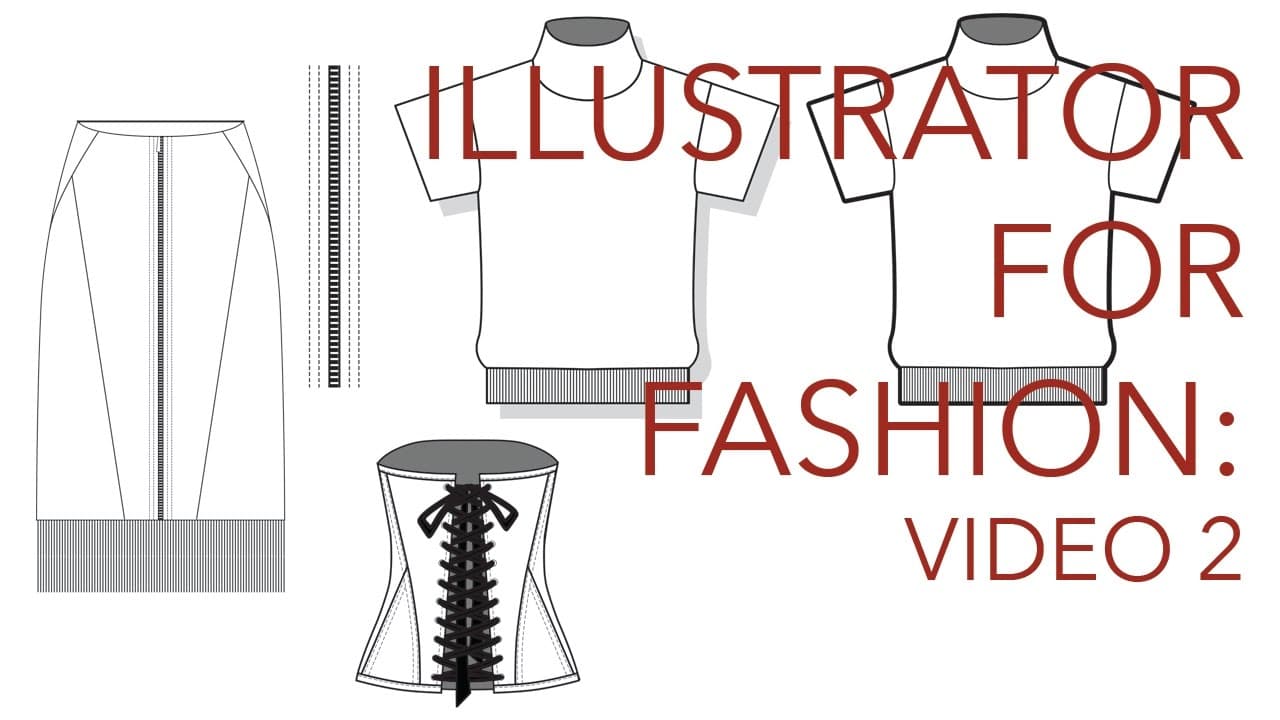
Learn how to utilize the stroke option box in Adobe Illustrator to draw more efficiently.
Transcript
this is what happens when I don't feel like dry I do adobe illustrator tutorials instead hi guys this is part 2 there's a part one and you know if you are like a super beginner with illustrator and you haven't seen part one I highly recommend you see part one in this video we are going to take apart the stroke tool option box and I'm going to show ... Read More
Key Insights
- 🏙️ The stroke option box in Adobe Illustrator is a powerful tool for adjusting the thickness, cap, corner, and dash properties of lines.
- 👷 Personal preferences for stroke width, cap, and corner options depend on the intended aesthetic and construction of the garment being illustrated.
- 🫓 The outline stroke tool is useful for maintaining the proportions of the stroke when resizing flat designs.
Install to Summarize YouTube Videos and Get Transcripts
Explore YouTube Video Summarizer or Get YouTube Transcript Extractor
Questions & Answers
Q: How can I adjust the thickness of a line using the stroke option box?
To adjust the thickness of a line, select the line and go to the stroke option box. You can either use the up and down arrows, write in a number, or click and drag to adjust the thickness to your desired level.
Q: What are the different cap options in the stroke option box?
The cap options in the stroke option box include butt cap, round cap, and projecting cap. Butt cap is the default option and ends the line right at the end of the path. Round cap rounds out the edges, while projecting cap extends the line past the drawn path.
Q: How can I adjust corners in the stroke option box?
In the stroke option box, you can choose between regular, rounded, and beveled corners. Adjusting the corners is especially useful when dealing with overlapping corners in garment illustrations, as it helps to create a clean and aligned look.
Q: Can I create a bold outline for my flat design using the stroke option box?
Yes, you can create a bold outline for your flat design by copying the entire design, pasting it onto a new layer, and grouping it. Then, increase the weight of the stroke to make it thicker. This technique can enhance the graphic presentation of your flats.
Q: How can I create dashed lines for top stitching in Illustrator flats?
In the stroke option box, select the dashed line option and adjust the dash and gap settings to create the desired top stitching effect. Dashed lines are commonly used for top stitching in Illustrator flats to clearly communicate the construction of the garment.
Q: Can the stroke option box be used for drawing zippers in Illustrator?
Yes, the dash line tool in the stroke option box can be used to draw zippers. By drawing a straight line and applying the dash line style, you can easily create zipper teeth. Additional details, such as fabric edges and top stitching, can be added to enhance the overall design.
Q: How can I create rib knit trim using the stroke option box?
To create rib knit trim, draw the width of the trim using the pen tool and then apply the dash line style in the stroke option box. Adjust the dash and gap settings to achieve the desired rib knit ratio. This technique can also be used for straight hanging fringe.
Q: When should I use the outline stroke tool?
The outline stroke tool should be used as a final step when your flat design is 100% finalized and done. It is used to convert all the strokes and dash lines into outlined paths, which allows you to resize the design without changing the proportions of the stroke.
Summary & Key Takeaways
-
This video is a part 2 tutorial on using the stroke tool option box in Adobe Illustrator.
-
The tutorial covers various tips and tricks for utilizing the stroke option box to draw more efficiently.
-
The video also discusses personal preferences for stroke width, cap and corner options, and using the outline stroke tool.
Read in Other Languages (beta)
Share This Summary 📚
Summarize YouTube Videos and Get Video Transcripts with 1-Click
Try YouTube Summary with ChatGPT & Claude or YouTube Transcript Generator
Explore More Summaries from Zoe Hong 📚
Summarize YouTube Videos and Get Video Transcripts with 1-Click
Try YouTube Summary with ChatGPT & Claude or YouTube Transcript Generator