MS PowerPoint how to align picture to pentagon
TL;DR
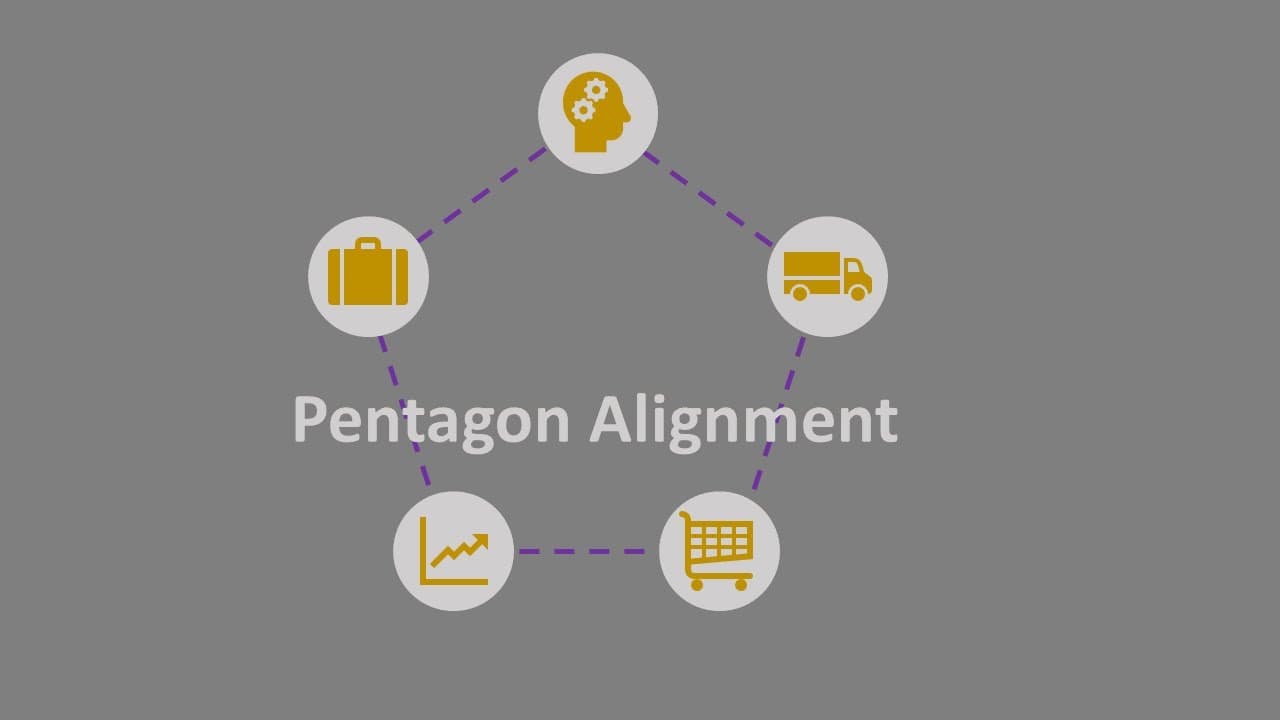
A step-by-step guide to aligning icons within shapes in PowerPoint.
Transcript
okay so let's insert the icon first go to insert icons we'll insert some written icon like uh okay so we need five icons so one here one here one here one here one here okay then let's insert the circle and it's a little bit big we hold shift c key and drag it then we don't need the for the shape fill we need some scenarios or outline we don't need... Read More
Key Insights
- 🔨 Using alignment tools in PowerPoint is crucial for achieving a professional and organized presentation layout.
- 🤩 Holding down specific keys, like shift and ctrl, helps maintain proportionality and facilitates easier duplication of objects.
- 🎨 Color and outline adjustments can significantly enhance the visual appeal of shapes and icons in a design.
- 👥 Grouping features in PowerPoint are beneficial for maintaining consistent adjustments across multiple objects.
- 🥇 It is essential to be meticulous when placing objects to ensure they are centered and properly aligned within the design framework.
- 👤 The use of visual indicators, like red alignment lines, assists users in accurately placing and aligning shapes.
- 💄 Knowing how to customize icons and shapes adds a unique touch to presentations, making them more engaging.
Install to Summarize YouTube Videos and Get Transcripts
Explore YouTube Video Summarizer or Get YouTube Transcript Extractor
Questions & Answers
Q: What is the first step in the icon alignment process in PowerPoint?
The first step is to go to the "Insert" tab and select "Icons" to begin inserting the desired icons into your presentation. You should aim to insert five icons, strategically placing one in each designated area as needed. This sets up the initial layout for further adjustments and alignments.
Q: How do you resize the circles created in PowerPoint?
To resize the circles, you need to hold down the "Shift" key while dragging the corner of the circle. This ensures that the circle stays proportional during resizing, preventing any distortion. It's essential to maintain the shape’s integrity while making it fit better within the design layout.
Q: Why is it important to group shapes in PowerPoint?
Grouping shapes in PowerPoint allows you to move and format multiple objects as a single entity. This means that any adjustments you make, such as resizing or repositioning, will apply to all grouped elements simultaneously, improving efficiency and ensuring consistency in your design.
Q: How can you change the outline weight of a shape in PowerPoint?
To change the outline weight of a shape, select the shape and navigate to the "Format" option. From there, you can adjust the outline weight by increasing or decreasing its thickness based on your design needs. This feature enhances visibility and helps distinguish the shapes in your presentation.
Summary & Key Takeaways
-
This content provides detailed instructions on how to insert icons and shapes into a PowerPoint presentation, including circles and pentagons.
-
The guide emphasizes the importance of using alignment tools, such as holding the shift and ctrl keys, to ensure precision while positioning the icons.
-
It concludes with tips on formatting outlines and changing colors of shapes to enhance visual appeal in a presentation.
Read in Other Languages (beta)
Share This Summary 📚
Summarize YouTube Videos and Get Video Transcripts with 1-Click
Try YouTube Summary with ChatGPT & Claude or YouTube Transcript Generator
Explore More Summaries from E Micro Tech 📚

Summarize YouTube Videos and Get Video Transcripts with 1-Click
Try YouTube Summary with ChatGPT & Claude or YouTube Transcript Generator