How to Use Your Phone as a Free Xbox Controller
TL;DR
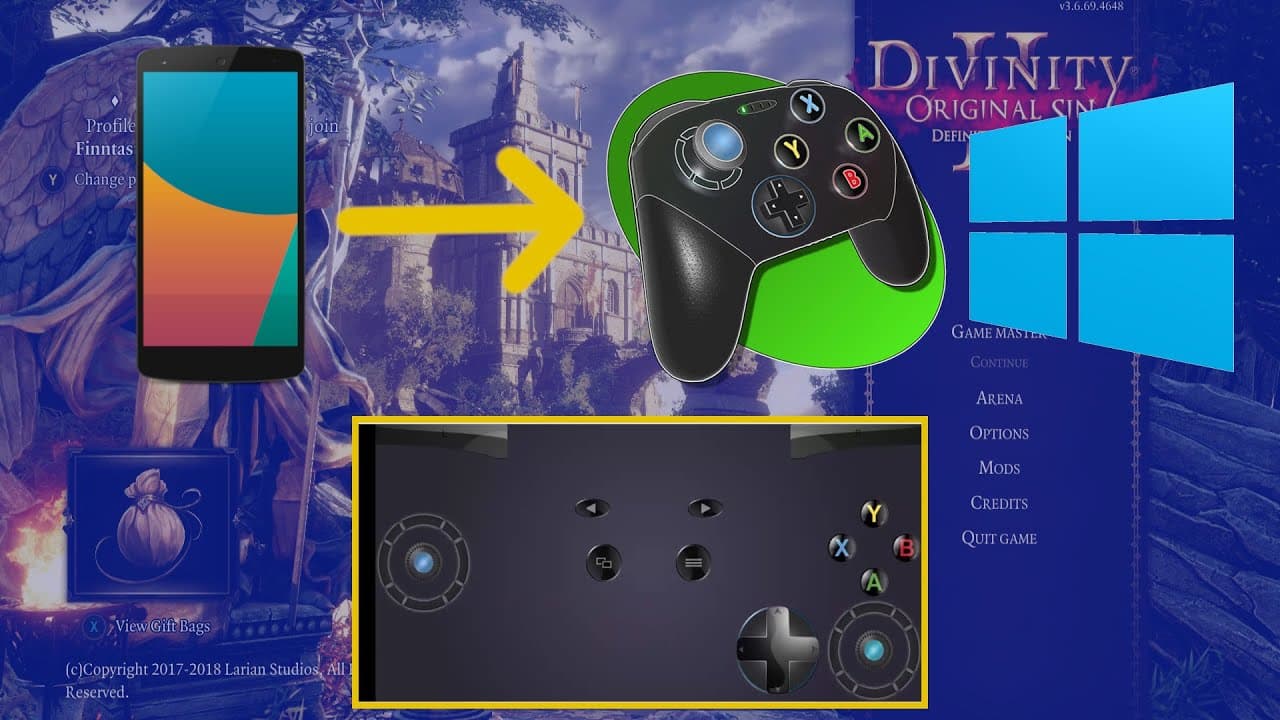
To turn your phone into a free Xbox controller for PC gaming, install the Joy Joy app on your phone and the Joy Joy server on your computer. Connect both over Wi-Fi or Bluetooth, and use the app to control compatible games with a layout similar to an Xbox 360 controller.
Transcript
hello everybody chris here and in this video i want to show you guys how you can turn your phone into a controller for your pc in order to play some games i'll be testing with divinity original send 2 today and the app that we use to do that is called joy joy so you need both joy joy's server installed on your computer to serve as the receiver and ... Read More
Key Insights
- 👏 Joy Joy is a mobile app that allows you to use your phone as a PC controller for gaming.
- 👏 To use Joy Joy, you need to install the app on your phone and the server on your computer.
- 🍿 The connection between the phone and the PC can be established through Wi-Fi or Bluetooth.
- 😥 Joy Joy Lite is the ad-supported version of the app, while the Pro version offers additional features.
- 🈸 The app provides a gamepad interface, similar to an Xbox 360 controller, with various buttons and sticks.
- 🎮 Compatible games with Xbox 360 controller support can be played using Joy Joy as the controller.
- 🎮 It's possible to connect multiple devices as controllers by enabling the second controller option in the server settings.
- 🎮 Bluetooth mode can be used to connect devices if Wi-Fi is not feasible or for multiple controller connections.
Install to Summarize YouTube Videos and Get Transcripts
Explore YouTube Video Summarizer or Get YouTube Transcript Extractor
Questions & Answers
Q: How can I turn my phone into a PC controller for gaming?
You can use Joy Joy, a mobile app, and its server to turn your phone into a PC controller. Install the server on your computer and the app on your phone, connect them, and you're ready to use your phone as a controller.
Q: Where can I download Joy Joy's mobile app?
You can download Joy Joy Lite or the Pro version from the Google Play Store. Search for "Joy Joy" by Florian Grill. The Lite version is ad-supported but doesn't show ads while you're playing.
Q: How do I connect my phone to the PC controller?
After installing the server on your computer, open the Joy Joy app on your phone. Go to the "Connect" section and either find the server automatically or enter the IP address manually. Make sure your phone and computer are connected to the same Wi-Fi network.
Q: Can I connect multiple devices as controllers?
Yes, you can connect multiple devices as controllers. You'll need to enable the second controller option in the server settings and reboot the server. For multiple devices, you may need to use Bluetooth mode instead of Wi-Fi.
Key Insights:
- Joy Joy is a mobile app that allows you to use your phone as a PC controller for gaming.
- To use Joy Joy, you need to install the app on your phone and the server on your computer.
- The connection between the phone and the PC can be established through Wi-Fi or Bluetooth.
- Joy Joy Lite is the ad-supported version of the app, while the Pro version offers additional features.
- The app provides a gamepad interface, similar to an Xbox 360 controller, with various buttons and sticks.
- Compatible games with Xbox 360 controller support can be played using Joy Joy as the controller.
- It's possible to connect multiple devices as controllers by enabling the second controller option in the server settings.
- Bluetooth mode can be used to connect devices if Wi-Fi is not feasible or for multiple controller connections.
- Joy Joy offers customization options for controllers, including the ability to switch between profiles.
Summary & Key Takeaways
-
Install Joy Joy's server on your computer and the mobile app on your phone to use your phone as a PC controller.
-
Connect the server and the app to use the controller on your PC.
-
Joy Joy offers both Wi-Fi and Bluetooth connectivity options for connecting your devices.
Read in Other Languages (beta)
Share This Summary 📚
Summarize YouTube Videos and Get Video Transcripts with 1-Click
Try YouTube Summary with ChatGPT & Claude or YouTube Transcript Generator
Explore More Summaries from Chris' Tutorials 📚

Summarize YouTube Videos and Get Video Transcripts with 1-Click
Try YouTube Summary with ChatGPT & Claude or YouTube Transcript Generator