Stop Microsoft Edge From Loading at Startup on Windows 10
TL;DR
Learn to disable Microsoft Edge from launching at startup using two methods.
Transcript
if I return then you started windows turn the max of age automatically pop up and shows the first page today I will show you how to stop that there is two methods to do that the first one is from group policy so you need move your mouse to the search field and typing JP @ JP added and added good policy click that lets me max my fridge and you just ... Read More
Key Insights
- 👤 The Group Policy Editor method is suitable for Windows Pro and Enterprise users who want an easy approach.
- 🎮 Modifying the Windows Registry can be more complex but provides direct control over Windows settings.
- 👤 Users should ensure that they follow all steps carefully to avoid unintended changes to their system configuration.
- 👤 Disabling auto-launch features can improve system performance and user experience by reducing startup times.
- 💄 It’s essential to back up registry settings before making changes to prevent potential system issues.
- 🈸 These methods reflect the broader customization options available in Windows operating systems for managing applications.
- 👤 The video aims to empower users by providing them with knowledge about system settings related to Microsoft Edge.
Install to Summarize YouTube Videos and Get Transcripts
Explore YouTube Video Summarizer or Get YouTube Transcript Extractor
Questions & Answers
Q: What are the two methods discussed to stop Microsoft Edge from launching on startup?
The content discusses two methods to prevent Microsoft Edge from auto-launching: using the Group Policy Editor and modifying settings via the Windows Registry Editor. Each method provides specific instructions tailored to different levels of Windows user expertise, allowing flexibility based on user preference.
Q: How do I access the Group Policy Editor on my computer?
You can access the Group Policy Editor by moving your mouse to the search field, typing “gpedit.msc,” and hitting enter. This will open the Group Policy Editor interface where you can navigate to the necessary settings to disable Microsoft Edge from auto-launching during startup.
Q: What steps are involved in using the Windows Registry Editor to disable Microsoft Edge?
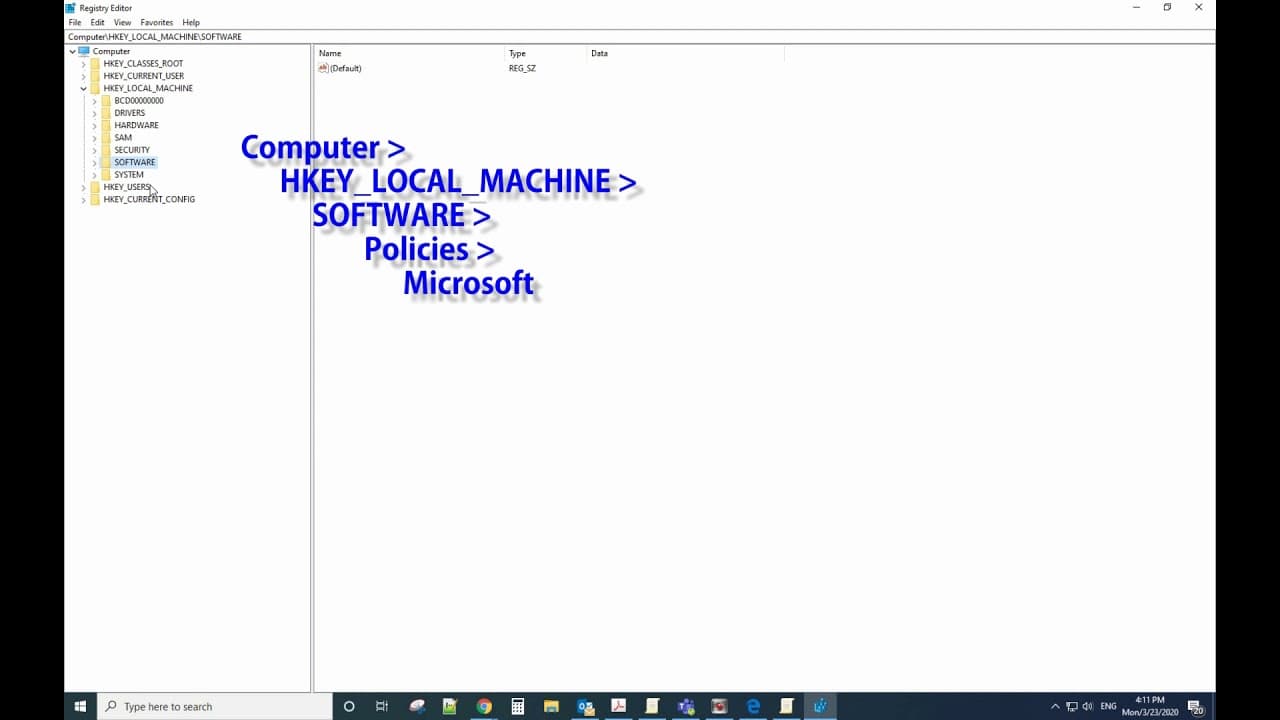
To disable Microsoft Edge using the Registry Editor, open the Registry Editor, navigate to "HKEY_LOCAL_MACHINE\SOFTWARE\Policies\Microsoft," create two new keys for “Microsoft Edge” and “Tab Preload,” then adjust the values related to allowing pre-launching by setting them to zero. This procedure effectively stops Microsoft Edge from launching at startup.
Q: What should I do if I'm uncomfortable using the Windows Registry Editor?
If you are not comfortable using the Registry Editor, it is recommended to use the Group Policy Editor instead, as it offers a more user-friendly interface and contains predefined settings that reduce the risk of accidental changes. However, always ensure to back up your system or registry before making modifications.
Summary & Key Takeaways
-
The content provides a guide on how to disable Microsoft Edge from automatically launching during startup on Windows.
-
It outlines two methods: one using the Group Policy Editor and the other through the Windows Registry Editor.
-
The walkthrough includes step-by-step instructions for each method to ensure users can easily implement the changes.
Read in Other Languages (beta)
Share This Summary 📚
Summarize YouTube Videos and Get Video Transcripts with 1-Click
Try YouTube Summary with ChatGPT & Claude or YouTube Transcript Generator
Explore More Summaries from E Micro Tech 📚

Summarize YouTube Videos and Get Video Transcripts with 1-Click
Try YouTube Summary with ChatGPT & Claude or YouTube Transcript Generator