How to insert columns into MS word 365
TL;DR
Learn how to insert and customize columns in a Word document efficiently.
Transcript
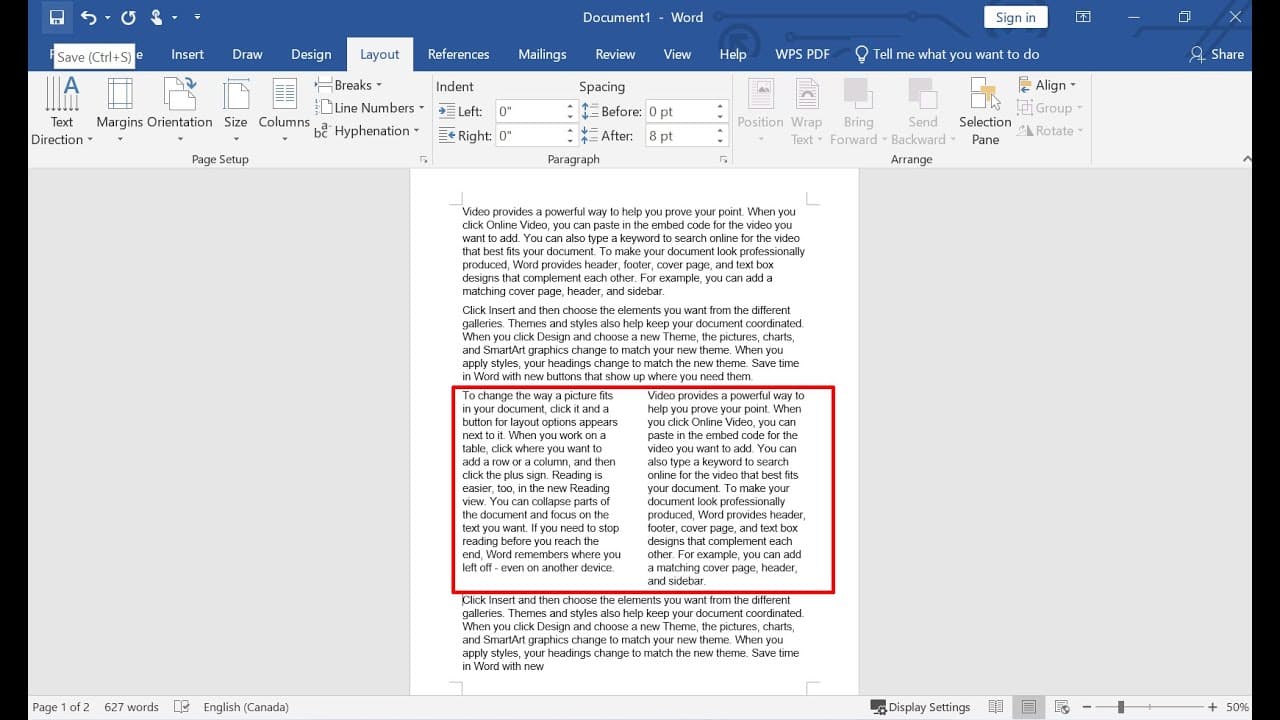
hello in this video i will show you how to insert columns into the word document so for example i have a paragraph a document if i want this one to be a two columns you just go to layout and select columns you have option here two columns it will change the whole document to two columns okay so for example if we wanted more than three columns here ... Read More
Key Insights
- 💁 To create columns in Word, access the Layout section for formatting options.
- 🕖 You can easily modify the number of columns from one to seven through the Columns menu in Word.
- 💁 It is possible to mix different column formats within a single document, offering flexibility.
- 📜 Learning how to customize column styles can enhance document presentation and improve readability.
- 💱 Adjusting columns can be neatly done by selecting specific text sections before applying changes.
- 👻 The Columns feature allows for nuanced layout designs tailored to the user's needs within Word.
- 🎨 Understanding column layout can help in designing professional reports and newsletters.
Install to Summarize YouTube Videos and Get Transcripts
Explore YouTube Video Summarizer or Get YouTube Transcript Extractor
Questions & Answers
Q: How can I create two columns for the entire document in Word?
To create two columns for the entire document, navigate to the Layout tab on the ribbon. From there, click on the Columns option. You will see various choices, including a two-column layout. Selecting this option will format the entire document into two columns.
Q: Is it possible to have different column styles in the same document?
Yes, you can have different column styles within the same document. To do this, select the specific text section you want to change. Then, go to the Layout tab, choose Columns, and select More Columns. Here, you can set the desired number of columns for that specific part.
Q: What should I do if I want to revert to single columns in part of my document?
If you want to revert to single columns for a section, first select the text where you want this change. Then, go to the Layout tab, choose the Columns dropdown, and select the option for one column. This will revert the formatting for that selected section back to a single column layout.
Q: Can I change the start point of columns in my document?
Absolutely! You can change the start point for your columns by selecting the first character of the text where you'd like the column format to begin. Then, go to the Layout tab, click on More Columns, and set the desired columns. Ensure you select "This point forward" to apply it correctly.
Summary & Key Takeaways
-
The video explains how to create multiple columns in a Word document by accessing the Layout section and selecting the columns feature.
-
Users can modify the number of columns, transitioning from a single column to two, three, or even seven columns with simple settings adjustments.
-
The tutorial also showcases how to change column settings for specific sections of text, allowing a mix of column formats within the same document.
Read in Other Languages (beta)
Share This Summary 📚
Summarize YouTube Videos and Get Video Transcripts with 1-Click
Try YouTube Summary with ChatGPT & Claude or YouTube Transcript Generator
Explore More Summaries from E Micro Tech 📚

Summarize YouTube Videos and Get Video Transcripts with 1-Click
Try YouTube Summary with ChatGPT & Claude or YouTube Transcript Generator