Products
Features
YouTube Video Summarizer
Summarize YouTube videos
Web & PDF Highlighter
Highlight web pages & PDFs
Chat with PDF
Ask any PDF questions with AI
Ask AI Clone
Chat with your highlights & memories
Audio Transcriber
Transcribe audio files to text
Glasp Reader
Read and highlight articles
Kindle Highlight Export
Export your Kindle highlights
Idea Hatch
Hatch ideas from your highlights
Integrations
Obsidian Plugin
Notion Integration
Pocket Integration
Instapaper Integration
Medium Integration
Readwise Integration
Snipd Integration
Hypothesis Integration
Apps & Extensions
Chrome Extension
Safari Extension
Edge Add-ons
Firefox Add-ons
iOS App
Android App
Discover
Discover
Ideas
Discover new ideas and insights
Articles
Curated articles and insights
Books
Book recommendations by great minds
Posts
Essays and notes from readers
Quotes
Inspiring quotes collection
Videos
Curated videos and summaries
Explore Glasp
Glasp Newsletter
Weekly insights and updates
Glasp Talk
Interview series with great minds
Glasp Blog
Latest news and articles
Glasp Use Cases
Learn how others use Glasp
Build & Support
Glasp API
Access Glasp's API for developers
MCP Connector
Connect Glasp to Claude & ChatGPT
Community
Glasp Reddit Community
Students
Student discount and benefits
FAQs
Frequently Asked Questions
AboutPricing
DashboardLog inSign up

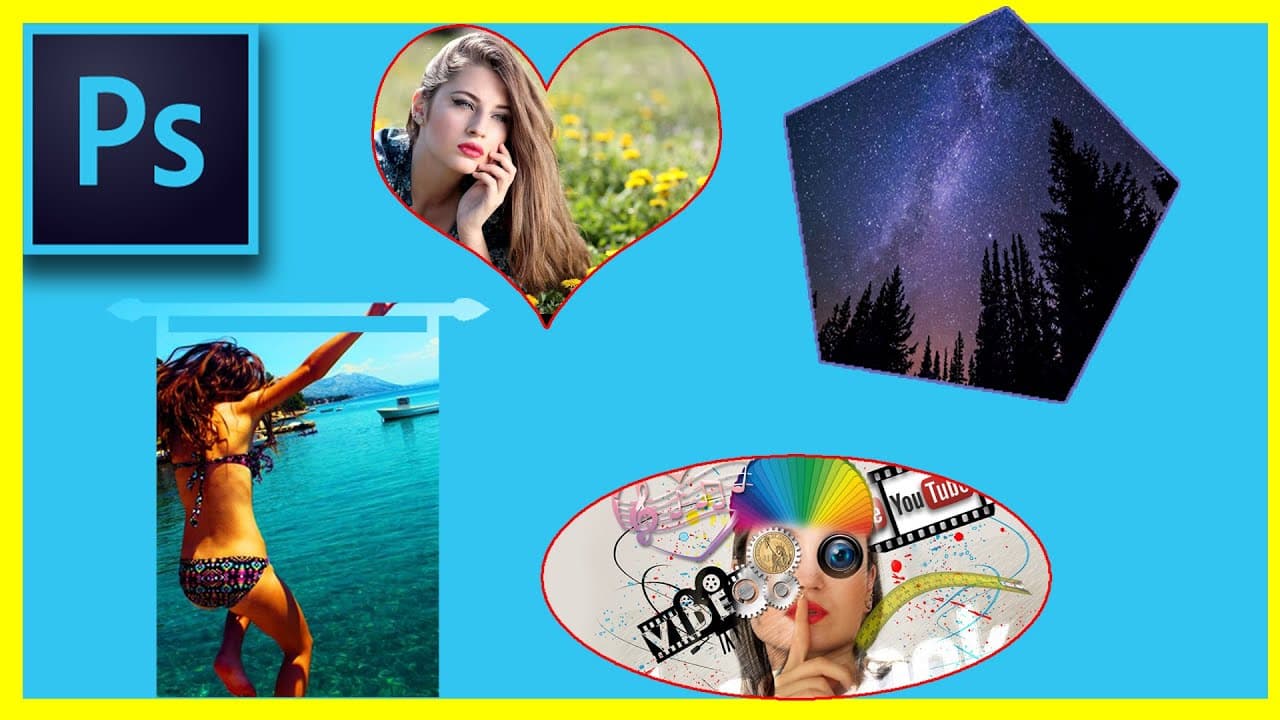
How To Put An IMAGE Inside of A SHAPE in Photoshop
395.2K views
•
July 22, 2017
by
Howfinity
YouTube video player
How To Put An IMAGE Inside of A SHAPE in Photoshop

TL;DR

Learn to place images inside shapes in Photoshop for stunning designs.

Transcript

In this video, I'm going to show you how you could put any image inside any shape. We get a lot of requests about our channel art and people want to know how I put this image inside of this shape. So I'm going to show you exactly how to do that from scratch. Let me go ahead and create a new document, so you could see how it's done from scratch. I'l... Read More

Key Insights

  • 💠 Easily place any image inside any shape in Photoshop for versatile designs.
  • 😷 Utilize clipping masks to seamlessly merge images and shapes in your projects.
  • 💠 Customize images inside shapes with effects, adjustments, gradients, and patterns.
  • 🎨 Export designs as PNG to retain transparency for various applications.
  • 💠 Create striking designs with images inside custom shapes for brand consistency.
  • 🎨 Photoshop tutorials can help you master advanced design techniques for professional results.
  • 🎨 Transparent backgrounds enhance the versatility of images in various design projects.

Install to Summarize YouTube Videos and Get Transcripts

Explore YouTube Video Summarizer or Get YouTube Transcript Extractor

Questions & Answers

Q: How can you place an image inside a custom shape in Photoshop?

To place an image inside a custom shape in Photoshop, create the shape, add the image layer above the shape layer, and then create a clipping mask to merge them seamlessly.

Q: Can you customize the image placed inside the shape in Photoshop?

Yes, you can customize the image inside the shape in Photoshop by applying effects, adjustments, gradients, patterns, and more just like you would with any regular image.

Q: What is the benefit of exporting the image-inside-shape design as a PNG?

Exporting the image-inside-shape design as a PNG allows you to preserve transparency, ensuring that the background remains transparent when you use the design in various projects.

Q: How can you enhance your designs using the technique of putting images inside shapes in Photoshop?

By mastering the technique of putting images inside shapes in Photoshop, you can create visually appealing designs, channel art, social media graphics, and more with unique and creative shapes.

Summary & Key Takeaways

  • Tutorial on placing any image inside any shape in Photoshop.

  • Choose shape, add image, create clipping mask, and customize.

  • Export as PNG for transparent background in designs.


Read in Other Languages (beta)

English

Share This Summary 📚

Summarize YouTube Videos and Get Video Transcripts with 1-Click

Download browser extensions on:

Try YouTube Summary with ChatGPT & Claude or YouTube Transcript Generator

Explore More Summaries from Howfinity 📚

How to Create an Engaging YouTube Intro Quickly thumbnail
How to Create an Engaging YouTube Intro Quickly
Howfinity
How to Activate Dark Mode on iOS 13 thumbnail
How to Activate Dark Mode on iOS 13
Howfinity
How to Batch Resize Images in Photoshop thumbnail
How to Batch Resize Images in Photoshop
Howfinity
How to Upload Custom Thumbnails on Instagram thumbnail
How to Upload Custom Thumbnails on Instagram
Howfinity
How to Create Eye-Catching Instagram Reels Easily thumbnail
How to Create Eye-Catching Instagram Reels Easily
Howfinity
Unlock Hidden Siri Pro Mode on iPhone - Combine Siri with Chat GPT thumbnail
Unlock Hidden Siri Pro Mode on iPhone - Combine Siri with Chat GPT
Howfinity

Summarize YouTube Videos and Get Video Transcripts with 1-Click

Download browser extensions on:

Try YouTube Summary with ChatGPT & Claude or YouTube Transcript Generator

Apps & Extensions

  • Chrome Extension
  • Safari Extension
  • Edge Add-ons
  • Firefox Add-ons
  • iOS App
  • Android App

Key Features

  • YouTube Video Summarizer
  • Web & PDF Summarizer
  • Web & PDF Highlighter
  • Chat with PDF
  • Ask AI Clone
  • Audio Transcriber
  • Glasp Reader
  • Kindle Highlight Export
  • Idea Hatch

Integrations

  • Obsidian Plugin
  • Notion Integration
  • Pocket Integration
  • Instapaper Integration
  • Medium Integration
  • Readwise Integration
  • Snipd Integration
  • Hypothesis Integration

More Features

  • APIs
  • MCP Connector
  • Blog & Post
  • Embed Links
  • Image Highlight
  • Personality Test
  • Quote Shots

Company

  • About us
  • Blog
  • Community
  • FAQs
  • Job Board
  • Newsletter
  • Pricing
Terms

•

Privacy

•

Guidelines

© 2026 Glasp Inc. All rights reserved.