Products
Features
YouTube Video Summarizer
Summarize YouTube videos
Web & PDF Highlighter
Highlight web pages & PDFs
Chat with PDF
Ask any PDF questions with AI
Ask AI Clone
Chat with your highlights & memories
Audio Transcriber
Transcribe audio files to text
Glasp Reader
Read and highlight articles
Kindle Highlight Export
Export your Kindle highlights
Idea Hatch
Hatch ideas from your highlights
Integrations
Obsidian Plugin
Notion Integration
Pocket Integration
Instapaper Integration
Medium Integration
Readwise Integration
Snipd Integration
Hypothesis Integration
Apps & Extensions
Chrome Extension
Safari Extension
Edge Add-ons
Firefox Add-ons
iOS App
Android App
Discover
Discover
Ideas
Discover new ideas and insights
Articles
Curated articles and insights
Books
Book recommendations by great minds
Posts
Essays and notes from readers
Quotes
Inspiring quotes collection
Videos
Curated videos and summaries
Explore Glasp
Glasp Newsletter
Weekly insights and updates
Glasp Talk
Interview series with great minds
Glasp Blog
Latest news and articles
Glasp Use Cases
Learn how others use Glasp
Build & Support
Glasp API
Access Glasp's API for developers
MCP Connector
Connect Glasp to Claude & ChatGPT
Community
Glasp Reddit Community
Students
Student discount and benefits
FAQs
Frequently Asked Questions
AboutPricing
DashboardLog inSign up

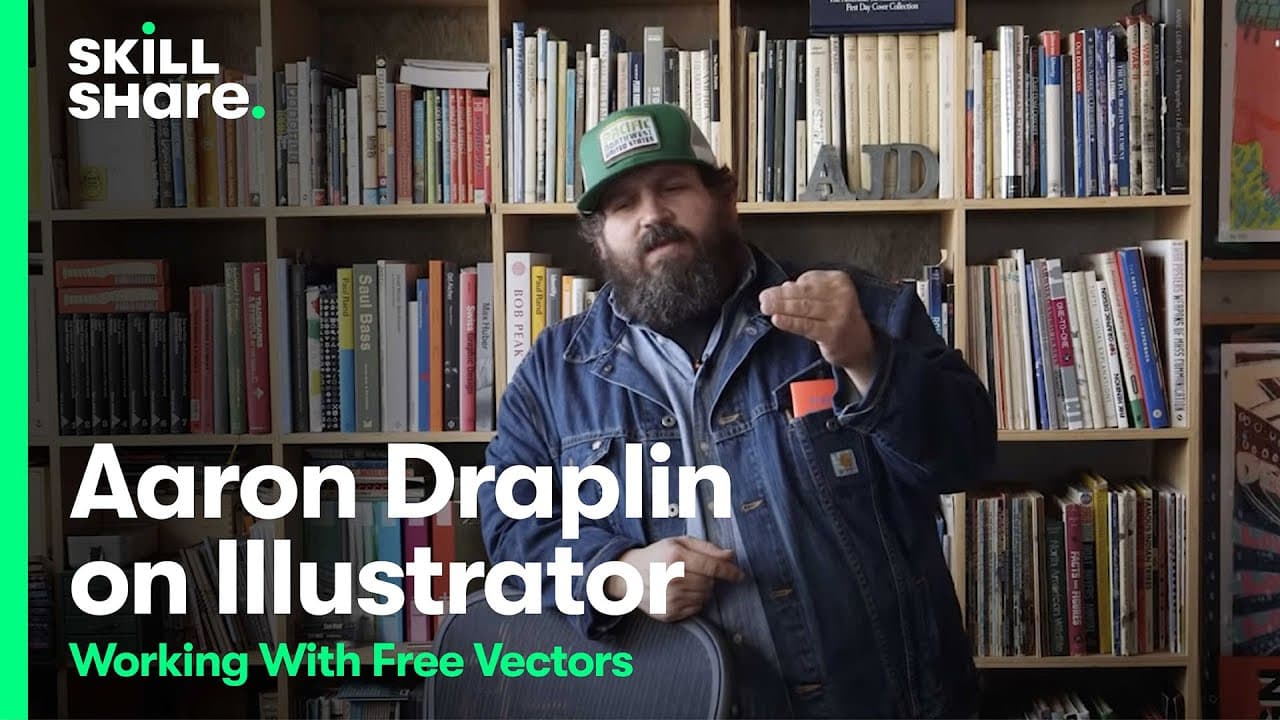
Aaron Draplin on Working Efficiently in Illustrator with Free Vectors
568.3K views
•
November 4, 2014
by
Skillshare
YouTube video player
Aaron Draplin on Working Efficiently in Illustrator with Free Vectors

TL;DR

Efficiently manage versions, embrace simplicity in design, and create custom graphics with Illustrator's tools.

Transcript

all right let's talk a little bit about workflow right and you'll see as I go whipping around the illustrator page you really want to think about you know how you keep track of where you were so if you're making that logo and you start over here and you make a little version and you try something and you want to make a change don't change it over t... Read More

Key Insights

  • 🦻 Experimentation and duplication aid in tracking design progress.
  • 🎨 Basic shapes are fundamental for creating intricate designs in Illustrator.
  • 🎨 Leveraging shortcuts and align tools enhances design efficiency.
  • 🥺 Simplifying designs leads to more impactful and unique graphics.
  • 🛃 Custom graphic creation in Illustrator requires creativity and simplicity.
  • 🎨 Effective design workflow involves versioning and experimentation.
  • 🎨 Embracing basic shapes fosters creativity and flexibility in design.

Install to Summarize YouTube Videos and Get Transcripts

Explore YouTube Video Summarizer or Get YouTube Transcript Extractor

Questions & Answers

Q: How can designers effectively keep track of their design progress in Illustrator?

Designers can duplicate elements using commands like command-option-drag in Illustrator to experiment and track their design progress effectively. By creating multiple versions, designers can easily compare and revert to earlier iterations.

Q: What is the importance of using basic shapes in Illustrator design?

Basic shapes serve as building blocks for intricate designs in Illustrator. They allow designers to create complex graphics by combining and manipulating simple shapes, enabling a streamlined and efficient design process.

Q: How can designers leverage Illustrator's tools to speed up the design process?

Designers can utilize shortcuts and align tools in Illustrator to expedite the design process. By learning key commands and using alignment functions, designers can enhance productivity and create designs more efficiently.

Q: What is the mindset designers should adopt when creating custom graphics in Illustrator?

Designers should approach custom graphic creation in Illustrator with a focus on simplicity and creativity. By using basic shapes, commands, and experimentation, designers can craft unique and personalized graphics quickly and effectively.

Summary & Key Takeaways

  • Track design progress by duplicating elements for experimentation.

  • Use basic shapes and commands to create intricate designs.

  • Utilize shortcuts and align tools for efficient design creation.


Read in Other Languages (beta)

English

Share This Summary 📚

Summarize YouTube Videos and Get Video Transcripts with 1-Click

Download browser extensions on:

Try YouTube Summary with ChatGPT & Claude or YouTube Transcript Generator

Explore More Summaries from Skillshare 📚

How to Make a Dried Flower Bouquet thumbnail
How to Make a Dried Flower Bouquet
Skillshare
JPEG vs. RAW Comparison for Photo Editing in Lightroom thumbnail
JPEG vs. RAW Comparison for Photo Editing in Lightroom
Skillshare
trashhand Demonstrates How He Finds Lighting When Photographing Cityscapes thumbnail
trashhand Demonstrates How He Finds Lighting When Photographing Cityscapes
Skillshare
What to Look For When Buying Fish for Sushi and Ceviche thumbnail
What to Look For When Buying Fish for Sushi and Ceviche
Skillshare
How To Use Lomography Cameras thumbnail
How To Use Lomography Cameras
Skillshare
Basic Knife Skills for Home Chefs thumbnail
Basic Knife Skills for Home Chefs
Skillshare

Summarize YouTube Videos and Get Video Transcripts with 1-Click

Download browser extensions on:

Try YouTube Summary with ChatGPT & Claude or YouTube Transcript Generator

Apps & Extensions

  • Chrome Extension
  • Safari Extension
  • Edge Add-ons
  • Firefox Add-ons
  • iOS App
  • Android App

Key Features

  • YouTube Video Summarizer
  • Web & PDF Summarizer
  • Web & PDF Highlighter
  • Chat with PDF
  • Ask AI Clone
  • Audio Transcriber
  • Glasp Reader
  • Kindle Highlight Export
  • Idea Hatch

Integrations

  • Obsidian Plugin
  • Notion Integration
  • Pocket Integration
  • Instapaper Integration
  • Medium Integration
  • Readwise Integration
  • Snipd Integration
  • Hypothesis Integration

More Features

  • APIs
  • MCP Connector
  • Blog & Post
  • Embed Links
  • Image Highlight
  • Personality Test
  • Quote Shots

Company

  • About us
  • Blog
  • Community
  • FAQs
  • Job Board
  • Newsletter
  • Pricing
Terms

•

Privacy

•

Guidelines

© 2026 Glasp Inc. All rights reserved.