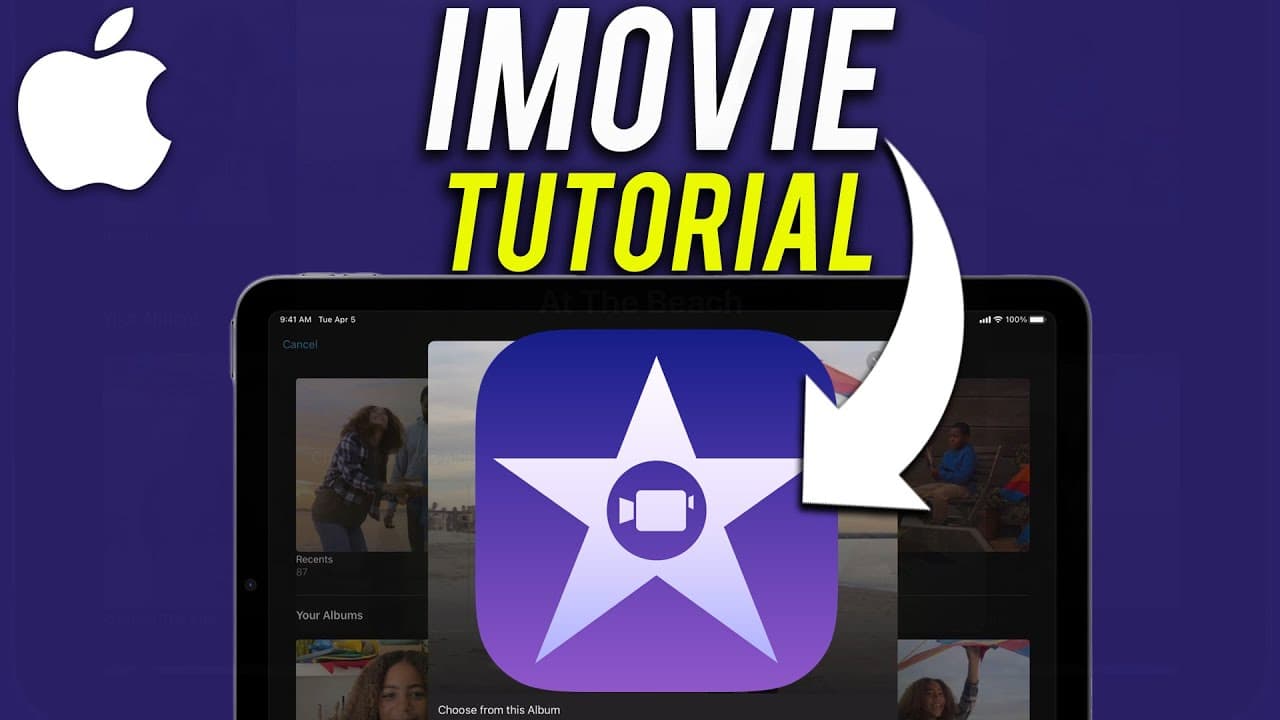
How to use iMovie on iPad
TL;DR
Learn how to edit videos using iMovie on your iPad with detailed steps and tips.
Transcript
let me show you exactly how to edit a video here on your ipad using imovie and you could also get imovie for your iphone as well i do have a different video about that as well as mac computers and i have a complete training on that as well once you learn how to use it on the ipad so the very first step is launching the app store and searching for i... Read More
Key Insights
- 🎮 iMovie on iPad offers easy video editing tools for beginners.
- 🔉 Import media seamlessly from iCloud or device storage.
- 📋 Customize clips with trimming, splitting, and reordering options.
- 👣 Enhance projects with transitions, filters, themes, text, and music tracks.
- 💌 Save and share your completed project via various options like email or airdrop.
- 👤 Full iMovie training is available for Mac users with additional editing features.
- 🎮 Experiment with different themes and effects for a unique video editing experience.
Install to Summarize YouTube Videos and Get Transcripts
Explore YouTube Video Summarizer or Get YouTube Transcript Extractor
Questions & Answers
Q: How do you start a new project in iMovie?
To start a new project in iMovie, launch the app and click on "Start a New Project" on the home page. Choose to create a movie from scratch for editing.
Q: Can you import media from iCloud to iMovie?
Yes, you can import videos and photos from iCloud to iMovie. Simply select the clips you want to add, press "Import," and arrange them in the desired order for editing.
Q: What are some basic editing options available in iMovie?
In iMovie, you can edit clips by changing their order, trimming the beginning and end, splitting clips to remove sections, and adding new clips or transitions between them.
Q: How can you add effects, themes, and music to your iMovie project?
To enhance your iMovie project, you can add effects like transitions, filters, text, themes, and music tracks. These elements help create a polished and engaging video.
Summary & Key Takeaways
-
Launch iMovie from App Store and start a new project.
-
Import media like videos and photos from iCloud or device.
-
Edit clips by changing order, trimming, adding transitions, and effects.
Read in Other Languages (beta)
Share This Summary 📚
Summarize YouTube Videos and Get Video Transcripts with 1-Click
Try YouTube Summary with ChatGPT & Claude or YouTube Transcript Generator
Explore More Summaries from Howfinity 📚

Summarize YouTube Videos and Get Video Transcripts with 1-Click
Try YouTube Summary with ChatGPT & Claude or YouTube Transcript Generator