How to save outlook email to OneDrive use power automate
TL;DR
This tutorial shows how to save incoming emails to OneDrive using Power Automate.
Transcript
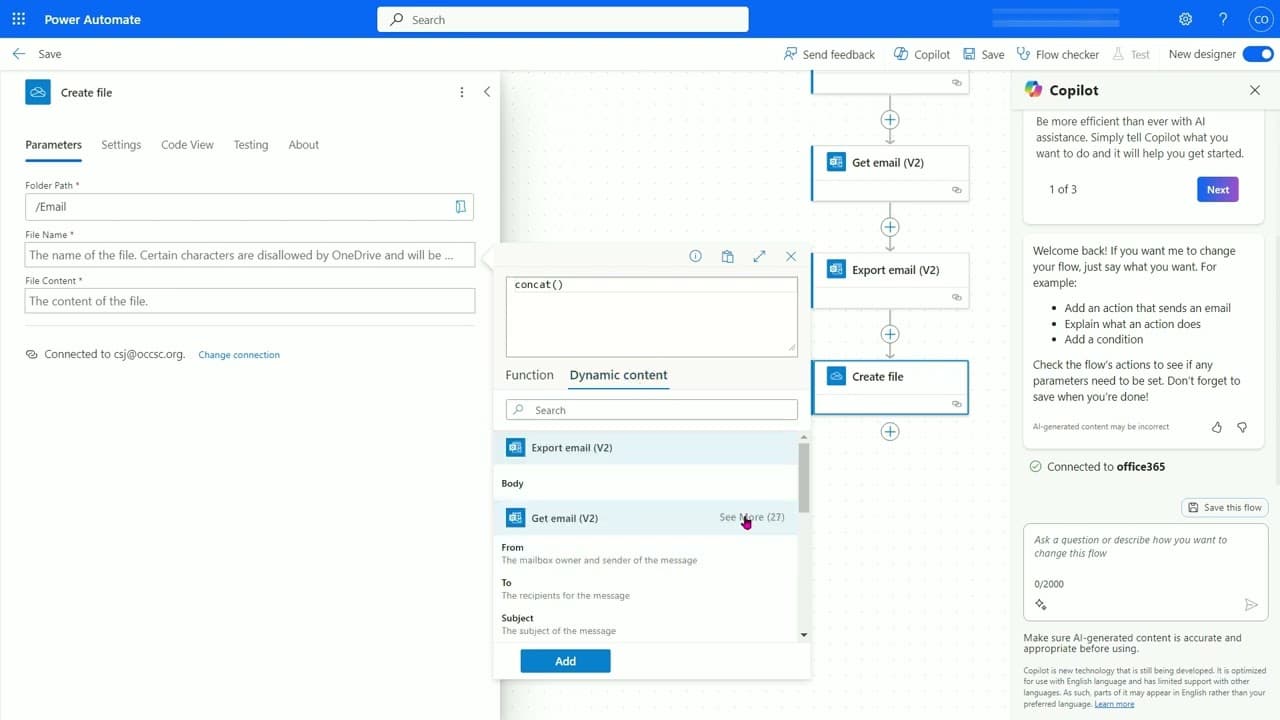
so in this video we'll create a Microsoft power automat to save all your received email to a one drive folder okay so to do that we click the N points here and select uh Power outmate if you cannot see it you can go to more apps and then select power outmate okay let's create a new Cloud flow okay so we we create a name here and the function this w... Read More
Key Insights
- 💌 Microsoft Power Automate simplifies email management by automating the process of saving received emails.
- 💌 Users need to select the correct Outlook connection based on their email type to ensure successful integration.
- 💌 Robotic email flow construction requires careful consideration of action sequences and parameter selection to function properly.
- 💌 Testing the automated flow is a necessary step to confirm that emails are saved correctly in OneDrive.
- 👻 Power Automate allows for custom naming conventions to avoid file overwrites when saving emails with duplicated subjects.
- 📁 Creating a designated folder in OneDrive prior to automation setup is essential for organized file storage.
- 💌 Understanding user interface elements like "get email" and "export email" actions is vital for effective flow creation.
Install to Summarize YouTube Videos and Get Transcripts
Explore YouTube Video Summarizer or Get YouTube Transcript Extractor
Questions & Answers
Q: What is the primary function of Microsoft Power Automate in this tutorial?
Microsoft Power Automate is used to automate the process of saving incoming emails directly into a OneDrive folder. By creating a cloud flow, users can streamline their workflow and ensure their emails are consistently archived without manual intervention.
Q: Which versions of Outlook does the tutorial address for saving emails?
The tutorial covers two versions of Outlook: the personal email version found at outlook.com and the Office 365 version geared towards business or educational users. This distinction is important because users must select the appropriate connection based on their email service provider.
Q: What should users do if they encounter an "invalid connection" error?
If users run into an "invalid connection" error, they can resolve the issue by clicking the reconnect option provided by Power Automate. This allows users to re-establish their connection between Power Automate and their email service, ensuring that the subsequent actions function correctly.
Q: Why is it important to handle duplicate email subject names when saving to OneDrive?
Handling duplicate email subject names is crucial because if two emails have the same subject line, the second email's file will fail to save in OneDrive due to a naming conflict. To mitigate this issue, users can concatenate additional identifiers, like the message ID, to create unique file names for each email saved.
Q: What is a necessary step before adding the action to save an email in OneDrive?
Before adding the action to save an email in OneDrive, it is essential to create a folder within OneDrive where the emails will be stored. This ensures that the automation has a designated location to save the email files effectively.
Q: How do users test the flow after setting it up?
Once the flow is set up, users can test it by sending a sample email to the designated address linked to Power Automate. If the setup is correct, the email should be automatically saved in the specified OneDrive folder, validating that the flow is working as intended.
Summary & Key Takeaways
-
This video demonstrates creating a flow in Microsoft Power Automate that automatically saves received emails to a specified OneDrive folder.
-
It details the setup process, from selecting the correct Outlook version to defining actions necessary for retrieving and exporting emails to OneDrive.
-
After setting up the flow and testing it with a sample email, users can successfully see the saved email in the designated folder.
Read in Other Languages (beta)
Share This Summary 📚
Summarize YouTube Videos and Get Video Transcripts with 1-Click
Try YouTube Summary with ChatGPT & Claude or YouTube Transcript Generator
Explore More Summaries from E Micro Tech 📚

Summarize YouTube Videos and Get Video Transcripts with 1-Click
Try YouTube Summary with ChatGPT & Claude or YouTube Transcript Generator