How to make radio checkbox within MS word
TL;DR
Learn to insert radio checkboxes in MS Word documents.
Transcript
hello this time I will show you how to insert pooling box to the word document so if you select no the years box will automatically uncheck give you select yes the no box will automatically unchecked so to do that there are two ways I'll show you the first way to do that so first you need enable the developer mode let's open a new document and a go... Read More
Key Insights
- To create a radio checkbox in MS Word, you must first enable the Developer mode by going to File, Options, and then Customize Ribbon to check the Developer box.
- The first method involves using the option box from the legacy tools. Ensure to uncheck the design mode to see how the options work.
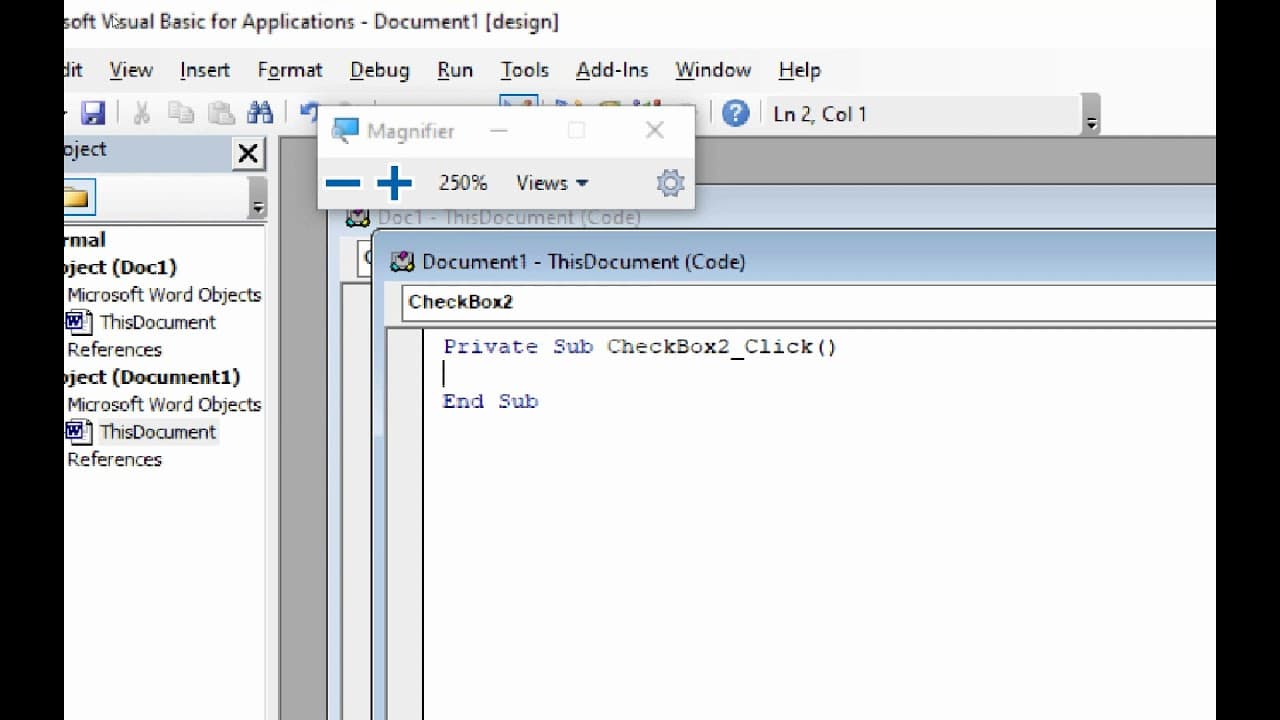
- For checkboxes to behave like radio buttons, you need to write a simple VBA code to ensure one checkbox is unchecked when another is checked.
- Activating the design mode is crucial to access the VBA code editor, where you can input the necessary code for checkbox functionality.
- The code ensures that when one checkbox is checked, the other is automatically unchecked, mimicking radio button behavior.
- To apply the same functionality to another checkbox, the design mode must be enabled, and the same VBA code logic applied.
- Disabling the design mode allows you to test the functionality of the checkboxes to ensure they work as intended.
- For customizing the appearance of the checkbox, you can refer to other resources or videos for further guidance.
Install to Summarize YouTube Videos and Get Transcripts
Explore YouTube Video Summarizer or Get YouTube Transcript Extractor
Questions & Answers
Q: How do you enable the Developer mode in MS Word?
To enable Developer mode in MS Word, open a new document and go to File, then Options. From there, navigate to Customize Ribbon and check the Developer box. Click OK to see the Developer tab appear in the ribbon, which is essential for accessing advanced features like legacy tools and VBA.
Q: What is the purpose of writing VBA code for checkboxes?
Writing VBA code for checkboxes allows them to function like radio buttons, ensuring that when one checkbox is selected, the others are automatically deselected. This behavior is essential for creating mutually exclusive options within a form or survey, mimicking the functionality of radio buttons typically found in web forms.
Q: What are the steps to insert a checkbox using legacy tools?
To insert a checkbox using legacy tools, first enable Developer mode. Then, access the Developer tab and select Legacy Tools. Choose the option box and add it to your document. Ensure the design mode is unchecked to see how the options work. This method allows for basic checkbox insertion without coding.
Q: How can you test the functionality of the checkboxes?
To test the functionality of the checkboxes, first disable the design mode after inserting and coding the checkboxes. Then, interact with the checkboxes by selecting them to observe if the VBA code works correctly, ensuring that selecting one checkbox automatically deselects the other, thus mimicking radio button behavior.
Q: What happens if you don't enable design mode before writing VBA code?
If you don't enable design mode before writing VBA code, you won't be able to access the VBA editor to input or edit the necessary code. Design mode is crucial for making changes to the form controls and ensuring that the code is applied correctly to the checkboxes for them to function as intended.
Q: Why is it necessary to apply the same VBA code to multiple checkboxes?
Applying the same VBA code to multiple checkboxes is necessary to ensure consistent functionality across all options. Each checkbox must have the logic that checks if it is selected and automatically deselects others. This consistency is crucial for maintaining the radio button-like behavior within the form.
Q: Can the appearance of the checkboxes be customized?
Yes, the appearance of the checkboxes can be customized. While the default appearance uses an 'X' inside the checkbox, users can refer to additional resources or previous videos to learn how to change the symbol or style of the checkboxes to better fit the document's design or personal preferences.
Q: What is the significance of disabling design mode after coding?
Disabling design mode after coding is significant because it switches the document from an editing state to an interactive state. This allows users to test the functionality of the checkboxes as they would appear in a finalized form, ensuring that the VBA code works correctly and the checkboxes perform as expected.
Summary & Key Takeaways
-
This video tutorial explains how to create radio checkboxes in Microsoft Word by first enabling the Developer mode. It covers the steps to add checkboxes and the necessary VBA code to ensure only one checkbox is selected at a time.
-
The tutorial outlines two methods for inserting checkboxes: using legacy tools and writing VBA code. The focus is on making checkboxes behave like radio buttons, where selecting one option automatically deselects the other.
-
To achieve the desired functionality, users must access the VBA editor to input specific code. The video also hints at customizing the checkbox appearance, directing viewers to additional resources for more information.
Read in Other Languages (beta)
Share This Summary 📚
Summarize YouTube Videos and Get Video Transcripts with 1-Click
Try YouTube Summary with ChatGPT & Claude or YouTube Transcript Generator
Explore More Summaries from E Micro Tech 📚

Summarize YouTube Videos and Get Video Transcripts with 1-Click
Try YouTube Summary with ChatGPT & Claude or YouTube Transcript Generator