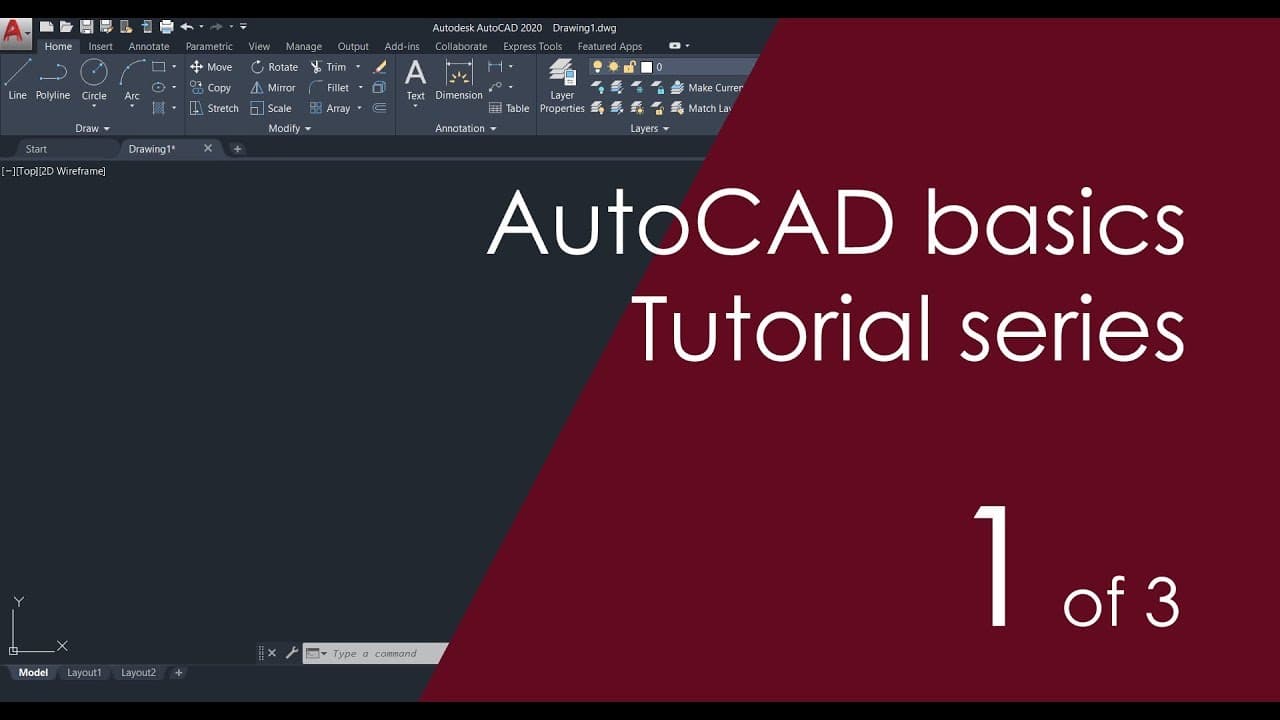
AutoCAD Basic Tutorial for Beginners - Part 1 of 3
TL;DR
This Autocad tutorial series is designed for complete beginners who have no prior knowledge of Autocad software.
Transcript
hello and welcome to source cad in this three-part video series i will introduce you to autocad software so this tutorial series is for a complete beginner in autocad who has absolutely no knowledge of this software whatsoever so in this autocad beginner series of videos i will start with the basics and i'll introduce you with the user interface an... Read More
Key Insights
- 🔰 Autocad tutorial series for beginners with no prior knowledge of the software.
- ☄️ Autocad comes in two variants: Autocad (complete version) and Autocad LT (lighter version).
- 🉐 The Autocad interface consists of various elements like the application button, toolbar, tabs, ribbon area, drawing area, command bar, and status bar toggles.
- 🪟 Basic drawings can be made using the line tool, and objects can be selected using different methods like click selection, window selection, crossing window selection, and lasso selection.
Install to Summarize YouTube Videos and Get Transcripts
Explore YouTube Video Summarizer or Get YouTube Transcript Extractor
Questions & Answers
Q: How is the Autocad interface organized?
The Autocad interface consists of the application button, quick access toolbar, tabs and ribbon area, drawing area, command bar, and status bar toggles. These elements provide access to various tools and commands for drawing in Autocad.
Q: What is the difference between Autocad and Autocad LT?
Autocad is the complete version of the software, while Autocad LT is a lighter version with limited features. Autocad LT does not include advanced features like 3D tools and sheet sets.
Q: How do you make basic drawings in Autocad?
To make basic drawings, you can use the line tool in Autocad. Click to specify the starting point, enter the desired length, and continue clicking to add points and create lines. You can also specify angles using the angle sign key or by enabling polar tracking.
Q: How can you select objects in Autocad?
In Autocad, you can select objects by clicking on them. You can also use different selection methods, such as using a window selection or crossing window selection to select multiple objects within a specified boundary. Additionally, there is a lasso selection option for more specific selections.
Key Insights:
- Autocad tutorial series for beginners with no prior knowledge of the software.
- Autocad comes in two variants: Autocad (complete version) and Autocad LT (lighter version).
- The Autocad interface consists of various elements like the application button, toolbar, tabs, ribbon area, drawing area, command bar, and status bar toggles.
- Basic drawings can be made using the line tool, and objects can be selected using different methods like click selection, window selection, crossing window selection, and lasso selection.
- Features like polar tracking and dynamic input make drawing in Autocad easier and more precise.
Summary & Key Takeaways
-
This three-part tutorial series introduces beginners to Autocad software, covering topics such as user interface, setting units, working with commands, basic drawings, object snaps, layers, blocks, dimensions, and printing.
-
The tutorial explains the Autocad interface, including the application button, quick access toolbar, ribbon area, drawing area, command bar, and status bar toggles.
-
The tutorial demonstrates how to make basic drawings using the line tool, navigate in the drawing area, select objects, set units, and use features like polar tracking and dynamic input.
Read in Other Languages (beta)
Share This Summary 📚
Summarize YouTube Videos and Get Video Transcripts with 1-Click
Try YouTube Summary with ChatGPT & Claude or YouTube Transcript Generator
Explore More Summaries from SourceCAD 📚

Summarize YouTube Videos and Get Video Transcripts with 1-Click
Try YouTube Summary with ChatGPT & Claude or YouTube Transcript Generator