Install Windows 10 using a USB-stick | In 2023
TL;DR
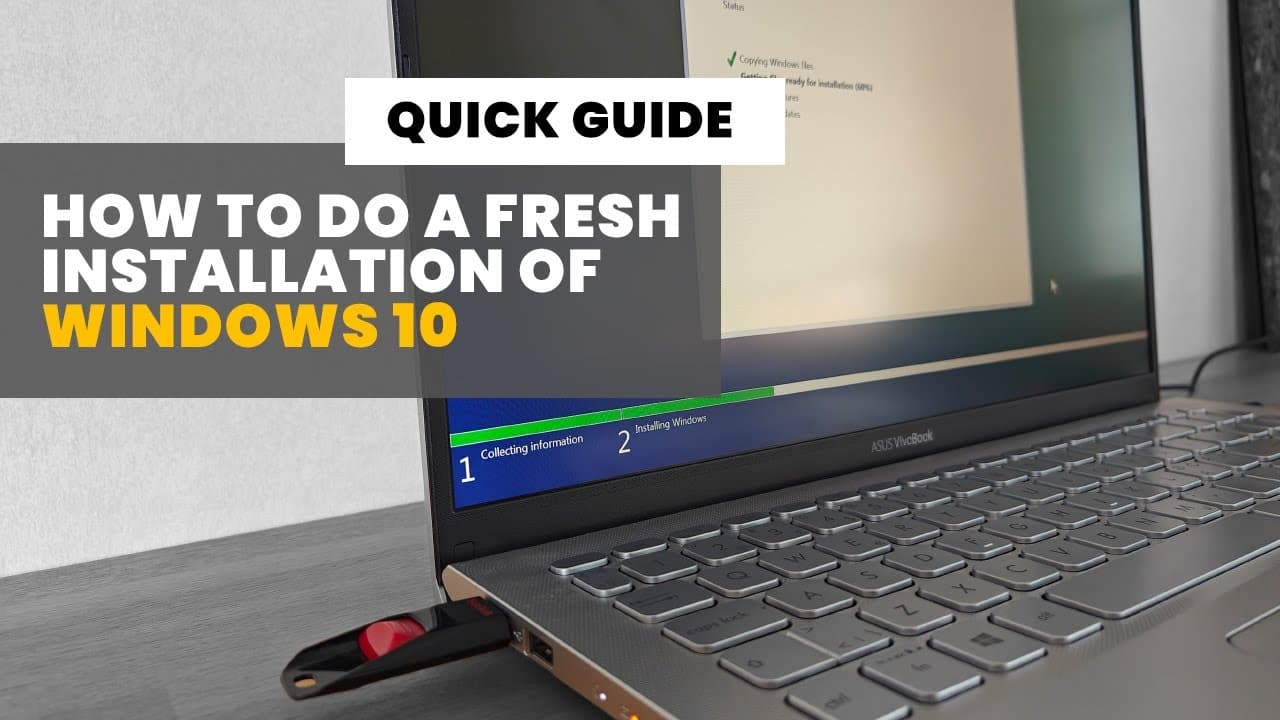
Learn how to perform a fresh installation of Windows 10 using a USB stick.
Transcript
hi even though Microsoft is now all focused on Windows 11 there can be ton of reasons to do a fresh install of the classic and still very much functioning and useful Windows 10 with a fresh install I hear mean that the installation is not an upgrade nor a reinstallation directly from within windows but instead a completely new installation where ev... Read More
Key Insights
- 🆕 A fresh installation of Windows 10 is a thorough method to improve system performance by starting anew.
- 🌸 Creating the installation USB requires careful selection of options, especially the storage device, to prevent data loss.
- 👤 During installation, users must be prepared to manage partitions effectively, ensuring a clean slate for the operating system.
- 👋 Connectivity to a good internet source is important not just for installation but also for future updates following setup.
- 😒 Microsoft allows limited use of Windows 10 without activation, though full functionality is advantageous.
- 🪡 The installation process involves a series of user preferences, allowing customization as needed for individual needs.
- 💬 Troubleshooting installation issues is encouraged, with users invited to seek assistance through comments on content-related platforms.
Install to Summarize YouTube Videos and Get Transcripts
Explore YouTube Video Summarizer or Get YouTube Transcript Extractor
Questions & Answers
Q: Why would someone consider a fresh install of Windows 10?
There could be many reasons for opting for a fresh install, such as resolving performance issues, removing malware, or simply starting over with a clean operating system. A fresh install clears all previous data and configurations, allowing for a new beginning without lingering problems from the past system.
Q: What materials are required for the fresh installation of Windows 10?
You will need a USB stick with at least 8 GB of storage, a working Windows computer to create the installation media, and an internet connection to download the necessary files. It is also essential to back up any important files, as the process will erase all existing data on the installation drive.
Q: What steps must be taken to create the Windows 10 installation USB?
To create the installation USB, visit Microsoft's download page, and use the media creation tool. Follow onscreen instructions to select language and architecture, then choose the USB flash drive option. Ensure you select the correct USB stick as all its data will be deleted during this setup process.
Q: How can one boot from the USB drive during installation?
After connecting the USB stick, restart your computer and press a specific key (usually Esc, F8, F9, or F12) to access the boot menu. This key may vary by manufacturer, so consult online resources if unsure. Selecting the USB drive from this menu allows your computer to boot from it and initiate the installation.
Q: What precautions should be taken before starting the installation process?
It is crucial to back up any important files from the computer, as a fresh installation will delete everything on the hard drive. Additionally, disconnect external devices such as hard drives and USB drives, to prevent accidental data loss and to facilitate a smoother installation process.
Q: What should users do after installing Windows 10?
After the installation, connect to the internet and check for updates in the Settings menu. This step ensures all system components and security features are up to date. Users should also adjust screen resolution and scaling settings for optimal viewing, and consider activating Windows for full functionality.
Summary & Key Takeaways
-
A fresh install of Windows 10 involves deleting existing data on a hard drive and installing a new copy from a USB stick.
-
To create the installation USB, navigate to Microsoft's site and use the media creation tool after selecting necessary options like language and architecture.
-
The installation requires disconnecting other external drives, selecting boot options, and properly configuring partitions to ensure a smooth setup process.
Read in Other Languages (beta)
Share This Summary 📚
Summarize YouTube Videos and Get Video Transcripts with 1-Click
Try YouTube Summary with ChatGPT & Claude or YouTube Transcript Generator
Explore More Summaries from Get There Faster 📚
Summarize YouTube Videos and Get Video Transcripts with 1-Click
Try YouTube Summary with ChatGPT & Claude or YouTube Transcript Generator