How to set live animate wallpaper background in windows 11
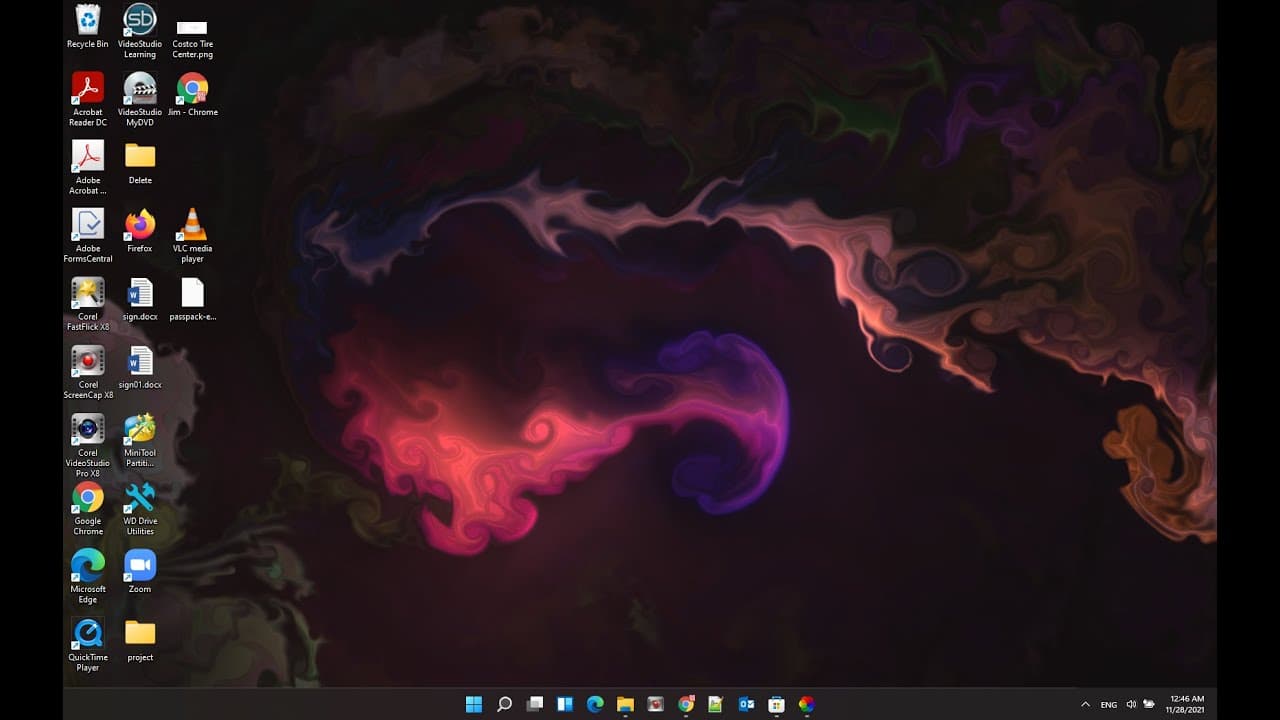
TL;DR
Learn how to set up live animated wallpapers on Windows 11.
Transcript
hello in this video i will show you how to set up a live animate wallpaper in windows 11 so to do that you can go to microsoft store take a little bit longer okay then you'll search live wall paper then you can scroll down because you need to find more people downloading under three star of three and a half of four and a half stars so it's a lively... Read More
Key Insights
- 😄 The tutorial emphasizes the ease of accessing live wallpapers through the Microsoft Store, making customization straightforward for users.
- 🖐️ User ratings play an essential role in selecting quality wallpapers, guiding viewers to choose popular options that are likely to provide a better experience.
- 👻 Additional downloads can greatly enhance personalization, allowing users to incorporate their favorite videos as live wallpapers.
- 👤 Managing live wallpapers is user-friendly, with simple controls for switching and re-establishing default backgrounds as needed.
- 🥶 The lively wallpaper application is free, making it an accessible choice for enhancing the desktop environment on Windows 11.
- 😑 The tutorial encourages creativity by highlighting the ability to use personal videos, promoting individual expression through wallpaper customization.
- 💻 Changing the taskbar color can further personalize the desktop, adding to the overall aesthetics of the workspace.
Install to Summarize YouTube Videos and Get Transcripts
Explore YouTube Video Summarizer or Get YouTube Transcript Extractor
Questions & Answers
Q: What steps should I take to find live wallpapers in the Microsoft Store?
To find live wallpapers, open the Microsoft Store and search for "live wallpaper." Then, scroll through the options and focus on wallpapers that have good ratings, ideally between three and four and a half stars. This will help you find popular and well-reviewed wallpapers to enhance your desktop.
Q: Can I use videos from my phone as live wallpapers?
Yes, you can use videos from your phone as live wallpapers. The software allows users to take videos either from their personal collection or capture new footage. Once you have the video, simply import it into the live wallpaper application for use on your desktop.
Q: What can I do if I don't like the default live wallpaper?
If you find that you dislike the default wallpaper provided by the app, you can easily download new wallpapers from the internet. Use a smartphone or computer to search for live wallpaper options, download your favorites, and then load them into the application of your choice.
Q: How can I revert to the default wallpaper after trying a live one?
To revert back to the default wallpaper after trying a live one, right-click on the live wallpaper and select the option to close it. This action will immediately restore your desktop to its original static wallpaper, making it easy to switch back whenever you prefer.
Summary & Key Takeaways
-
This video tutorial guides users through the process of installing live animated wallpapers on Windows 11 via the Microsoft Store.
-
Users are advised to look for well-rated wallpapers and encouraged to download additional options from the internet for personalized choices.
-
The tutorial also explains how to manage wallpapers, including switching between them and returning to the default wallpaper.
Read in Other Languages (beta)
Share This Summary 📚
Summarize YouTube Videos and Get Video Transcripts with 1-Click
Try YouTube Summary with ChatGPT & Claude or YouTube Transcript Generator
Explore More Summaries from E Micro Tech 📚

Summarize YouTube Videos and Get Video Transcripts with 1-Click
Try YouTube Summary with ChatGPT & Claude or YouTube Transcript Generator