How to Enable the Built-In Guest Account in Windows 11
TL;DR
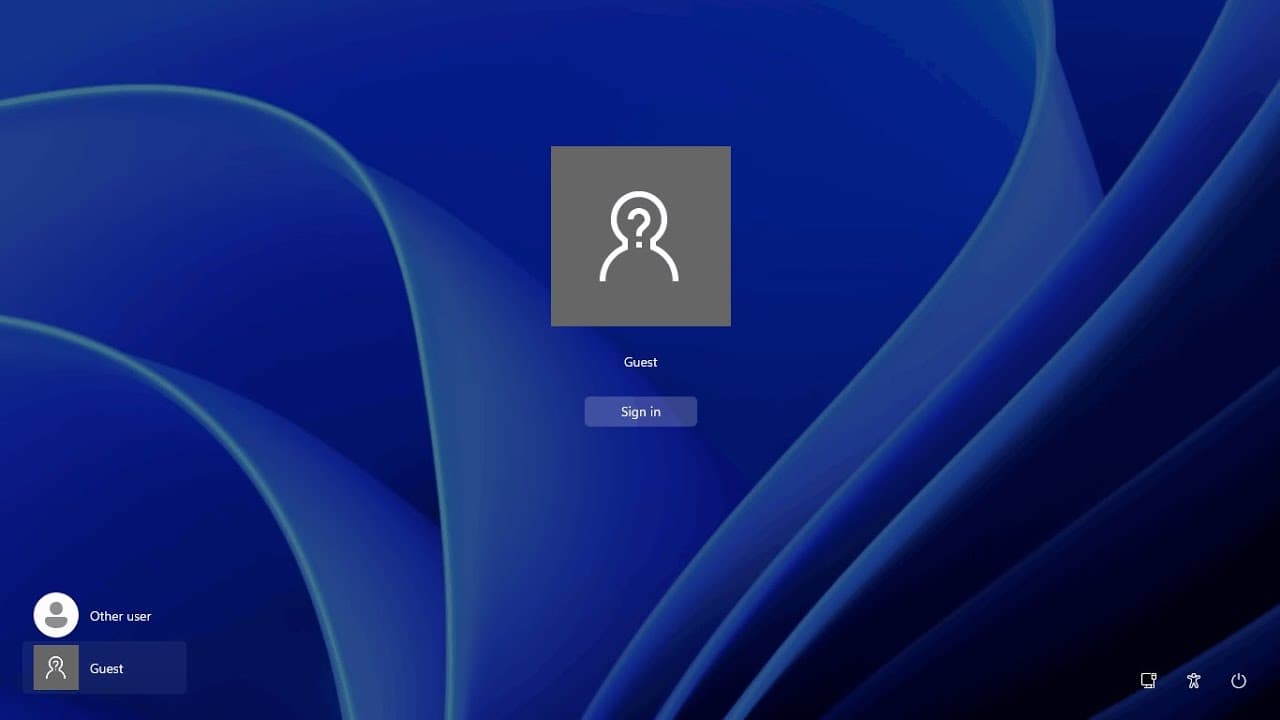
To enable the built-in guest account in Windows 11, access Computer Management, locate the guest account under Local Users and Groups, and ensure it is enabled. Additionally, adjust Group Policy settings to allow guest logon and restart your computer to see the guest login option on the welcome screen.
Transcript
foreign building guests.com so and also solve some problems with if you enable the gas account the guests use log on still cannot show up problem so the first method we're using the click the start button right click and then go to the computer management for here you can see the local user and groups double click that then you can see the users do... Read More
Key Insights
- 👤 Enabling the guest account entails accessing computer management and altering user account settings to ensure functionality.
- 👻 Group Policy configuration is crucial for allowing the guest account to log in and visibility on the login screen.
- 💻 Restarting the computer after modifications is essential for the changes to take effect fully.
- 👤 Knowledge of handling user accounts and Group Policy can significantly enhance user management in Windows environments.
- ♿ Following a structured approach to troubleshooting can resolve common issues related to guest account accessibility.
- 🔒 Ensuring proper setup of the guest account can increase security while offering a temporary access option to others.
- 👤 Regular checks and updates of user account settings can prevent access issues in shared systems.
Install to Summarize YouTube Videos and Get Transcripts
Explore YouTube Video Summarizer or Get YouTube Transcript Extractor
Questions & Answers
Q: How do I access the computer management to enable the guest account?
To access computer management, right-click the Start button and select "Computer Management." In the console, navigate to "Local Users and Groups," then double-click "Users" to find and enable the guest account which should be listed as "Guests."
Q: What should I do if the guest account does not appear on the login screen?
If the guest account isn't visible on the login screen, ensure that the account is enabled in the computer management settings and then check Group Policy settings to confirm that the proper permissions are assigned, allowing guest logon.
Q: Why is it important to disable the guest account first before enabling it?
Disabling the guest account initially prevents any unauthorized access. This allows you to make necessary changes securely before re-enabling it, ensuring that the guest account functions correctly without compromising system security.
Q: What are the necessary steps to edit Group Policy settings for guest account login?
Access Group Policy by typing "gpedit.msc" in the Start menu. Navigate to Windows Settings, then Security Settings, followed by Local Policies. Look for User Rights Assignment and check the settings for the guest account to ensure it allows local logon.
Summary & Key Takeaways
-
The content provides a guide on enabling the guest account in Windows, detailing the steps to access computer management and modify user settings.
-
Instructions include checking the status of the guest account, ensuring it's enabled, and adjusting group policy settings to allow guest logins to appear on the login screen.
-
The final step emphasizes restarting the computer to see the changes take effect, allowing users to access the guest account.
Read in Other Languages (beta)
Share This Summary 📚
Summarize YouTube Videos and Get Video Transcripts with 1-Click
Try YouTube Summary with ChatGPT & Claude or YouTube Transcript Generator
Explore More Summaries from E Micro Tech 📚

Summarize YouTube Videos and Get Video Transcripts with 1-Click
Try YouTube Summary with ChatGPT & Claude or YouTube Transcript Generator