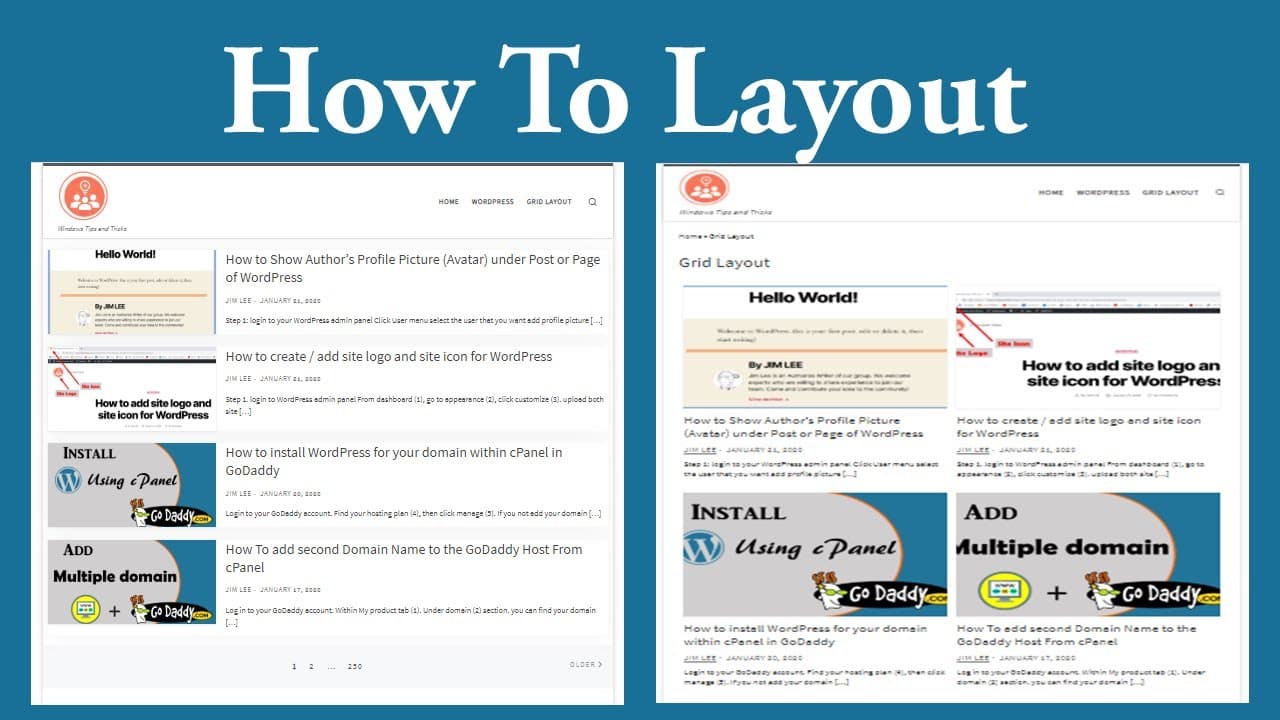
How to show post in list layout or grid layout in WordPress
TL;DR
This guide explains how to create post layouts in WordPress using grid and list views.
Transcript
today I will show you how to do the post lease layout and when you move your mouse to the post you cannot see the shadow effect so it can also show the post to a grid layout so there are several ways to do that so one way is through the normal word press sighting and another way is to do that this plugin so let me show you how to do that we seen th... Read More
Key Insights
- 🥳 WordPress provides native options for creating post layouts but can be enhanced using third-party plugins like Nimble Page Builder.
- 🦻 Customizing the number of posts displayed per page aids in managing content delivery and user experience on WordPress sites.
- 👂 The choice between grid and list layouts can impact site aesthetics and usability, with grid layouts generally being more visually dynamic.
- 🏣 Users can adjust settings for featured images, authors, and post dates to provide context and enhance the post presentation.
- 👤 Proper configuration of post layouts can significantly improve user engagement and readability on blogs or websites.
- 👤 Understanding how to navigate plugin installations and functionalities is essential for WordPress users seeking to enhance their site design.
- ❓ The content emphasizes the importance of clear instructions and step-by-step guidance for effective WordPress customization.
Install to Summarize YouTube Videos and Get Transcripts
Explore YouTube Video Summarizer or Get YouTube Transcript Extractor
Questions & Answers
Q: What are the two main methods of setting up post layouts discussed in the content?
The content outlines two primary methods of creating post layouts in WordPress: using the default WordPress settings and leveraging a plugin, specifically the Nimble Page Builder. The direct method in WordPress allows basic configurations through the editor, while the plugin provides enhanced features and customization options for more visually appealing layouts.
Q: How do you install the Nimble Page Builder plugin as per the tutorial?
To install the Nimble Page Builder plugin, navigate to the WordPress admin panel, select “Plugins,” and then “Add New.” In the search bar, type “Nimble Page Builder,” find it in the results, and click “Install Now.” After installation, be sure to activate the plugin to unlock its functionalities for customizing post layouts.
Q: What customization options are available when using the Nimble Page Builder?
The Nimble Page Builder offers various customization options, including selecting a grid or list layout for posts, displaying featured images, authors, and post dates. It also allows users to decide how many posts to show per page and the overall number of pages generated based on the total post count.
Q: How does the grid layout differ from the list layout in post display?
The grid layout presents posts in a visually appealing, structured arrangement, typically featuring multiple columns and images. In contrast, the list layout presents posts in a vertical format, usually with less emphasis on images, making the layout simpler but sometimes less engaging for readers.
Summary & Key Takeaways
-
The content provides a step-by-step tutorial on setting up post layouts in WordPress, focusing initially on the standard site functionality.
-
It introduces the use of the Nimble Page Builder plugin to enhance post displays, allowing for features like post images and metadata.
-
Users can customize their post layout preferences, including the number of posts per page and layout styles, such as grid or list views.
Read in Other Languages (beta)
Share This Summary 📚
Summarize YouTube Videos and Get Video Transcripts with 1-Click
Try YouTube Summary with ChatGPT & Claude or YouTube Transcript Generator
Explore More Summaries from E Micro Tech 📚

Summarize YouTube Videos and Get Video Transcripts with 1-Click
Try YouTube Summary with ChatGPT & Claude or YouTube Transcript Generator