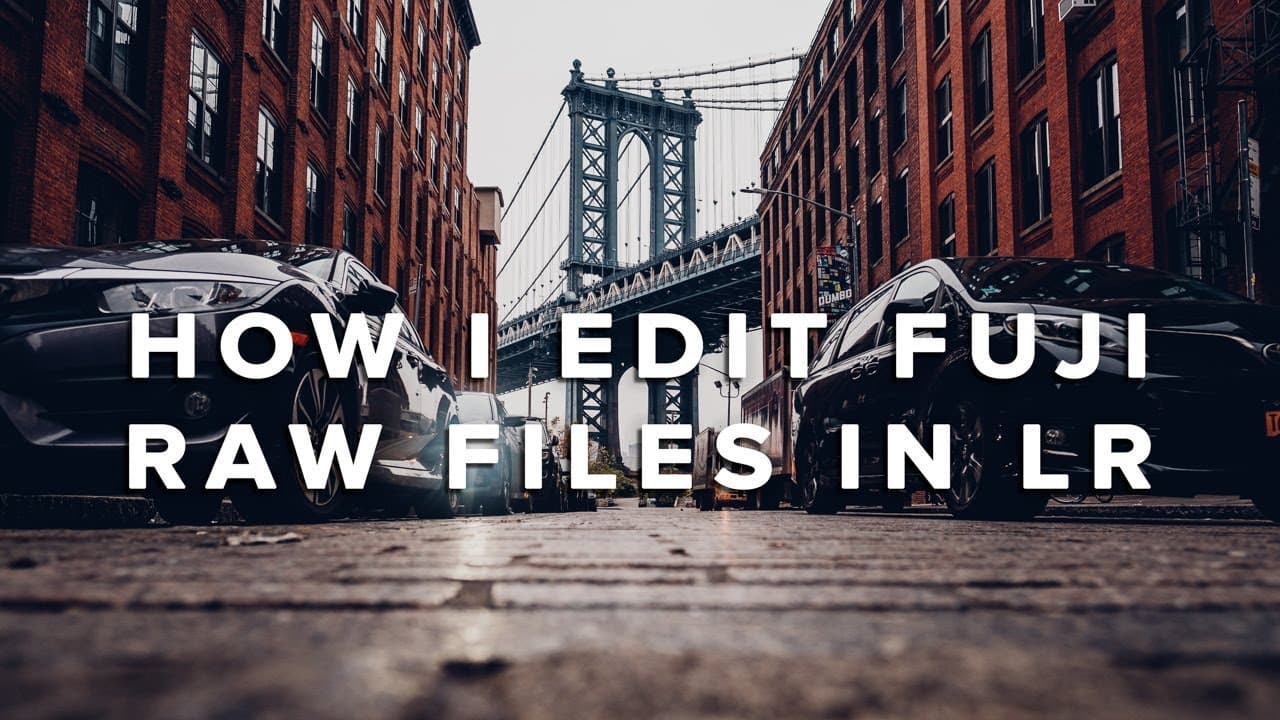
🔴 LIVE STREAM | How I Edit Fuji RAW Files in Lightroom | RBP Urban Demo
TL;DR
The video demonstrates how to effectively use and customize editing presets across different camera files.
Transcript
and just to show you guys that you can use these on not only Fujifilm files but any type of files really I'm gonna edit first a nikon d750 file and basically i'm going to show you guys how I apply my preset again it's not it's not a one-click preset there's a lot of other youtubers as a lot of other photographers that you know kind of advertise tha... Read More
Key Insights
- 😥 Presets serve as versatile starting points but require personal adjustments to achieve the desired look for different photos.
- 🧡 Dynamic range adjustments are essential when working with contrasting highlights and shadows, enhancing the overall image quality.
- 🎥 Experimenting with different camera profiles and settings, such as Classic Chrome for Fujifilm, can yield unique artistic outcomes.
- 😒 The use of graduated filters improves composition by subtly guiding the viewer's attention toward specific areas of an image.
- 🤍 A well-executed white balance can enhance the photograph's mood and realism, making it an important aspect of post-processing.
- ❓ Careful sharpening practices are vital to maintaining image clarity without introducing undesirable noise or artifacting.
- 😷 Live interactions during a tutorial enhance the learning experience, allowing viewers to ask questions in real-time and receive immediate feedback.
Install to Summarize YouTube Videos and Get Transcripts
Explore YouTube Video Summarizer or Get YouTube Transcript Extractor
Questions & Answers
Q: What is the main purpose of using presets in photography editing?
The main purpose of using presets is to provide a consistent starting point for photo editing. Presets can save time by applying a specific style or look to images, but they should not be considered a one-click solution. Each photo requires individual adjustments based on lighting, colors, and personal artistic interpretation to achieve the desired final result.
Q: How does one check and adjust the sharpening in Lightroom effectively?
To check and adjust the sharpening in Lightroom, hold down the Alt key (or Option on Mac) while moving the sharpening slider. This action brings up a black and white mask that indicates which areas of the image will be sharpened. Adjust the amount and radius sliders until the sharpening looks natural, avoiding overly crunchy textures, and focus on enhancing important details while masking out less significant parts.
Q: Can these editing techniques be applied to photos taken with different camera brands?
Yes, the editing techniques demonstrated in the video can effectively be applied to images taken with different camera brands, including Nikon and Fujifilm. The principles of exposure adjustments, dynamic range enhancements, and color correction are universal across camera types, ensuring that users can adapt their editing processes regardless of equipment.
Q: What are graduated filters and how are they used in photo editing?
Graduated filters are editing tools used in Lightroom to gradually affect specific areas of an image. They help in adjusting exposure, contrast, or color within certain sections, allowing for more control over lighting and focus. For example, they can draw attention to a subject by darkening the surrounding area or balancing the exposure between a sky and foreground in landscape photos.
Q: Why is it important to adjust white balance during photo editing?
Adjusting white balance during photo editing is crucial as it directly influences the overall color temperature of an image. Correctly setting the white balance helps achieve more natural skin tones and accurate color representation, enhancing the visual appeal of the photograph. An improperly set white balance can result in unrealistic colors, often skewing the entire mood of the image.
Q: How do you create a remix of an existing preset in Lightroom?
To create a remix of an existing preset in Lightroom, start by applying the desired preset to an image. Adjust the settings based on personal preferences, such as tweaking exposure, colors, and contrast. Once satisfied, you can create a new preset by clicking “Create Preset,” naming it, and selecting which adjustments to save. This allows you to build a personalized editing style based on your unique vision.
Summary & Key Takeaways
-
The video illustrates how to edit images from various cameras, emphasizing the importance of personal interpretation in the editing process.
-
Key techniques include utilizing presets as starting points, adjusting exposure, white balance, and using graduated filters to enhance composition and focus.
-
The host shares a discount offer for their editing presets while also conducting live edits on submitted photos, showcasing diverse applications.
Read in Other Languages (beta)
Share This Summary 📚
Summarize YouTube Videos and Get Video Transcripts with 1-Click
Try YouTube Summary with ChatGPT & Claude or YouTube Transcript Generator
Explore More Summaries from Reggie Ballesteros 📚
Summarize YouTube Videos and Get Video Transcripts with 1-Click
Try YouTube Summary with ChatGPT & Claude or YouTube Transcript Generator