Products
Features
YouTube Video Summarizer
Summarize YouTube videos
Web & PDF Highlighter
Highlight web pages & PDFs
Chat with PDF
Ask any PDF questions with AI
Ask AI Clone
Chat with your highlights & memories
Audio Transcriber
Transcribe audio files to text
Glasp Reader
Read and highlight articles
Kindle Highlight Export
Export your Kindle highlights
Idea Hatch
Hatch ideas from your highlights
Integrations
Obsidian Plugin
Notion Integration
Pocket Integration
Instapaper Integration
Medium Integration
Readwise Integration
Snipd Integration
Hypothesis Integration
Apps & Extensions
Chrome Extension
Safari Extension
Edge Add-ons
Firefox Add-ons
iOS App
Android App
Discover
Discover
Ideas
Discover new ideas and insights
Articles
Curated articles and insights
Books
Book recommendations by great minds
Posts
Essays and notes from readers
Quotes
Inspiring quotes collection
Videos
Curated videos and summaries
Explore Glasp
Glasp Newsletter
Weekly insights and updates
Glasp Talk
Interview series with great minds
Glasp Blog
Latest news and articles
Glasp Use Cases
Learn how others use Glasp
Build & Support
Glasp API
Access Glasp's API for developers
MCP Connector
Connect Glasp to Claude & ChatGPT
Community
Glasp Reddit Community
Students
Student discount and benefits
FAQs
Frequently Asked Questions
AboutPricing
DashboardLog inSign up

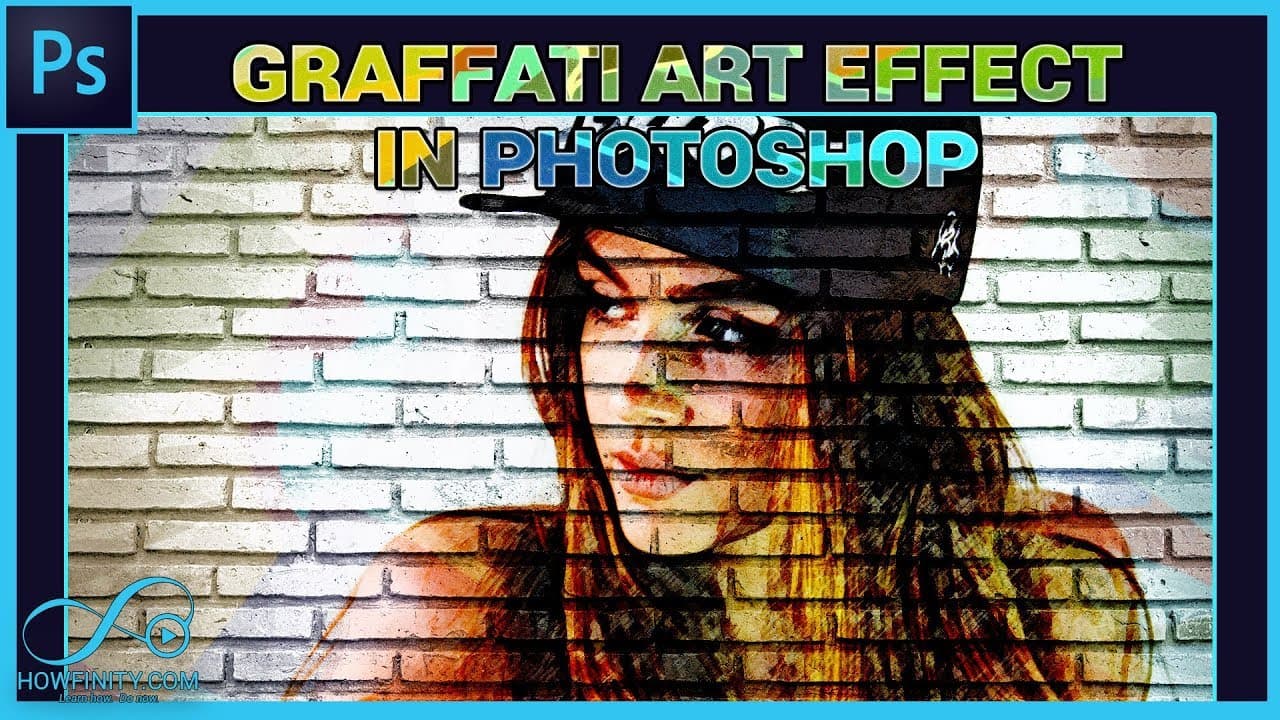
How To Turn A Picture Into Graffiti Art
3.5K views
•
August 16, 2017
by
Howfinity
YouTube video player
How To Turn A Picture Into Graffiti Art

TL;DR

Step-by-step guide to creating graffiti art in Photoshop using smart objects and filters.

Transcript

In this video, I'm going to walk you through a step-by-step process on creating a graffiti image art just like this one, with your image. So the first step is creating a Photoshop file from scratch. So go ahead and open up Photoshop and press new and under new, you want to create one. It doesn't matter what size. In this case, I'm going to do 1920 ... Read More

Key Insights

  • 📱 Utilize smart objects in Photoshop for easy editing and template creation.
  • 👀 Experiment with different filters like dry brush and color pencil for a graffiti look.
  • 🔥 Changing blend modes like color burn can enhance the overall effect.
  • 😷 Creating a clipping mask can help blend images seamlessly.
  • 👀 Adjusting opacity and fill levels can fine-tune the final look.
  • 🦛 Vibrance and saturation adjustments can make the artwork pop.
  • 👻 Saving templates with smart objects allows for quick image replacement.

Install to Summarize YouTube Videos and Get Transcripts

Explore YouTube Video Summarizer or Get YouTube Transcript Extractor

Questions & Answers

Q: What is the first step in creating graffiti image art in Photoshop?

The first step is to create a Photoshop file with a white background and name your project.

Q: How do you turn the background layer into a smart object?

You can right-click on the background layer and select "Convert to Smart Object" for easy editing later on.

Q: What filters are used to achieve the graffiti look in Photoshop?

Filters like dry brush and color pencil are applied to layers to create the graffiti effect, along with changing blend modes like color burn.

Q: How can you easily change the image in the graffiti art template?

By using smart objects, you can simply open the smart object, replace the image, save, and the effects will automatically apply to the new image.

Summary & Key Takeaways

  • Create a Photoshop file with a white background.

  • Turn the background layer into a smart object for easy editing.

  • Use filters like dry brush and color pencil to achieve a graffiti look.


Read in Other Languages (beta)

English

Share This Summary 📚

Summarize YouTube Videos and Get Video Transcripts with 1-Click

Download browser extensions on:

Try YouTube Summary with ChatGPT & Claude or YouTube Transcript Generator

Explore More Summaries from Howfinity 📚
How to Create Eye-Catching Instagram Reels Easily thumbnail
How to Create Eye-Catching Instagram Reels Easily
Howfinity
Unlock Hidden Siri Pro Mode on iPhone - Combine Siri with Chat GPT thumbnail
Unlock Hidden Siri Pro Mode on iPhone - Combine Siri with Chat GPT
Howfinity
How to Activate Dark Mode on iOS 13 thumbnail
How to Activate Dark Mode on iOS 13
Howfinity
How to Sell a Car on Facebook Marketplace thumbnail
How to Sell a Car on Facebook Marketplace
Howfinity
How to Batch Resize Images in Photoshop thumbnail
How to Batch Resize Images in Photoshop
Howfinity
How to Upload Custom Thumbnails on Instagram thumbnail
How to Upload Custom Thumbnails on Instagram
Howfinity

Summarize YouTube Videos and Get Video Transcripts with 1-Click

Download browser extensions on:

Try YouTube Summary with ChatGPT & Claude or YouTube Transcript Generator

Apps & Extensions

  • Chrome Extension
  • Safari Extension
  • Edge Add-ons
  • Firefox Add-ons
  • iOS App
  • Android App

Key Features

  • YouTube Video Summarizer
  • Web & PDF Summarizer
  • Web & PDF Highlighter
  • Chat with PDF
  • Ask AI Clone
  • Audio Transcriber
  • Glasp Reader
  • Kindle Highlight Export
  • Idea Hatch

Integrations

  • Obsidian Plugin
  • Notion Integration
  • Pocket Integration
  • Instapaper Integration
  • Medium Integration
  • Readwise Integration
  • Snipd Integration
  • Hypothesis Integration

More Features

  • APIs
  • MCP Connector
  • Blog & Post
  • Embed Links
  • Image Highlight
  • Personality Test
  • Quote Shots

Company

  • About us
  • Blog
  • Community
  • FAQs
  • Job Board
  • Newsletter
  • Pricing
Terms

•

Privacy

•

Guidelines

© 2026 Glasp Inc. All rights reserved.