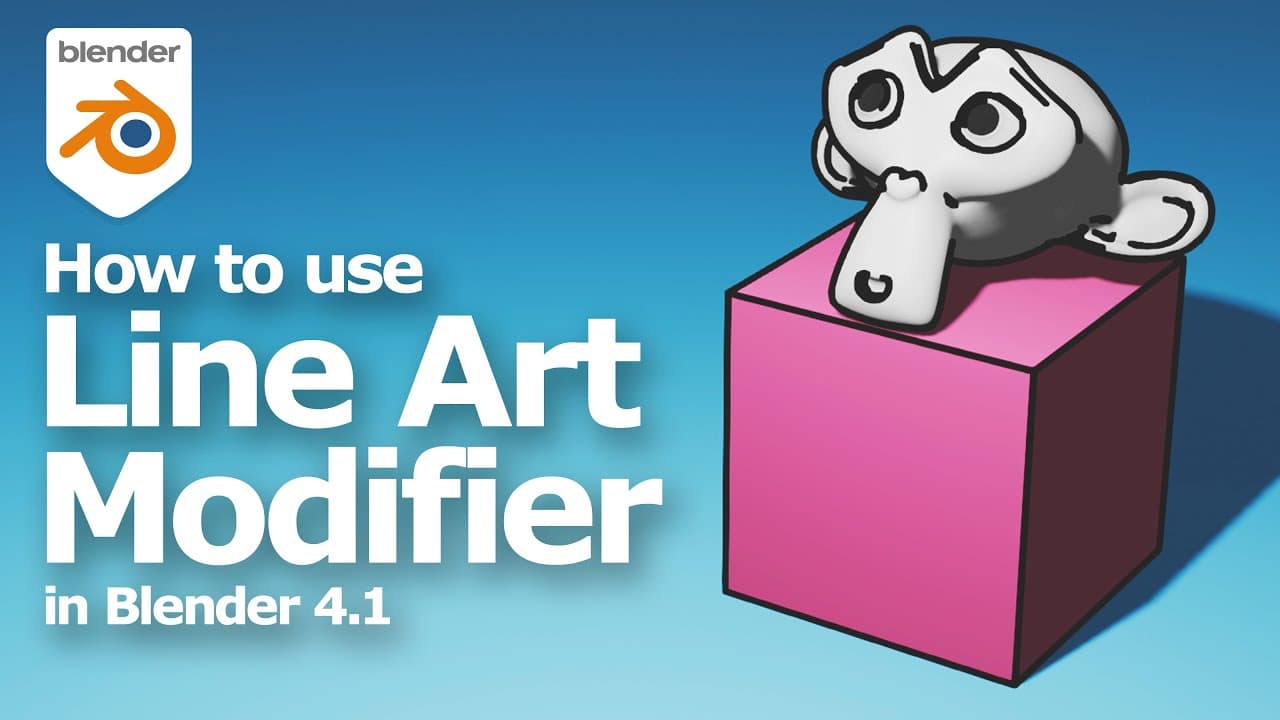
Blender Line Art Modifier Tutorial to make outline of 3D object using Grease Pencil
TL;DR
Learn to use Blender's Line Art Modifier for 3D outlines.
Transcript
hello this is a quick video to show how to use line art modifier in Blender this is default scene in Blender I will use this default scene and default cube for creating line art to add the Line Art, we can go to add and go to Grease Pencil we can choose scene line art for whole scene or we can choose collection line art for a collection or we ca... Read More
Key Insights
- The tutorial demonstrates the use of Blender's Line Art Modifier to create outlines for 3D objects using the Grease Pencil tool.
- The video starts with the default Blender scene and cube to illustrate the process of adding line art to objects.
- Users can choose between scene, collection, or object line art, with the tutorial focusing on collection line art.
- The tutorial explains how to adjust line thickness, opacity, and color, as well as how to manage the number of lines using the Crease Threshold.
- Camera angle is crucial for line art visibility, and the video shows how to adjust the camera to capture different angles.
- Additional objects, such as the monkey model 'Susan,' can be added to the scene, and modifiers like subdivision surface can enhance line detail.
- The tutorial covers how to use the Smooth by Angle modifier to refine the number of lines and improve the overall look.
- A plane is added beneath the cube to complete the scene setup, demonstrating the versatility and practical application of the Line Art Modifier.
Install to Summarize YouTube Videos and Get Transcripts
Explore YouTube Video Summarizer or Get YouTube Transcript Extractor
Questions & Answers
Q: How can you add line art to a collection in Blender?
To add line art to a collection in Blender, you need to create a new collection and move the desired objects into it. Then, select the line art grease pencil, navigate to the modify properties, and choose the collection line art option. This allows you to apply line art to the entire collection.
Q: What steps are involved in adjusting the line thickness and color?
To adjust line thickness, navigate to the modify properties of the line art grease pencil and find the line art modifier settings. Here, you can modify the thickness and opacity. To change the line color, go to the material properties, select the base color, and choose a new color for the lines.
Q: Why is camera angle important in line art creation?
Camera angle is crucial in line art creation because the visibility and appearance of lines depend on the camera's perspective. Adjusting the camera angle ensures that all lines are captured correctly, especially when the object or scene has complex geometry. The tutorial shows how to set the camera to active and lock it to view for optimal results.
Q: How can additional objects be added to the line art scene?
Additional objects can be added by using the 'Add' menu in Blender. For example, the tutorial adds the monkey model 'Susan' by selecting 'Add > Mesh > Monkey.' Once added, the object can be positioned and rotated as needed, and modifiers can be applied to enhance line details.
Q: What role do modifiers play in enhancing line art detail?
Modifiers such as the subdivision surface and Smooth by Angle can significantly enhance line art detail. The subdivision surface modifier increases the mesh's smoothness, while the Smooth by Angle modifier allows for finer control over the number of lines by adjusting angles and ignoring sharpness, resulting in a cleaner line art render.
Q: How can you ensure that lines are visible from different angles?
To ensure lines are visible from different angles, adjust the camera's position and angle. The tutorial demonstrates how to set the camera as the active object and lock it to view, allowing you to explore various perspectives and ensure all lines are captured correctly.
Q: What is the purpose of adding a plane beneath the cube?
Adding a plane beneath the cube serves to complete the scene, providing a base or ground for the objects. This addition can enhance the overall composition and provide context for the line art, making the scene more visually appealing and grounded.
Q: How does the Crease Threshold affect line art?
The Crease Threshold in Blender's line art modifier affects the number of lines generated based on the angles between surfaces. By adjusting this threshold, users can control how many lines are drawn, which is particularly useful for emphasizing or simplifying details in complex objects.
Summary & Key Takeaways
-
This Blender tutorial covers the use of the Line Art Modifier to create 3D outlines using the Grease Pencil tool. It demonstrates how to apply line art to collections, adjust line properties, and manage camera angles for optimal results.
-
The video includes steps for adding additional objects like the monkey model 'Susan' and using modifiers to enhance line detail. It emphasizes the importance of camera positioning to capture lines from different angles.
-
Viewers learn to adjust line thickness, opacity, and color, and how to use the Crease Threshold for line management. The tutorial concludes with a demonstration of adding a plane to complete the scene.
Read in Other Languages (beta)
Share This Summary 📚
Summarize YouTube Videos and Get Video Transcripts with 1-Click
Try YouTube Summary with ChatGPT & Claude or YouTube Transcript Generator
Explore More Summaries from blenderian 📚
Summarize YouTube Videos and Get Video Transcripts with 1-Click
Try YouTube Summary with ChatGPT & Claude or YouTube Transcript Generator