SVG Stroke-Path Animation Tutorial | SVGator
TL;DR
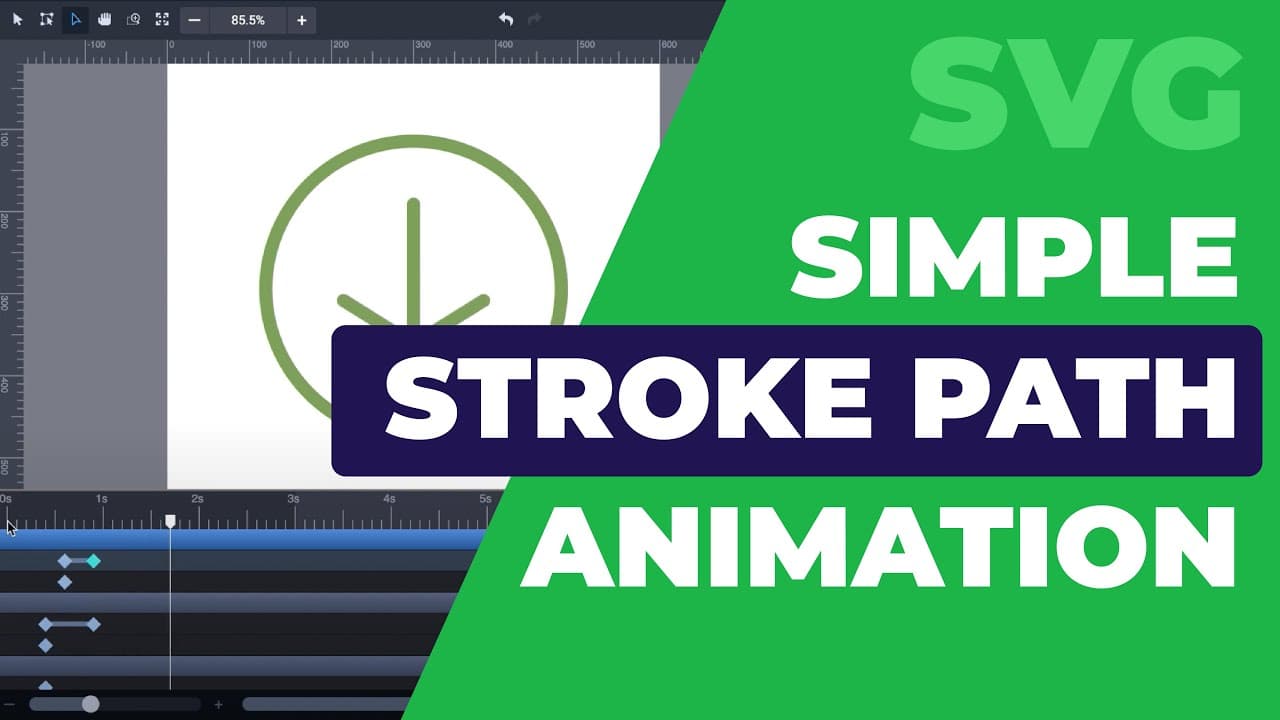
Learn how to create a self-drawing animation for stroke paths using stroke offset and stroke dashes animators, with step-by-step instructions and tips.
Transcript
hi it's kid with svj Durr in this video I'm going to show you how to create a simple stroke path animation this download icon that I've created an animated to draw itself to use stroke path animators make sure you have visible stroke paths in this case the sample I've created is made entirely of lines there are no elements with fill color so let's ... Read More
Key Insights
- 🤳 Stroke offset and stroke dashes animators are essential for creating self-drawing animations for stroke paths.
- 🫥 Manipulating starting and ending points of lines allows for customization of the animation flow.
- ❓ Copying and pasting animators can ensure symmetrical animations.
- 🐎 Adjusting timing and distances can control the speed and pacing of the animation.
Install to Summarize YouTube Videos and Get Transcripts
Explore YouTube Video Summarizer or Get YouTube Transcript Extractor
Questions & Answers
Q: What tools are used to create the stroke path animation?
The stroke offset and stroke dashes animators are used to create the self-drawing animation for stroke paths.
Q: How can I adjust the starting and ending points of the lines in the animation?
You can use the node tool to select and drag the starting and ending points, snapping them to the desired positions.
Q: How can I make the left and right lines of the arrow animate the same way?
You can select the left line, add stroke dashes and stroke offset animators, and copy them to the right line. Adjust the timing and distances as desired.
Q: What should I do to animate a circle in the self-drawing animation?
Select the circle, add path animators, set length for offset and dashes, and synchronize the duration with the previous animations. You can also add a rotate animator for extra detail.
Key Insights:
- Stroke offset and stroke dashes animators are essential for creating self-drawing animations for stroke paths.
- Manipulating starting and ending points of lines allows for customization of the animation flow.
- Copying and pasting animators can ensure symmetrical animations.
- Adjusting timing and distances can control the speed and pacing of the animation.
- Adding a rotate animator can add an extra level of detail to the animation.
Summary & Key Takeaways
-
This tutorial demonstrates how to create a self-drawing animation for stroke paths, using stroke offset and stroke dashes animators.
-
It shows how to set keyframes and values for the animators in the stroke panel, and how to manipulate starting and ending points for the lines.
-
The tutorial also covers symmetrical animations, adjusting animation speed, animating a circle, and adding a final detail by rotating the circle.
Read in Other Languages (beta)
Share This Summary 📚
Summarize YouTube Videos and Get Video Transcripts with 1-Click
Try YouTube Summary with ChatGPT & Claude or YouTube Transcript Generator