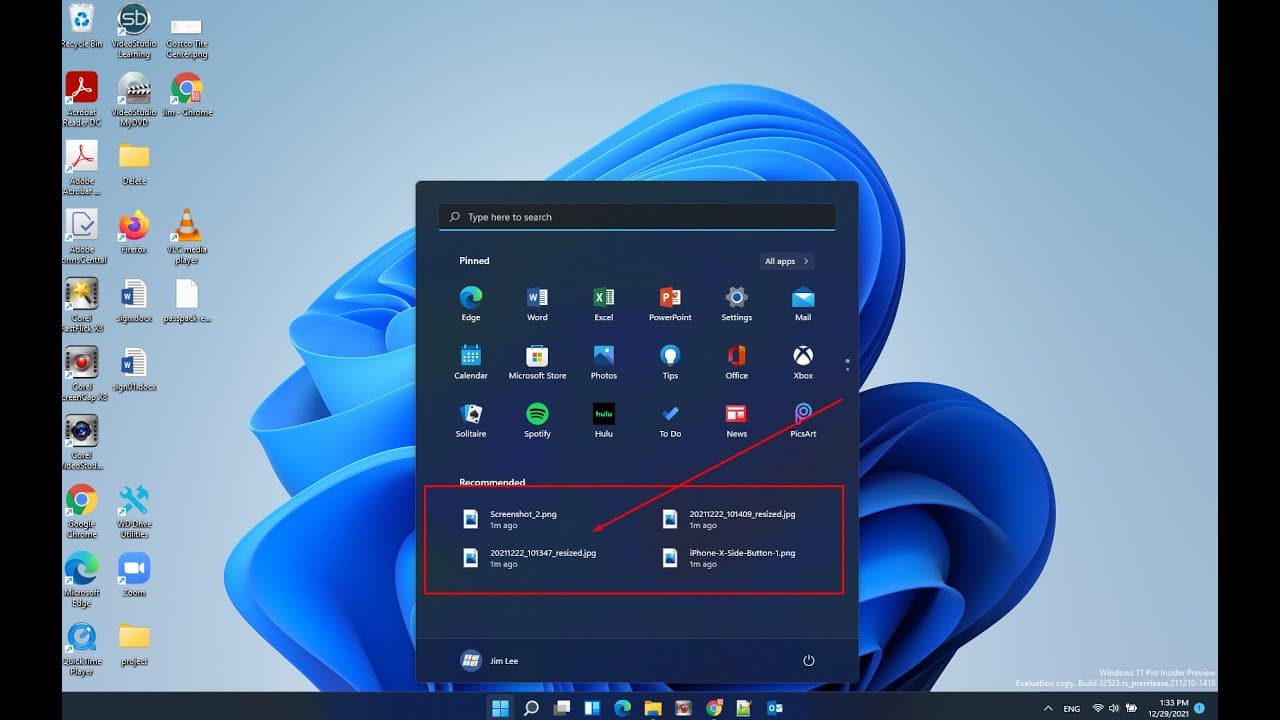
How to clear windows 11 start menu recommended files and file history
TL;DR
Learn to clear Windows 11 file history and recommended files.
Transcript
hello in this video i will show you how to clear the file history in the when you click start you have recommend how to click clear that and at the same time if you open file explorer it also show up here using the file file explorer history so we want to clear that you can manipulate to that for example right click remove from the list okay after ... Read More
Key Insights
- Windows 11's Start Menu displays recommended files, which can be cleared individually by right-clicking and selecting 'Remove from list'.
- To clear multiple files at once, open File Explorer, click the three-dot menu, select 'Options', and use the 'Clear File Explorer history' button.
- Disabling recent files from appearing in the Start Menu involves navigating to Settings, then Personalization, and turning off specific options.
- The recommended section in the Start Menu may show older files; manual removal from the list is required for these.
- File Explorer history and Start Menu recommendations are separate; clearing one does not necessarily clear the other.
- To prevent future file recommendations, disable the 'Show recently opened items in Start' option in Personalization settings.
- The process to clear file history is straightforward but requires navigating through multiple settings and options.
- Understanding the difference between File Explorer history and Start Menu recommendations is crucial for effective management.
Install to Summarize YouTube Videos and Get Transcripts
Explore YouTube Video Summarizer or Get YouTube Transcript Extractor
Questions & Answers
Q: How can you remove individual recommended files from the Windows 11 Start Menu?
To remove individual recommended files from the Windows 11 Start Menu, you can right-click on the file you wish to remove and select 'Remove from list'. This action will immediately delete the file from the recommended section, helping you manage and declutter your Start Menu effectively.
Q: What steps are involved in clearing multiple file histories in Windows 11?
To clear multiple file histories in Windows 11, open File Explorer and click on the three-dot menu. Select 'Options' from the dropdown, and under the General tab, you will find a 'Clear File Explorer history' button. Clicking this button will clear the history of files accessed through File Explorer.
Q: How can users prevent future file recommendations from appearing in the Start Menu?
Users can prevent future file recommendations from appearing in the Start Menu by navigating to the Settings, then Personalization. Under the Start section, they need to turn off the 'Show recently opened items in Start' option. This will stop new files from being displayed in the recommendations section.
Q: What is the difference between File Explorer history and Start Menu recommendations?
File Explorer history refers to the list of files recently accessed through File Explorer, while Start Menu recommendations display files based on recent activity across the system. Clearing one does not necessarily affect the other, as they are managed separately within Windows 11 settings.
Q: Why might older recommended files still appear after clearing history?
Older recommended files might still appear after clearing history because the recommendations section in the Start Menu can show files opened long ago. These files require manual removal by right-clicking and selecting 'Remove from list', as they are not automatically cleared with recent history.
Q: What settings need to be adjusted to ensure a cleaner Start Menu?
To ensure a cleaner Start Menu, adjust the settings by going to Personalization in Settings. Under Start, turn off 'Show recently opened items in Start' to prevent new files from appearing in the recommendations. This adjustment will help maintain a tidy and organized Start Menu.
Q: Is there a way to refresh the Start Menu after clearing files?
There is no direct refresh option for the Start Menu after clearing files. However, changes should be reflected immediately after clearing individual or multiple files. If files persist, ensure you've followed the correct steps and check the Personalization settings to disable future recommendations.
Q: How does the 'Clear File Explorer history' button function?
The 'Clear File Explorer history' button functions by deleting the list of files recently accessed through File Explorer. It is located under the General tab in File Explorer's Options menu. While it clears the File Explorer history, it may not affect older recommended files in the Start Menu.
Summary & Key Takeaways
-
This video tutorial demonstrates how to clear file history and recommended files in Windows 11's Start Menu. It covers individual and bulk clearing methods, including navigating File Explorer options and Personalization settings to disable future recommendations.
-
To remove specific files from the Start Menu recommendations, users can right-click and select 'Remove from list'. For bulk removal, File Explorer's options provide a 'Clear File Explorer history' button, although this may not affect older recommended files.
-
Disabling future recommendations involves accessing the Personalization settings in Windows 11. Users can turn off 'Show recently opened items in Start' to prevent files from appearing in the recommendations section, ensuring a cleaner Start Menu.
Read in Other Languages (beta)
Share This Summary 📚
Summarize YouTube Videos and Get Video Transcripts with 1-Click
Try YouTube Summary with ChatGPT & Claude or YouTube Transcript Generator
Explore More Summaries from E Micro Tech 📚

Summarize YouTube Videos and Get Video Transcripts with 1-Click
Try YouTube Summary with ChatGPT & Claude or YouTube Transcript Generator