How to Use Apple Pencil Pro for Beginners
TL;DR
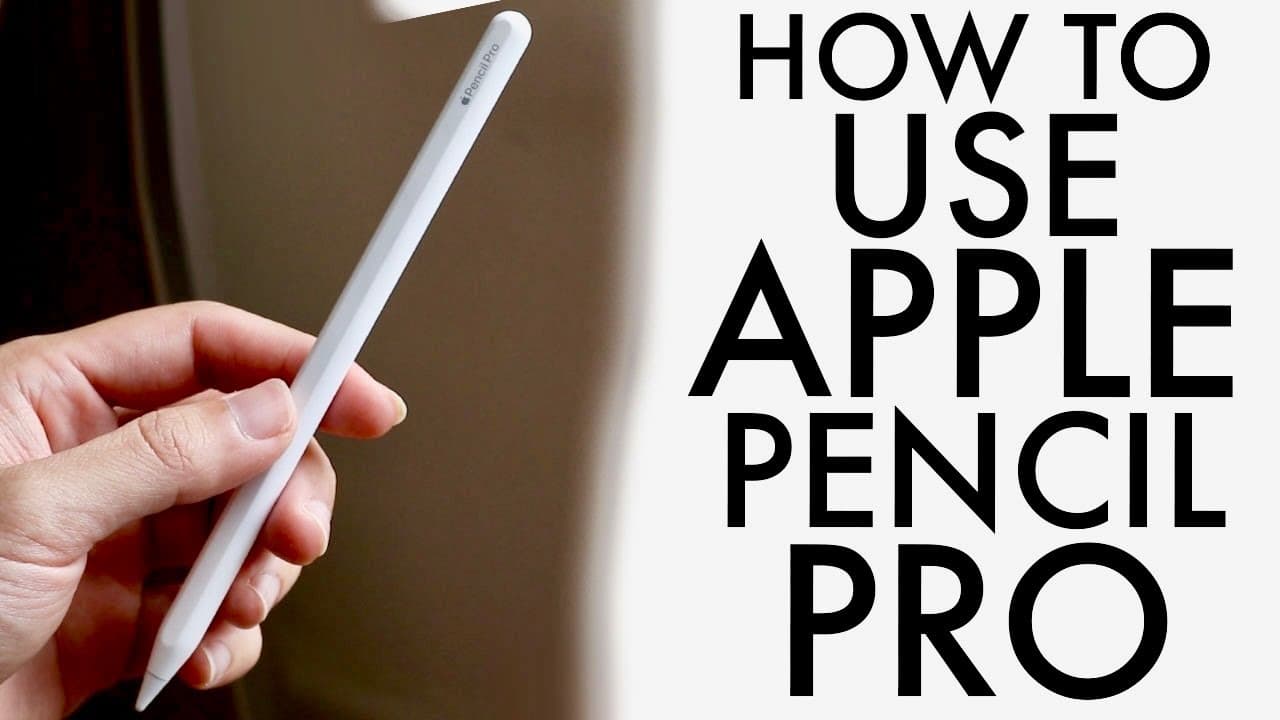
To use the Apple Pencil Pro, connect it to your compatible iPad by attaching it to the magnetic side. Familiarize yourself with features like double-tap customization, hover functionality, and a removable tip for easy replacement, which enhance your drawing and note-taking experience.
Transcript
well everyone you may have just picked up your apple pencil Pro and you might be trying to figure out exactly how to use this particular apple pencil now luckily for you it's not a super complicated process if you're a new beginner to an apple pencil hopefully by the end of it you'll have a great understanding of how to use your particular apple pe... Read More
Key Insights
- 🫓 The Apple Pencil Pro's design includes a flat side for a secure connection to iPads, with easy identification features.
- 🛀 Users can enjoy a seamless experience with drawing and note-taking applications due to the device’s responsive touch and programmable actions.
- 😩 The Apple Pencil Pro supports a removable tip functionality, allowing users to replace it as it wears down, extending the device's longevity.
- 🤟 Customization options enable users to define specific functions for tap and squeeze gestures, enhancing workflow based on individual preferences.
- 🎮 Enhanced features such as hover and vibration feedback provide an intuitive interaction experience, amplifying drawing precision and control.
- 💁 Battery management tips include monitoring settings that may affect charge life, ensuring the pencil stays functional without frequent charging interruptions.
- 🤟 The integration of shortcuts through swipe gestures contributes to efficient multitasking and quick access to note-taking tools.
Install to Summarize YouTube Videos and Get Transcripts
Explore YouTube Video Summarizer or Get YouTube Transcript Extractor
Questions & Answers
Q: How do I recognize an Apple Pencil Pro?
You can identify an Apple Pencil Pro by its flat side and the branding on its exterior that states “Apple Pencil Pro.” This design allows it to connect magnetically to compatible iPads. Besides, the pencil features a touch sensor for efficient usage, distinguishing it from other models.
Q: What steps should I follow to connect my Apple Pencil Pro to my iPad?
To connect your Apple Pencil Pro, locate the magnetic clip on your iPad. Ensure that your iPad is powered on, and place the Apple Pencil against this area. A pop-up should appear confirming the connection process, prompting you to answer a few customization questions for setup.
Q: What practical applications does the Apple Pencil Pro have?
The Apple Pencil Pro is versatile, primarily tailored for note-taking and drawing applications. Users can efficiently sketch in drawing apps and take notes in a customizable notes tool. The ability to switch tools like pencil and eraser enhances productivity, making it ideal for both artists and students.
Q: Can I customize the settings of my Apple Pencil Pro?
Yes, the Apple Pencil Pro comes with several customizable settings. Users can adjust actions for double-tap and squeeze gestures, set sensitivity levels, and toggle features like hover. Additionally, users can enable or disable specific functions through the iPad's settings menu for personalized usage.
Summary & Key Takeaways
-
The Apple Pencil Pro features a flat side for connection to compatible iPads and includes a removable tip for replacement. Users can identify this model by its flat side and specific branding.
-
Connecting the Apple Pencil to an iPad involves finding the magnetic section for pairing, after which users can begin using it for scrolling and drawing.
-
Key functionalities include customizable settings for double-tapping actions, hover options, and a vibration motor, enhancing the overall user experience.
Read in Other Languages (beta)
Share This Summary 📚
Summarize YouTube Videos and Get Video Transcripts with 1-Click
Try YouTube Summary with ChatGPT & Claude or YouTube Transcript Generator
Explore More Summaries from Simple Alpaca 📚


Summarize YouTube Videos and Get Video Transcripts with 1-Click
Try YouTube Summary with ChatGPT & Claude or YouTube Transcript Generator