MS word how to do two lines in one
TL;DR
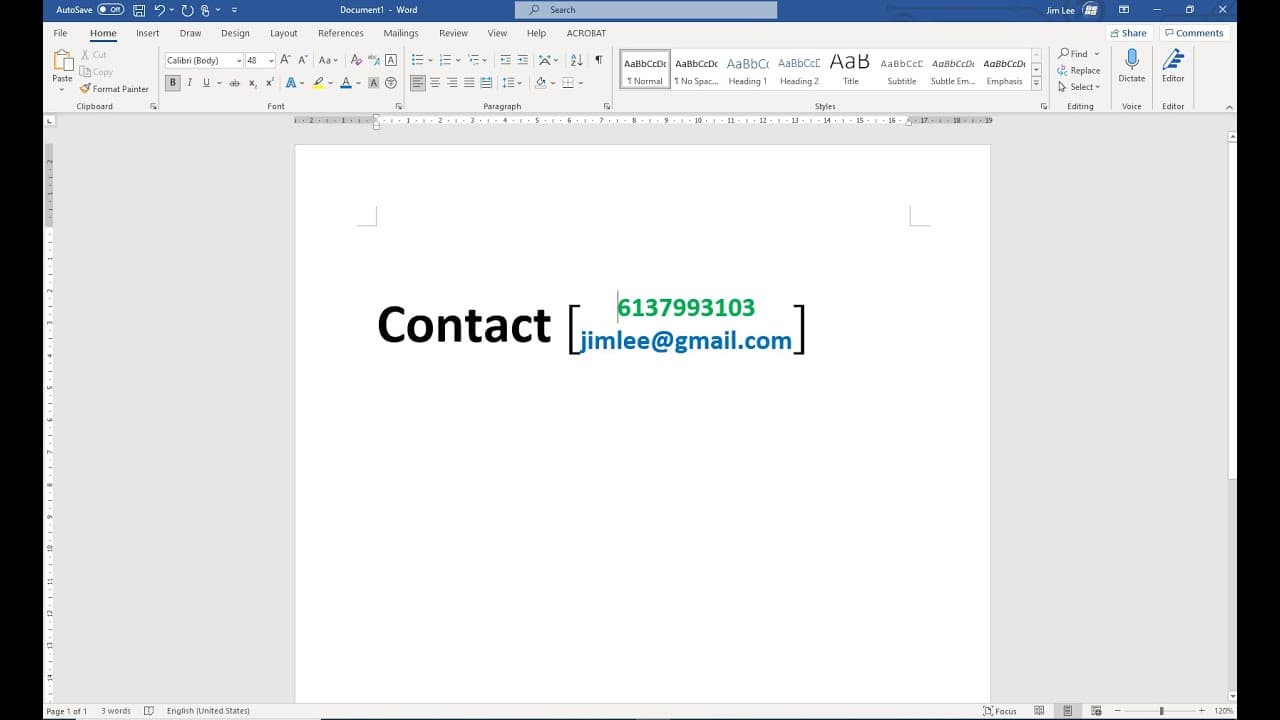
This video tutorial teaches how to format text into two lines in Microsoft Word.
Transcript
hello in this video i will show you how to do the two lines in one in microsoft office world like this so to do that it's easy we just type breakfast milk and egg then we select new contact go to here under home ration day out click that under the drop down you select two lines in one and you'll need a select the enclosure and here you have one two... Read More
Key Insights
- 🫥 The video effectively utilizes practical examples, demonstrating how to create text in two lines for better clarity and aesthetics.
- 💄 Adjusting text color and background enhances the overall presentation of a document, making it more visually appealing.
- 💁 Microsoft Word offers various formatting tools that can be easily accessed under the 'Home' and 'Layout' tabs for user convenience.
- 😑 Customizing text formats not only improves readability but also allows for creative expression within business and academic documents.
- 👤 The tutorial stresses the importance of step-by-step execution, making it easier for even novice users to follow along.
- 🫥 Highlighting and spacing are crucial components in achieving the desired layout when creating multi-line text sections.
- 📜 Understanding Microsoft Word's features can significantly increase one’s efficiency and effectiveness in document creation.
Install to Summarize YouTube Videos and Get Transcripts
Explore YouTube Video Summarizer or Get YouTube Transcript Extractor
Questions & Answers
Q: What is the primary function being demonstrated in the video?
The primary function demonstrated is how to format text to appear in two lines in Microsoft Word. This involves selecting specific layout options that allow users to create visually appealing text arrangements. The tutorial guides users step-by-step, making it easy to follow along and replicate the results.
Q: How do you select the 'Two Lines in One' option?
To select the 'Two Lines in One' option, you first type your desired text and then navigate to the 'Home' tab in Microsoft Word. Under the 'Layout' options, you will find the dropdown menu that contains 'Two Lines in One.' Choosing this option presents additional formatting variations, which can enhance document clarity and design.
Q: Can you change the colors of the text and background using this method?
Yes, you can change the colors of both the text and background using the demonstrated method. Once you've selected your text, you can choose a color from the formatting options. Following the tutorial, you can set different colors for each line, providing a customized look that fits your document style.
Q: What should you do if the background color doesn't appear as intended?
If the background color does not appear as intended, ensure that you have correctly selected the appropriate formatting options. Sometimes, it may be necessary to adjust spacing or highlight selections again. If issues persist, revisiting the layout settings can help, or you may need to restart the process to verify all choices were implemented correctly.
Summary & Key Takeaways
-
The video demonstrates a simple method to format text into two lines using Microsoft Word's features.
-
Instructions include typing text, selecting options under the 'Home' tab, and adjusting layout settings for desired effects.
-
Viewers learn to change colors of text and backgrounds, enhancing visual appeal in their documents.
Read in Other Languages (beta)
Share This Summary 📚
Summarize YouTube Videos and Get Video Transcripts with 1-Click
Try YouTube Summary with ChatGPT & Claude or YouTube Transcript Generator
Explore More Summaries from E Micro Tech 📚

Summarize YouTube Videos and Get Video Transcripts with 1-Click
Try YouTube Summary with ChatGPT & Claude or YouTube Transcript Generator