You Should be Using Proximity in Your Animations (Blender)
TL;DR
Learn to use proximity in Blender for dynamic animations.
Transcript
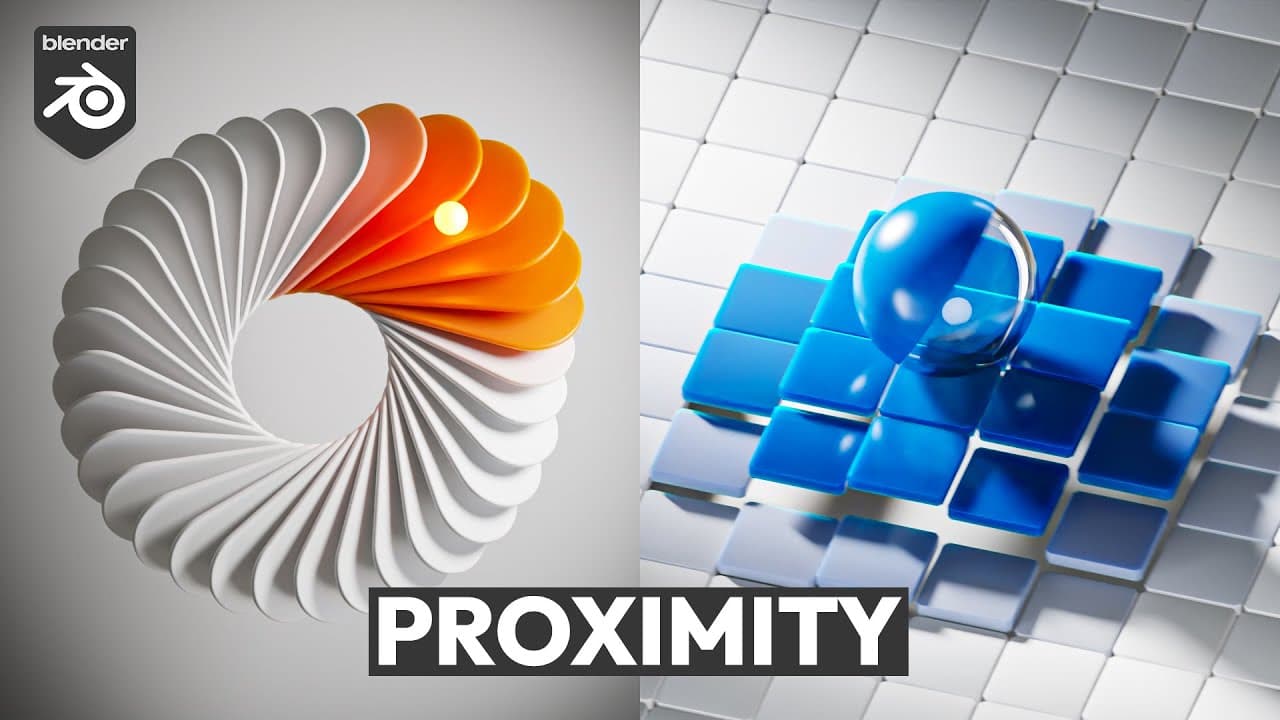
the use of proximity is used in Motion Graphics constantly in almost every single style you can see and you're going to need to know how to use it now the basic concept of proximity Is when one object is near something it will make changes to that thing based on where it's at that can be displacement that can be scale that can be ro... Read More
Key Insights
- Proximity in motion graphics involves changing an object's attributes based on its closeness to another object, affecting displacement, scale, rotation, and materials.
- The tutorial demonstrates using Blender's Geometry Nodes to create proximity effects, starting with a basic setup and progressing to a complete animation.
- The tutorial includes creating a grid and using a plane axis to control geometry nodes without affecting the render.
- A mesh line with a count of one helps create a point for the proximity effect, controlled by an empty object in the viewport.
- A geometry proximity node is used to measure distance and apply transformations like displacement, scale, or rotation.
- The tutorial shows how to create seamless loops by duplicating and tiling the grid, ensuring a smooth animation cycle.
- Materials and lighting are added to enhance the animation's visual appeal, including using HDRI lighting and adjusting material properties.
- The tutorial emphasizes the importance of reactive animations in motion graphics, especially for product animation and client work.
Install to Summarize YouTube Videos and Get Transcripts
Explore YouTube Video Summarizer or Get YouTube Transcript Extractor
Questions & Answers
Q: What is the basic concept of proximity in motion graphics?
Proximity in motion graphics refers to the idea that when one object is near another, it causes changes in the attributes of the second object. These changes can affect various parameters such as displacement, scale, rotation, and materials. The tutorial demonstrates how to use this concept in Blender using Geometry Nodes to create dynamic and interactive animations.
Q: How do you set up a basic proximity effect in Blender's Geometry Nodes?
To set up a basic proximity effect in Blender's Geometry Nodes, start by creating a grid and using a plane axis to control the nodes. Use a mesh line with a count of one to create a point for the proximity effect. A geometry proximity node measures the distance between objects, and you can use this distance to apply transformations like displacement, scale, or rotation. An empty object in the viewport controls the effect without affecting the render.
Q: How can you create a seamless loop in Blender animations?
To create a seamless loop in Blender animations, duplicate and tile the grid to ensure the environment at the start and end of the animation is identical. Animate the object to move from one end of the grid to the other, ensuring the transformations applied by the proximity effect are consistent throughout the loop. This approach guarantees a smooth transition when the animation repeats, creating a continuous loop.
Q: What role do materials and lighting play in enhancing the animation?
Materials and lighting play a crucial role in enhancing the visual appeal of the animation. By adding materials, you can create different textures and colors that react to the proximity effect. Lighting, such as HDRI and area lights, adds depth and realism to the scene. Adjusting material properties like roughness and using subsurface scattering can further enhance the animation, making it more visually engaging and realistic.
Q: What additional resources are available for learning more about proximity effects in Blender?
Additional resources for learning more about proximity effects in Blender include the creator's Patreon page, which offers a four-tutorial series totaling 101 minutes. These tutorials cover using geometry nodes to control animations and create beautiful procedural animations. Subscribers can access a range of tutorials and receive a 10% discount if they subscribe annually. The creator also offers a motion graphics course on Blender Market for more in-depth learning.
Q: How does the tutorial ensure the animation loop is seamless?
The tutorial ensures the animation loop is seamless by duplicating and tiling the grid, which guarantees the environment at the start and end of the animation is identical. This method ensures that when the animation repeats, there is no noticeable jump cut, creating a continuous loop. The tutorial also demonstrates animating the object to move smoothly across the grid, maintaining consistency in the proximity effect throughout the loop.
Q: What is the significance of using an empty object in the viewport?
Using an empty object in the viewport is significant because it allows control over the geometry nodes without affecting the render. The empty acts as a controller for the proximity effect, determining how the nodes interact with the grid and other objects. This approach provides flexibility and precision in applying transformations like displacement, scale, and rotation, ensuring the desired effect is achieved in the animation.
Q: Why is understanding proximity effects important for motion graphics?
Understanding proximity effects is important for motion graphics because it enables the creation of dynamic and interactive animations. Proximity effects allow objects to react to each other based on their distance, creating visually engaging and complex animations. This technique is particularly useful in product animation and client work, where reactive animations can enhance the storytelling and visual impact of the graphics. Mastery of proximity effects is a valuable skill for motion graphic designers.
Summary & Key Takeaways
-
This tutorial covers how to use proximity in Blender's Geometry Nodes to create dynamic animations. It explains the basic setup, including creating a grid and using an empty object to control the proximity effect. The tutorial progresses to a complete animation with materials and lighting.
-
The tutorial demonstrates creating a seamless loop by tiling the grid and animating an object to interact with it, using geometry proximity nodes to measure distance and apply transformations. It emphasizes the importance of reactive animations in motion graphics.
-
Materials and lighting are added to the animation to enhance its visual appeal. The tutorial also provides information on additional resources and tutorials available on Patreon, offering more in-depth learning opportunities for creating motion graphics in Blender.
Read in Other Languages (beta)
Share This Summary 📚
Summarize YouTube Videos and Get Video Transcripts with 1-Click
Try YouTube Summary with ChatGPT & Claude or YouTube Transcript Generator
Explore More Summaries from Ducky 3D 📚
Summarize YouTube Videos and Get Video Transcripts with 1-Click
Try YouTube Summary with ChatGPT & Claude or YouTube Transcript Generator