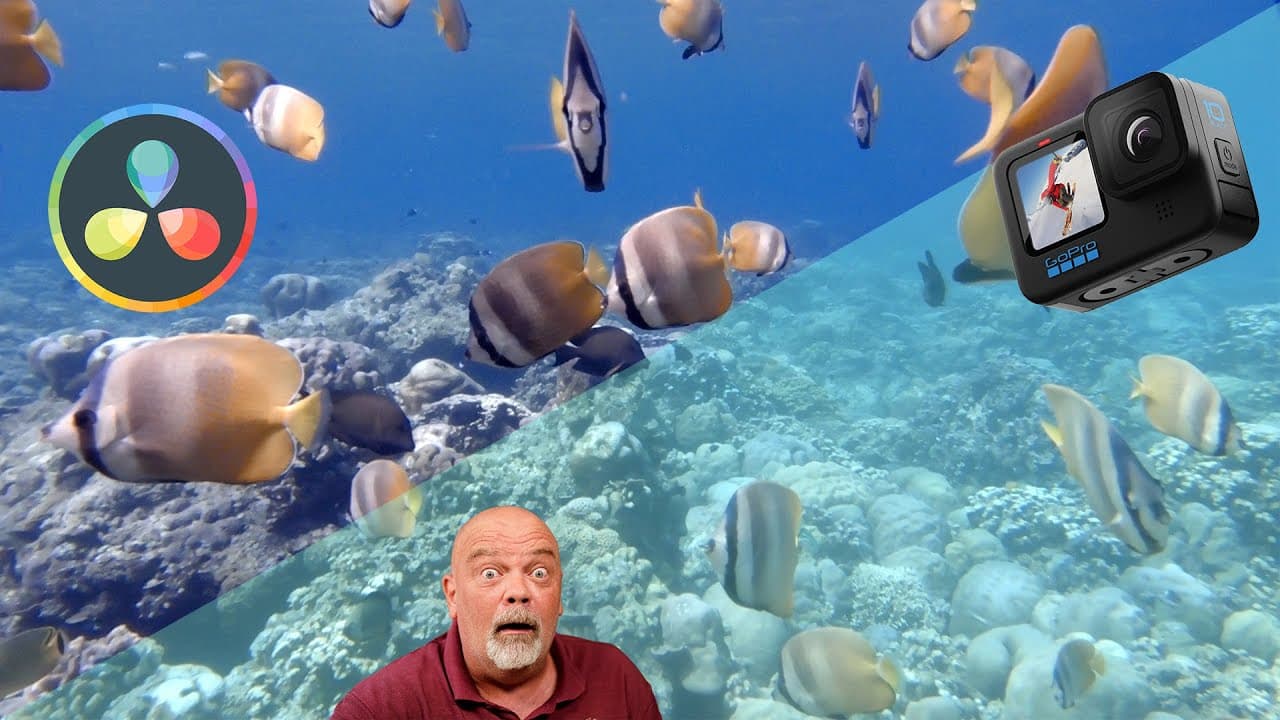
Color grading Gopro footage with Davinci resolve 18
TL;DR
Learn how to color grade your GoPro footage using DaVinci Resolve, with step-by-step instructions and examples.
Transcript
Hello friends in today's video I'm gonna show you how to color grade your footage with GoPro using DaVinci Resolve first of all the footage have been taken with log mode so I have more dynamic range and it's easier to correct my footage there is a video up there to explain the settings I'm using for the GoPro you can check it and then come back to ... Read More
Key Insights
- 🧑💻 Shooting in log mode provides more flexibility for color correction and grading during post-processing.
- 🤍 Different nodes in DaVinci Resolve can be used to adjust contrast, white balance, and color saturation.
- 🫵 The parade view in DaVinci Resolve helps visualize the brightness and contrast levels of the footage.
- 👻 The color warper tool allows for selective color adjustments in specific areas of the footage.
- ❓ Multiple corrections can be applied using separate nodes for better organization and flexibility.
- 🤍 Adjusting temperature and tint can help achieve the desired white balance in the footage.
- 🪜 Increasing color saturation can add vibrancy and enhance the overall visual appeal of the footage.
Install to Summarize YouTube Videos and Get Transcripts
Explore YouTube Video Summarizer or Get YouTube Transcript Extractor
Questions & Answers
Q: What is the benefit of shooting GoPro footage in log mode?
Shooting in log mode provides more dynamic range, making it easier to correct and grade the footage during post-processing.
Q: How can I access the color page in DaVinci Resolve?
To access the color page, click on the color tab located in the top navigation menu of DaVinci Resolve.
Q: How can I adjust contrast in DaVinci Resolve?
To adjust contrast, use the contrast node in DaVinci Resolve. By manipulating the offset and contrast parameters, you can darken or lighten specific areas of the footage.
Q: Can I selectively adjust the colors in my footage?
Yes, you can use the color warper tool in DaVinci Resolve to selectively adjust specific colors by adding control points and manipulating their positions.
Key Insights:
- Shooting in log mode provides more flexibility for color correction and grading during post-processing.
- Different nodes in DaVinci Resolve can be used to adjust contrast, white balance, and color saturation.
- The parade view in DaVinci Resolve helps visualize the brightness and contrast levels of the footage.
- The color warper tool allows for selective color adjustments in specific areas of the footage.
- Multiple corrections can be applied using separate nodes for better organization and flexibility.
- Adjusting temperature and tint can help achieve the desired white balance in the footage.
- Increasing color saturation can add vibrancy and enhance the overall visual appeal of the footage.
- DaVinci Resolve offers a user-friendly and efficient workflow for color grading GoPro footage.
Summary & Key Takeaways
-
The video tutorial demonstrates how to color grade GoPro footage in DaVinci Resolve using different nodes for contrast, white balance, and color correction.
-
The instructor explains how to use the parade view to adjust brightness and contrast, and the color wheels to fine-tune white balance and color saturation.
-
The tutorial also showcases the use of the color warper to selectively adjust specific colors in the footage.
Read in Other Languages (beta)
Share This Summary 📚
Summarize YouTube Videos and Get Video Transcripts with 1-Click
Try YouTube Summary with ChatGPT & Claude or YouTube Transcript Generator