How to Export Images Out of Photoshop for the Web (BEST EXPORT SETTINGS)
TL;DR
Learn the optimal export settings in Photoshop for web images, ensuring quality and reducing file sizes efficiently.
Transcript
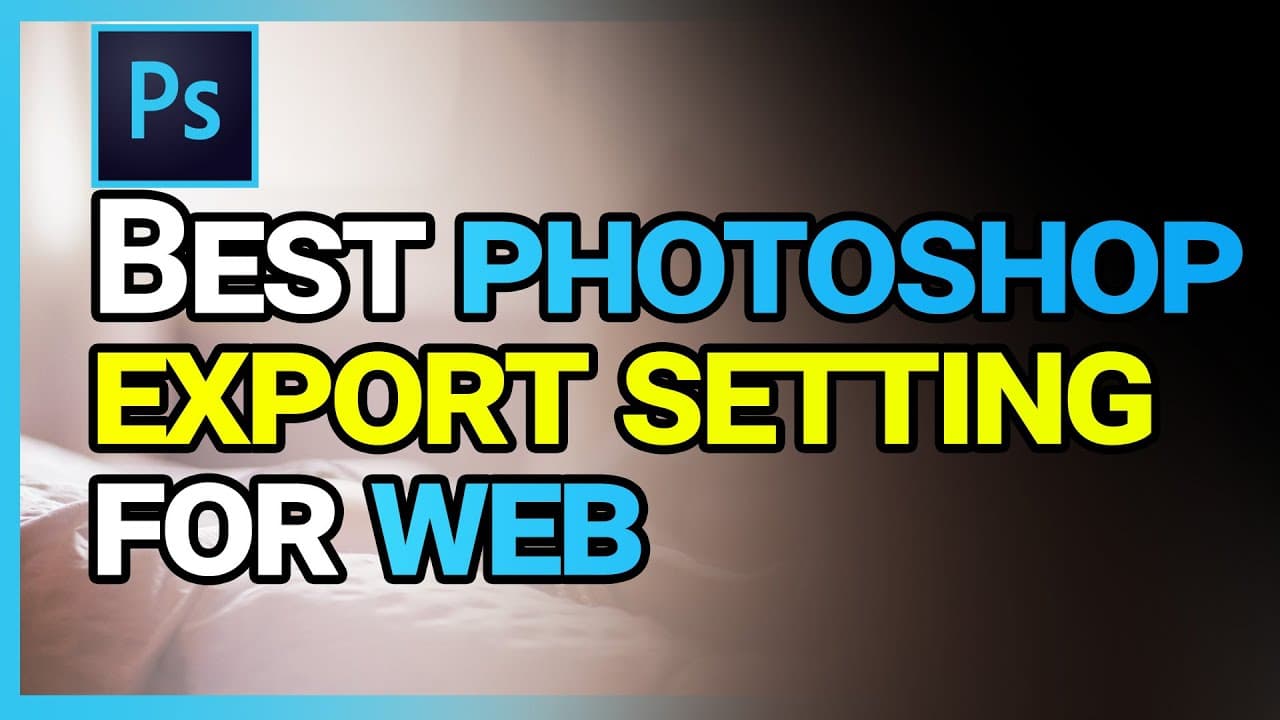
In this video, I'm going to show you the best export setting for Photoshop when you're exporting an image for the web. So I'm going to use this image that I've created here. This is going to be the thumbnail and the website image for this video that I'm actually creating right now. So in order to export this, you want to go to file, and under file,... Read More
Key Insights
- 🕸️ Legacy Save for Web vs. Export As feature in Photoshop for web image exports.
- 🕸️ Balancing image quality settings with file sizes for optimal web performance.
- 🕸️ Customizing image dimensions for different web platforms like websites and YouTube.
- 🕸️ Converting images to Smart RGB for better web compatibility and performance.
- 📁 Understanding the impact of image quality adjustments on file sizes during exports.
- 🕸️ Importance of maintaining a balance between image quality and file size for web graphics.
- 🕸️ Utilizing specific export settings in Photoshop to cater to individual web requirements.
Install to Summarize YouTube Videos and Get Transcripts
Explore YouTube Video Summarizer or Get YouTube Transcript Extractor
Questions & Answers
Q: What are the key differences between legacy Save for Web and the new Export As feature in Photoshop?
Save for Web was the standard method for web image exports, while Export As offers a more streamlined approach with better image quality control and file size management.
Q: How does adjusting image quality impact file size when exporting images in Photoshop?
Higher image quality settings result in larger file sizes, while reducing quality can significantly decrease file sizes, crucial for optimizing web performance without sacrificing too much visual detail.
Q: Why is it essential to consider different image sizes for web platforms like websites and YouTube?
Websites may require smaller image dimensions to improve loading speeds, while platforms like YouTube automatically handle compression, allowing for larger image sizes without sacrificing performance.
Q: What are the benefits of converting images to Smart RGB when exporting for the web in Photoshop?
Converting to Smart RGB maintains image quality while reducing file size, ensuring compatibility with web standards and enhancing overall image performance across various devices.
Summary & Key Takeaways
-
Exporting images for the web in Photoshop requires choosing between legacy Save for Web and the newer Export As options.
-
Adjust image size, quality, and format to optimize file size for websites and platforms like YouTube.
-
Balancing image quality and file size is key to creating efficient and visually appealing web graphics.
Read in Other Languages (beta)
Share This Summary 📚
Summarize YouTube Videos and Get Video Transcripts with 1-Click
Try YouTube Summary with ChatGPT & Claude or YouTube Transcript Generator
Explore More Summaries from Howfinity 📚



Summarize YouTube Videos and Get Video Transcripts with 1-Click
Try YouTube Summary with ChatGPT & Claude or YouTube Transcript Generator