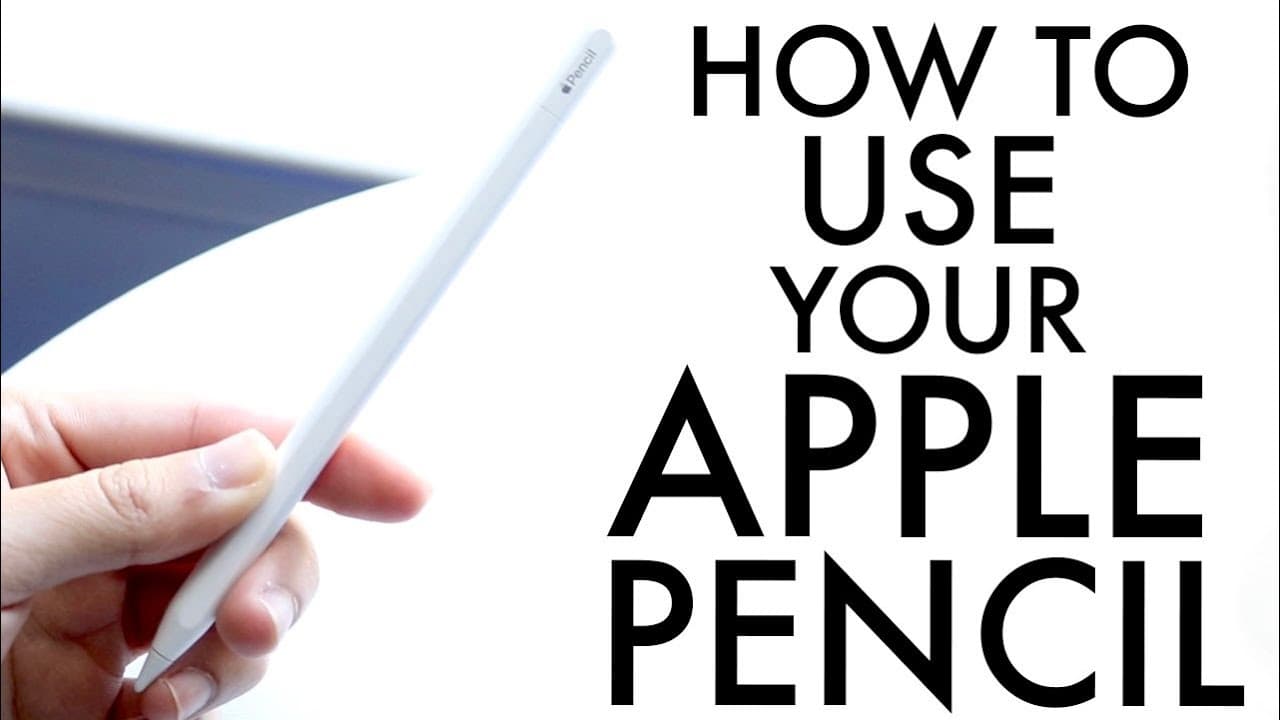
How To Use Your Apple Pencil! (Complete Beginners Guide)
TL;DR
Learn how to connect and effectively use your Apple Pencil.
Transcript
so you may have just picked up your apple pencil and you might be trying to figure out basically a quick introduction on how to use your brand new apple pencil that you just bought now it really doesn't matter which apple pencil you have as long as it's compatible with your iPad that you bought then that's exactly that's the basically the perfect s... Read More
Key Insights
- ☄️ The Apple Pencil comes in three models: the original, the second generation, and the USBC version, each with specific compatibility requirements.
- 🤑 Connection methods for the Pencil vary, with the first model using lightning, while the newer ones utilize magnetic attachments or USBC.
- 😀 Users can engage with numerous note-taking and drawing apps, where pressure sensitivity adds a professional touch to creative tasks.
- ❓ Settings for the Apple Pencil can be customized through the iPad's Bluetooth menu and support various functionalities, enhancing usability.
- 👻 Gesture controls with the Apple Pencil allow for quick actions like screenshot capture but can vary by model.
- 🎨 The Apple Pencil is specifically designed to enhance the iPad experience, focusing on creative applications over general navigation.
- 💁 Regular maintenance, including tip replacement, is vital for optimal performance of the Apple Pencil and troubleshooting issues.
Install to Summarize YouTube Videos and Get Transcripts
Explore YouTube Video Summarizer or Get YouTube Transcript Extractor
Questions & Answers
Q: What should I consider when choosing an Apple Pencil model?
When choosing an Apple Pencil model, it's essential to consider compatibility with your iPad. The original Apple Pencil is designed for iPads with lightning ports, while the Apple Pencil 2 and the USBC model are compatible with more recent iPads. Each model offers different features, so evaluate which functionalities align best with your usage needs.
Q: How do I connect my Apple Pencil to my iPad?
To connect your Apple Pencil to an iPad, the process varies by model. For the Apple Pencil 1, plug it into the lightning port of your iPad. The Apple Pencil 2 can connect magnetically at the top of the iPad, while the USBC model connects via the USBC port. Once connected, you can check the battery status through the settings or a widget.
Q: Can I use my Apple Pencil for all apps on the iPad?
While the Apple Pencil can be used in many apps, some functionalities are limited. For example, you can perform actions like drawing and note-taking, but certain gestures, like swiping to close an app, must still be done with your finger. Most drawing and note-taking apps are well-supported.
Q: How do I manage settings for my Apple Pencil?
You can manage your Apple Pencil settings through the Bluetooth section of your iPad's settings. Tapping the information icon next to your Apple Pencil enables options for disconnecting or forgetting the device. Additionally, in iPad OS, features like 'Scribble' allow users to convert handwriting to text and utilize creative gestures.
Q: What is the significance of the flat edge on certain Apple Pencil models?
The flat edge on the Apple Pencil 2 and USBC model allows for easier placement and provides a surface for unique features such as double-tap shortcuts. This flat side is essential for attaching the Pencil magnetically to compatible iPads and accessing various tools and settings quickly.
Q: What should I do if my Apple Pencil stops working properly?
If your Apple Pencil is malfunctioning, first check the tip for wear and replace it if necessary by twisting it off and tightening the connection. Restarting your iPad and reconnecting the Apple Pencil can help resolve connectivity issues. If problems persist, resetting the device Bluetooth settings might be required.
Summary & Key Takeaways
-
The video provides a detailed overview of the different Apple Pencil models and their compatibility with various iPads, emphasizing the importance of selecting the right one for your device.
-
It demonstrates how to set up the Apple Pencil with an iPad, discussing charging methods, connection processes, and the functionality of various models, including the unique features of the Apple Pencil 2.
-
The tutorial includes instructions for using the Apple Pencil with applications, especially for note-taking, drawing, and managing settings, along with tips for troubleshooting and optimizing performance.
Read in Other Languages (beta)
Share This Summary 📚
Summarize YouTube Videos and Get Video Transcripts with 1-Click
Try YouTube Summary with ChatGPT & Claude or YouTube Transcript Generator
Explore More Summaries from Simple Alpaca 📚


Summarize YouTube Videos and Get Video Transcripts with 1-Click
Try YouTube Summary with ChatGPT & Claude or YouTube Transcript Generator