20+ iPhone Photography Tips & Tricks
TL;DR
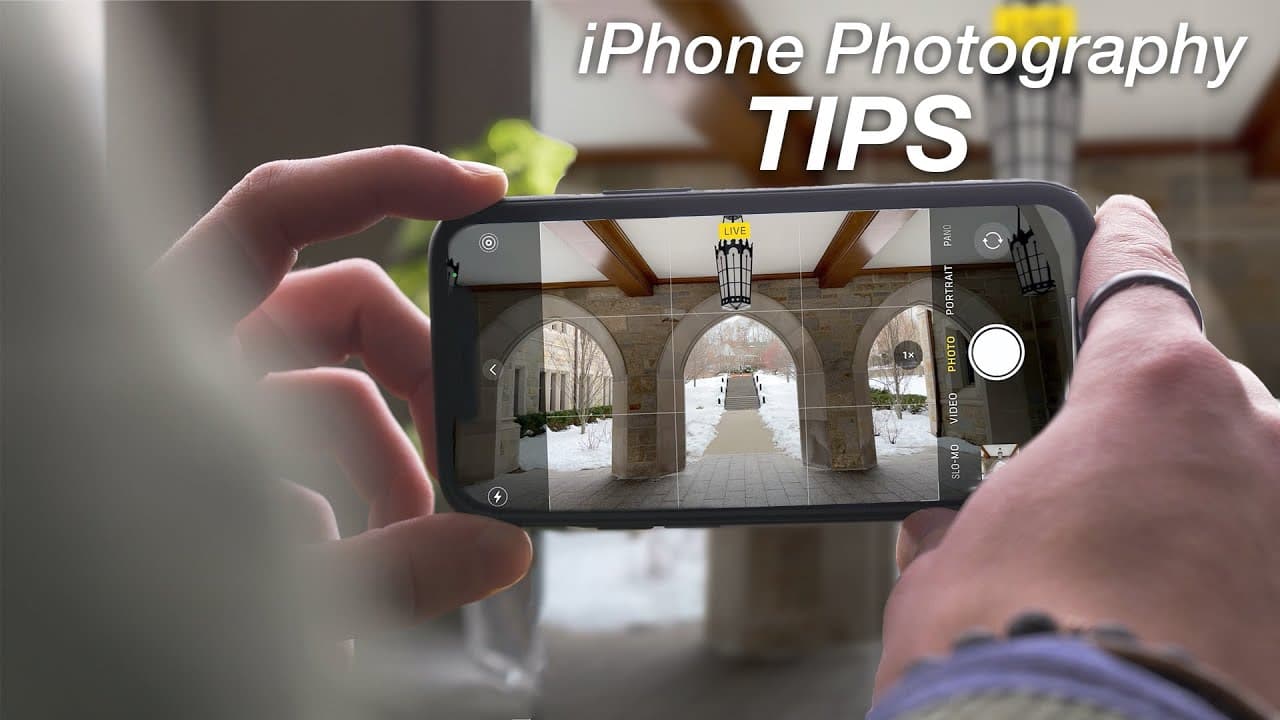
Learn how to improve your iPhone photography skills with techniques like the rule of thirds, navigation tips for the camera app, and practical features such as customizable exposure and editing options.
Transcript
hey everyone harris here with i download blog and whether you have an iphone 7 an iphone se iphone 12 or anything in between you want to take good pictures with your camera and the cameras on iphones are pretty good but there's a lot to the software that you can learn including techniques to get the best shots possible so we're going to divide this... Read More
Key Insights
- 📏 The rule of thirds helps achieve balanced and visually appealing compositions.
- 👻 iOS 14 allows for separate adjustments of exposure and focus.
- 🅰️ Navigation tips include using various buttons and gestures to capture different types of media and access settings.
- 😀 Editing options in the camera app include adjusting settings, marking up images, and adding captions.
- 🥳 Customizable features like aspect ratio and flash settings offer more control over your shots.
- 📷 Live photo feature captures moments before and after a photo, allowing for unique editing options.
- 👨🔬 Favorite images and labeled categories make it easy to organize and search for specific photos.
Install to Summarize YouTube Videos and Get Transcripts
Explore YouTube Video Summarizer or Get YouTube Transcript Extractor
Questions & Answers
Q: How can the rule of thirds improve the composition of your iPhone photos?
The rule of thirds suggests placing your subject on one of the intersecting lines on the third, adding balance and visual interest to your shot. It can also help create symmetry and lead lines.
Q: Can you adjust exposure and focus separately on iPhones running iOS 14?
Yes, iOS 14 allows you to customize exposure apart from focus. By using the exposure compensation control, you can manually adjust the exposure from -2 to +2 while keeping your focus locked or on autofocus.
Q: What are some navigation tips for the iPhone camera app?
You can tap the shutter button or volume buttons to take a photo, hold the shutter button for quick take videos, and slide to the left for burst mode. Swiping up reveals settings, swipe down hides them, and swiping up also reveals additional settings like flash, timer, aspect ratio, and more.
Q: How can you edit and enhance your iPhone photos?
In the edit menu, you can adjust settings such as brightness, contrast, highlights, shadows, and more. You can also mark up images, change aspect ratios, rotate, flip, and customize filters. Photos can be added to favorites or categorized with captions for easy search.
Key Insights:
- The rule of thirds helps achieve balanced and visually appealing compositions.
- iOS 14 allows for separate adjustments of exposure and focus.
- Navigation tips include using various buttons and gestures to capture different types of media and access settings.
- Editing options in the camera app include adjusting settings, marking up images, and adding captions.
- Customizable features like aspect ratio and flash settings offer more control over your shots.
- Live photo feature captures moments before and after a photo, allowing for unique editing options.
- Favorite images and labeled categories make it easy to organize and search for specific photos.
- The iPhone camera offers a wide range of features and settings to enhance your photography skills.
Summary & Key Takeaways
-
Utilize the rule of thirds by turning on the grid overlay in your camera settings to achieve balanced and aesthetically pleasing shots.
-
Customize exposure on compatible iPhones running iOS 14 by using the exposure compensation control, allowing you to adjust focus and exposure separately.
-
Learn how to navigate the camera app, including using the shutter button for photos, quick take videos, burst mode, and accessing various settings for your shots.
Read in Other Languages (beta)
Share This Summary 📚
Summarize YouTube Videos and Get Video Transcripts with 1-Click
Try YouTube Summary with ChatGPT & Claude or YouTube Transcript Generator