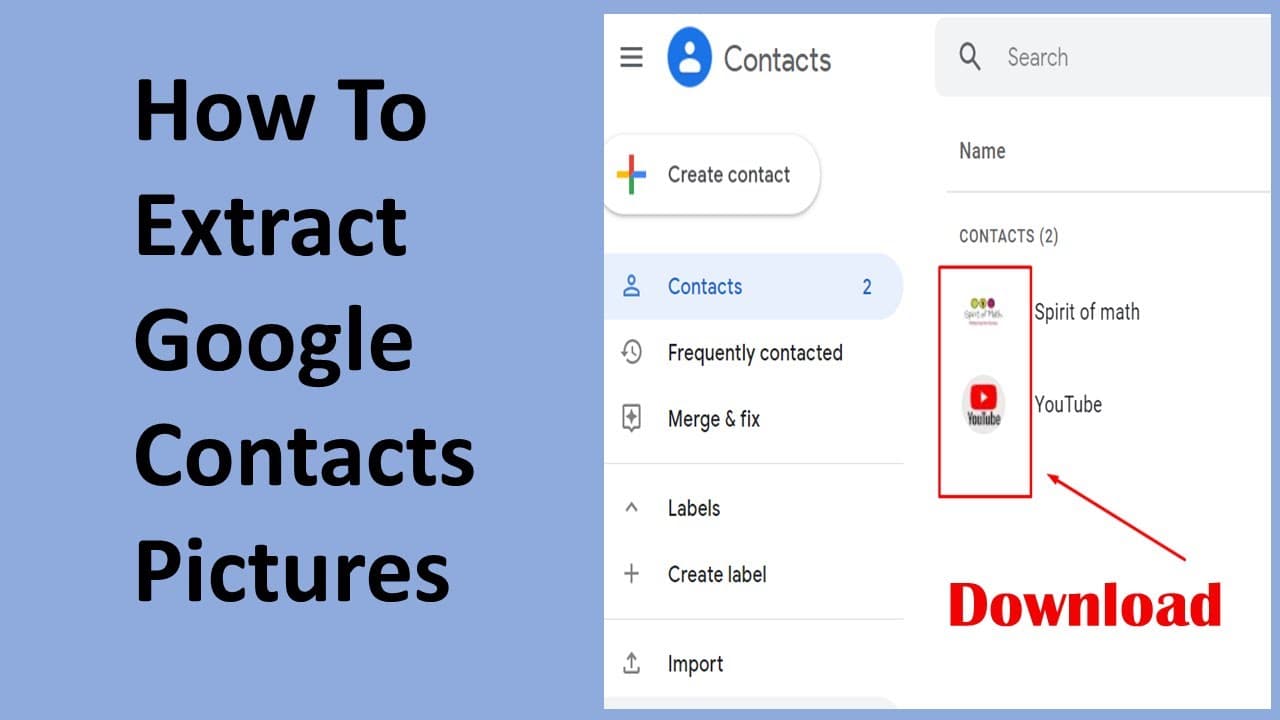
How to export or download all Gmail contact with profile photo
TL;DR
Learn how to download Gmail contacts along with their pictures.
Transcript
hello today i will show you how to download the your gmail contacts all the information and at the same time you download the picture that you upload to the contacts so if you go to your contacts you use in the export option it won't give you the picture link of the contacts see it has nothing it's only has email and the telephone number but if you... Read More
Key Insights
- 🍻 The standard Gmail contacts export option is limited and does not include picture links of contacts.
- 💁 By using the Google tool, users can easily download comprehensive contact information, including images.
- 💁 The recommended format for downloading contacts is CSV, making data handling easier across different platforms.
- 💁 The video demonstrates a straightforward process that non-technical users can easily follow to access their contact information.
- 💁 Using Google’s built-in tools ensures data security and protection of users' personal information during the export process.
- 💌 Users can expect an organized output that includes email addresses, phone numbers, and uploaded pictures for all contacts.
- 💌 The method shown is beneficial for those who regularly communicate via email and require updated visual information for contacts.
Install to Summarize YouTube Videos and Get Transcripts
Explore YouTube Video Summarizer or Get YouTube Transcript Extractor
Questions & Answers
Q: What is the main purpose of the video?
The main purpose of the video is to guide viewers on how to download their Gmail contacts along with the associated pictures. It emphasizes the limitations of the standard export option and introduces a method to retrieve useful details that can enhance contact management by including images.
Q: Why can't users get pictures with the regular export option?
Users can't get pictures with the regular export option because it only supplies basic contact data such as email addresses and phone numbers. The video highlights this limitation and presents an alternative method provided by Google that ensures pictures associated with contacts are also included in the downloaded file.
Q: What format should users select for the downloaded contacts?
Users should select the CSV format for their downloaded contacts. The video suggests using this format specifically as it is widely compatible, particularly with iOS devices. Choosing the correct format is crucial to ensure seamless access and editing of the contact information afterward.
Q: How does this tool ensure the safety of the user's information?
This tool is built by Google, which lends credibility and security to its use. The video reassures viewers by mentioning that the information is managed and exported directly through Google's platform, minimizing risks associated with data privacy and ensuring that contact details are handled safely.
Summary & Key Takeaways
-
The video explains how to utilize Google's tool to download Gmail contacts, emphasizing the inclusion of pictures that are associated with each contact.
-
It provides a step-by-step guide on accessing Google Contacts, selecting the appropriate export options, and ensuring you download data in CSV format for easy use.
-
The process is simple and user-friendly, allowing users to keep their contact information organized and updated, including emails and phone numbers alongside pictures.
Read in Other Languages (beta)
Share This Summary 📚
Summarize YouTube Videos and Get Video Transcripts with 1-Click
Try YouTube Summary with ChatGPT & Claude or YouTube Transcript Generator
Explore More Summaries from E Micro Tech 📚

Summarize YouTube Videos and Get Video Transcripts with 1-Click
Try YouTube Summary with ChatGPT & Claude or YouTube Transcript Generator