How To Use Your M1 iPad Pro! (Complete Beginners Guide)
TL;DR
A comprehensive walkthrough for new M1 iPad Pro users.
Transcript
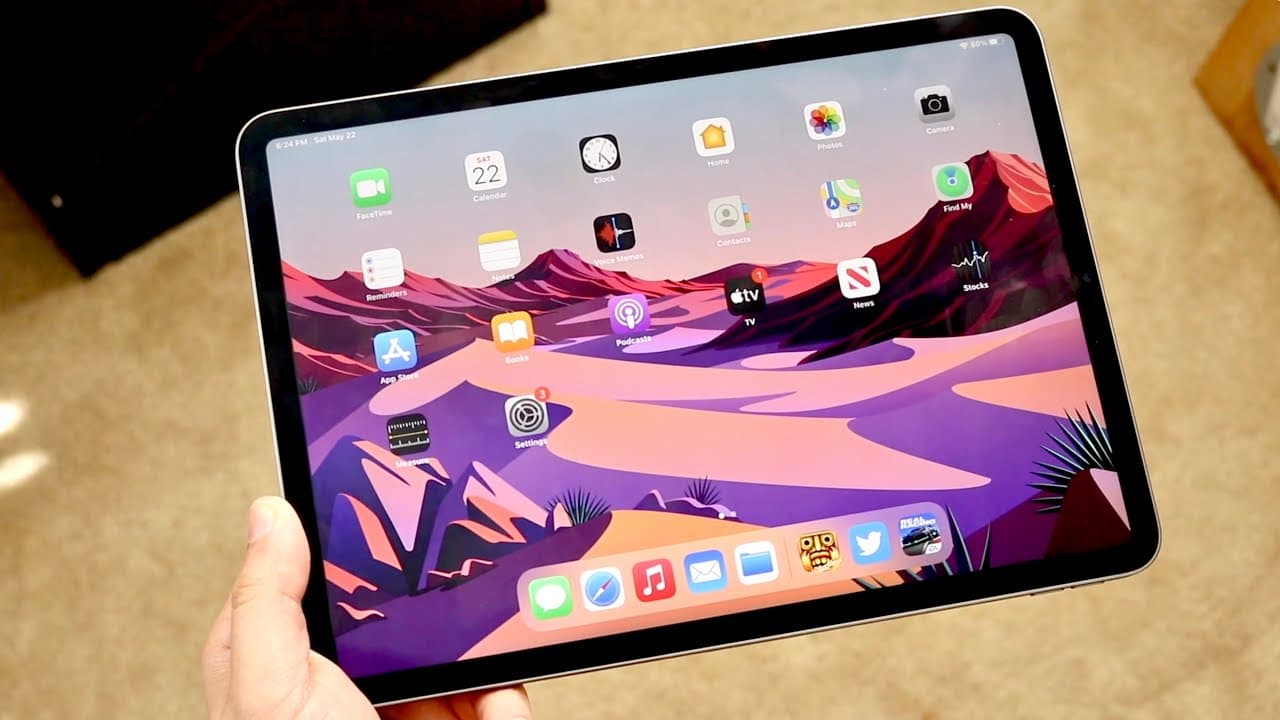
welcome back everyone you may be one of the fortunate owners to pick up a brand new m1 ipad pro and just in case this is your first ipad i'll go ahead and break down essentially everything you need to know about this specific ipad pro now starting off the outside of course we have this beautiful display either 11 inch or 12.9 inch depending on the ... Read More
Key Insights
- 🐿️ The M1 iPad Pro showcases impressive performance capabilities, with Apple’s M1 chip ensuring fluid operation and multitasking.
- 🔓 Face ID technology enhances security and convenience, allowing users to unlock the device without entering a passcode.
- 🈸 The gesture-based navigation system replaces physical buttons, promoting a seamless interaction with apps and multitasking features.
- 👤 Control Center can be customized, giving users direct access to frequently used settings and enhancing usability.
- 🙂 Dark Mode is a significant feature for users preferring a visually ergonomic interface, especially in low-light conditions.
- 😀 Users can efficiently manage apps by installing, updating, and removing them through the App Store, reinforcing system organization.
- 👻 Screen recording and editing capabilities allow users to create content and share experiences easily, enhancing the device's utility for creators.
Install to Summarize YouTube Videos and Get Transcripts
Explore YouTube Video Summarizer or Get YouTube Transcript Extractor
Questions & Answers
Q: What are the key features of the M1 iPad Pro that new users should know?
New users should be aware of the M1 iPad Pro's superior features like its stunning 11-inch or 12.9-inch Retina display with a 120Hz refresh rate, Face ID for seamless unlocking, a dual camera system for high-quality photography, and a USB Type-C port for enhanced connectivity. These features collectively elevate the user experience and functionality of the device.
Q: How can I manage my iPad settings effectively?
Effective management of iPad settings begins in the Settings app. Users should familiarize themselves with categories like Wi-Fi, Bluetooth, and software updates. Accessing the Control Center helps toggle functions like volume and brightness quickly. Regularly checking for software updates is crucial to fix bugs and introduce new features, ensuring optimal performance.
Q: What gestures should I use for multitasking on the iPad?
To multitask effectively, swipe up from the bottom of the screen to access the app dock and switch between open apps. You can also pause halfway for the multitasking panel, which shows recently used apps. Swiping left or right on the gesture bar allows for fluid transitions between applications, enhancing productivity and user efficiency.
Q: How do I take and manage screenshots on the M1 iPad Pro?
To take a screenshot, press the Power button and Volume Up button simultaneously. The screenshot will appear in the Photos app where you can edit or share it. Newly captured screenshots can also be found in the dedicated 'Screenshots' album within the Photos app, providing easy access for future reference.
Summary & Key Takeaways
-
The video introduces the M1 iPad Pro, highlighting its features such as Face ID, high-quality display, and customizable settings for first-time users.
-
It covers the basic functions of the iPad, including how to power it on/off, navigate the home screen, and utilize gesture-based controls for multitasking.
-
Adjusting settings, handling apps, taking screenshots, and screen recording are also discussed to enhance user experience and optimize the device's functionality.
Read in Other Languages (beta)
Share This Summary 📚
Summarize YouTube Videos and Get Video Transcripts with 1-Click
Try YouTube Summary with ChatGPT & Claude or YouTube Transcript Generator
Explore More Summaries from Simple Alpaca 📚





Summarize YouTube Videos and Get Video Transcripts with 1-Click
Try YouTube Summary with ChatGPT & Claude or YouTube Transcript Generator