How to Edit the Hosts File on Windows 10
TL;DR
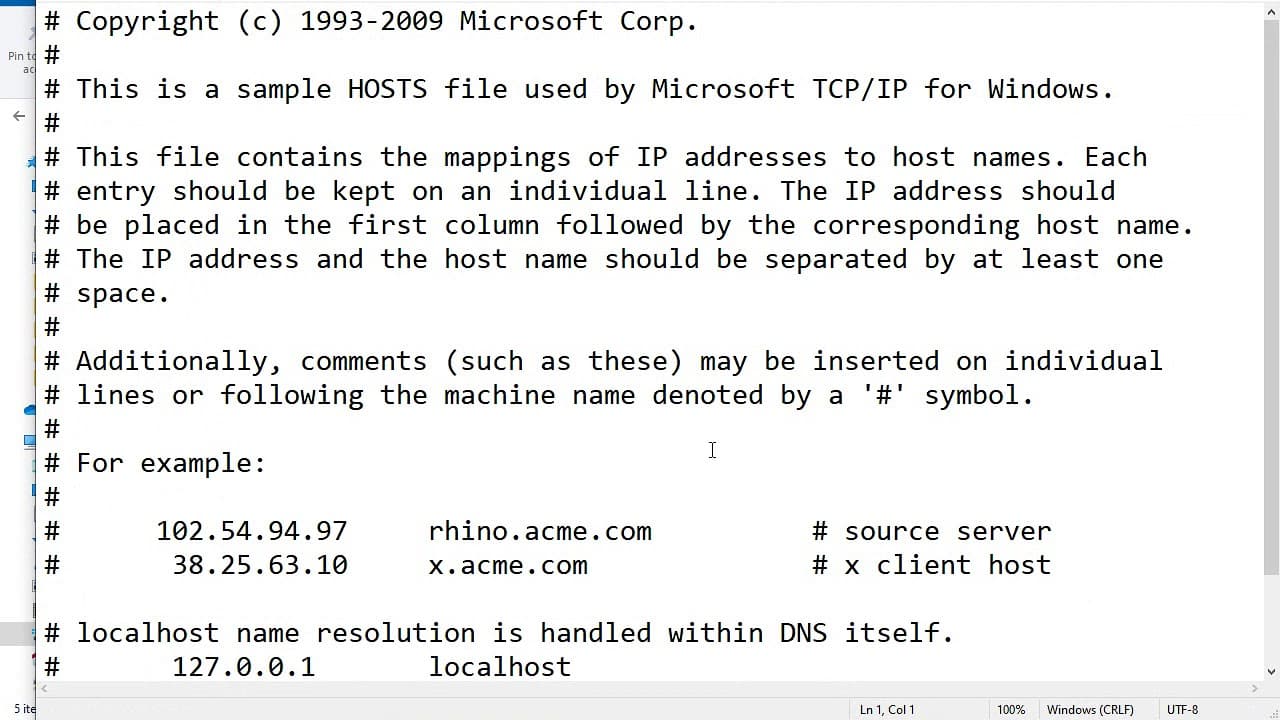
Learn to modify the hosts file in Windows 10 for local networking.
Transcript
okay today I will show you how to added house file in Windows 10 so when you try to open house for your go-to situa and go to windows system32 and I go to drivers in DC and now you have host double-click open its notepad and the for example you want to edit something you will save it it will show you you don't have permission to save ok now how to ... Read More
Key Insights
- 👻 The hosts file is a simple text file that allows users to customize how their computer resolves domain names.
- 📁 Editing the hosts file requires navigating to a specific directory (C:\Windows\System32\drivers\etc) to locate it.
- 👻 Running commands via Command Prompt as an administrator is necessary for saving any changes to the hosts file without permission issues.
- 👻 Adding local IP addresses to the hosts file makes accessing devices on a local network simpler and convenient for users.
- 🫥 Familiarizing yourself with the command line can significantly enhance your ability to manage system files in Windows.
- 😫 Recognizing IP address formats, like 192.168.x.x, is crucial for anyone setting up local networking configurations.
- 👤 Using descriptive hostnames instead of numerical IP addresses can improve user experience and efficiency when accessing local resources.
Install to Summarize YouTube Videos and Get Transcripts
Explore YouTube Video Summarizer or Get YouTube Transcript Extractor
Questions & Answers
Q: What is the purpose of editing the hosts file in Windows 10?
The hosts file is used to map hostnames to IP addresses. Editing it allows users to override DNS resolutions locally. This can make accessing specific servers easier or redirect traffic from a hostname to a different IP address, which is especially useful for testing or network management.
Q: Why do you need administrative privileges to save changes to the hosts file?
Windows protects certain system files, including the hosts file, from unauthorized changes. This security measure helps prevent malicious programs from altering critical networking configurations. Running the Command Prompt as an administrator grants elevated privileges, allowing you to save modifications to the hosts file.
Q: How can you add a local name and IP address using the hosts file?
To add a local name and IP address, open the hosts file in Notepad, input the IP address followed by the desired hostname (like “192.168.0.1 test.local”). After saving, this name can be used in a browser, simplifying navigation to the corresponding IP address.
Q: What are some practical uses for modifying the hosts file?
Modifying the hosts file can be used for various reasons such as blocking access to specific websites from a local machine, redirecting domain names to test servers during development, or simplifying local network navigation by associating IP addresses with easy-to-remember names.
Summary & Key Takeaways
-
The content demonstrates the process of editing the hosts file in Windows 10, specifically navigating to System32 and using Notepad for editing.
-
It explains how to run the Command Prompt as an administrator to bypass permission issues encountered when saving changes to the hosts file.
-
The tutorial also covers adding IP addresses and local names to the hosts file for easy access within a local network.
Read in Other Languages (beta)
Share This Summary 📚
Summarize YouTube Videos and Get Video Transcripts with 1-Click
Try YouTube Summary with ChatGPT & Claude or YouTube Transcript Generator
Explore More Summaries from E Micro Tech 📚

Summarize YouTube Videos and Get Video Transcripts with 1-Click
Try YouTube Summary with ChatGPT & Claude or YouTube Transcript Generator