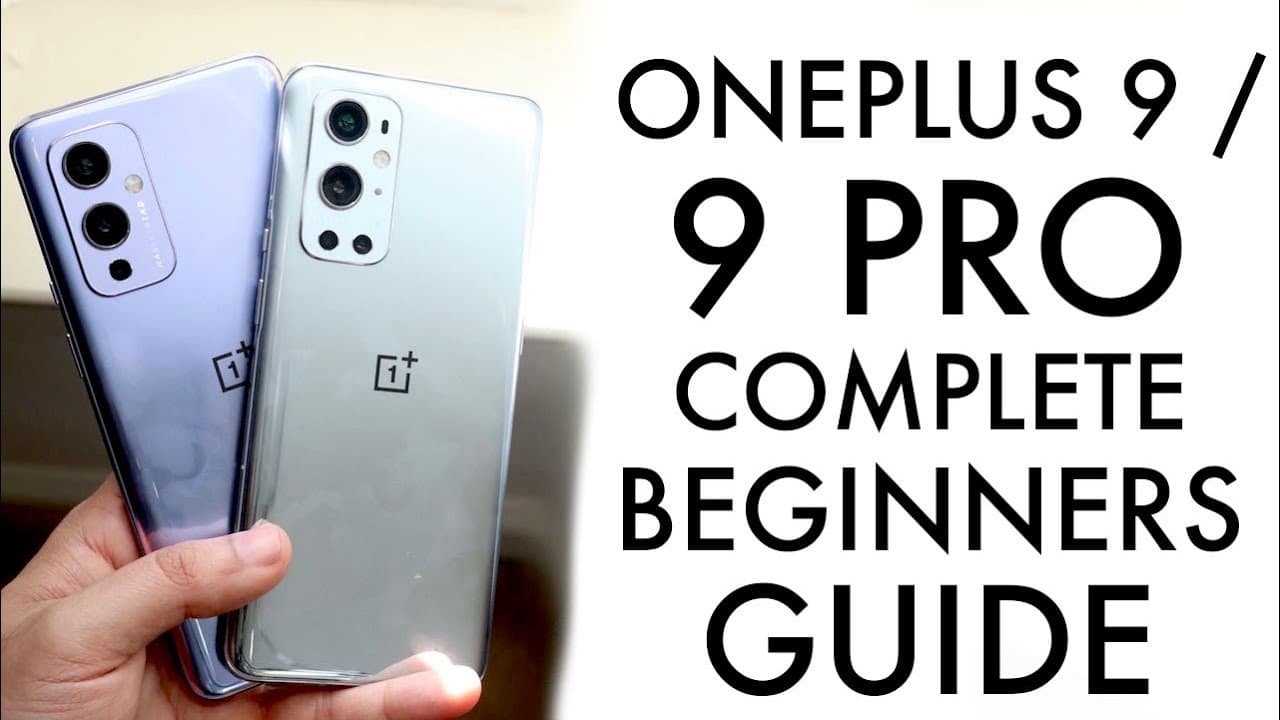
How To Use Your OnePlus 9 / OnePlus 9 Pro (Complete Beginners Guide!)
TL;DR
A comprehensive tutorial on setting up and using the OnePlus 9 and 9 Pro.
Transcript
welcome back everyone to another beginner's guide this time we're talking about the oneplus 9 of the nine pro and if you're somebody who's not familiar with a oneplus phone or any phones for that matter this is a great beginner's guide so hidden everything as quickly as possible your time is very valuable for this video i'll be using the oneplus 9 ... Read More
Key Insights
- 👍 The OnePlus 9 and 9 Pro come with several pre-installed apps and a user-friendly interface that is easy for beginners to navigate.
- 😀 The gesture-based design allows users to perform actions quickly, like switching between apps or accessing settings through simple swipes.
- 😀 Personalizing the device is straightforward, with options to rearrange apps, change wallpapers, and access widgets directly from the home screen.
- 🎥 Users can utilize the camera effectively by familiarizing themselves with features such as zoom and video recording options available through simple toggles.
- 🤢 Customizing quick toggles in the status bar enhances accessibility for features that users frequently use, such as Wi-Fi and brightness controls.
- 👂 The settings menu, while extensive, offers crucial functionalities like managing Bluetooth connections and adjusting sound settings without overwhelming novices.
- 🈂️ The OnePlus 9 and 9 Pro’s reverse wireless charging feature allows users to charge other devices, adding convenience to their functionalities.
Install to Summarize YouTube Videos and Get Transcripts
Explore YouTube Video Summarizer or Get YouTube Transcript Extractor
Questions & Answers
Q: How do I insert the SIM card into the OnePlus 9 or 9 Pro?
To insert the SIM card, locate the SIM card slot at the bottom of the device. Use the eject tool from the box to open the slot. Place the micro SIM card in the designated area and slide it back into the device. Ensure the card is properly seated for signal reception.
Q: What are the main features of the OnePlus 9 and 9 Pro's interface?
The OnePlus 9 and 9 Pro use a gesture-based interface that allows for easy navigation. Users can swipe from the bottom to exit apps or access the home screen. Quick toggles for essential functions like Wi-Fi and brightness are available in the status bar through swipe-down gestures.
Q: How do I take a screenshot on the OnePlus 9 or 9 Pro?
To take a screenshot, simultaneously press the volume down button and the power button until a capture animation appears. This indicates that the screenshot has been taken. Users can then access and edit the screenshot through the gallery app.
Q: What steps do I need to follow to download an app on my OnePlus 9?
To download an app, open the Play Store from the app panel. Search for the desired app by typing its name in the search bar, select the correct app, and click the install button. Once downloaded, it can be accessed from the app panel or home screen.
Summary & Key Takeaways
-
The video serves as a beginner's guide aimed at new users of the OnePlus 9 series, providing step-by-step instructions for setup and basic usage.
-
Key topics include inserting the SIM card, navigating the interface, and utilizing the phone's various features, such as the camera and quick toggles.
-
The guide also highlights personalization options and essential settings adjustments that can enhance user experience with the OnePlus 9 or 9 Pro.
Read in Other Languages (beta)
Share This Summary 📚
Summarize YouTube Videos and Get Video Transcripts with 1-Click
Try YouTube Summary with ChatGPT & Claude or YouTube Transcript Generator
Explore More Summaries from Simple Alpaca 📚



Summarize YouTube Videos and Get Video Transcripts with 1-Click
Try YouTube Summary with ChatGPT & Claude or YouTube Transcript Generator