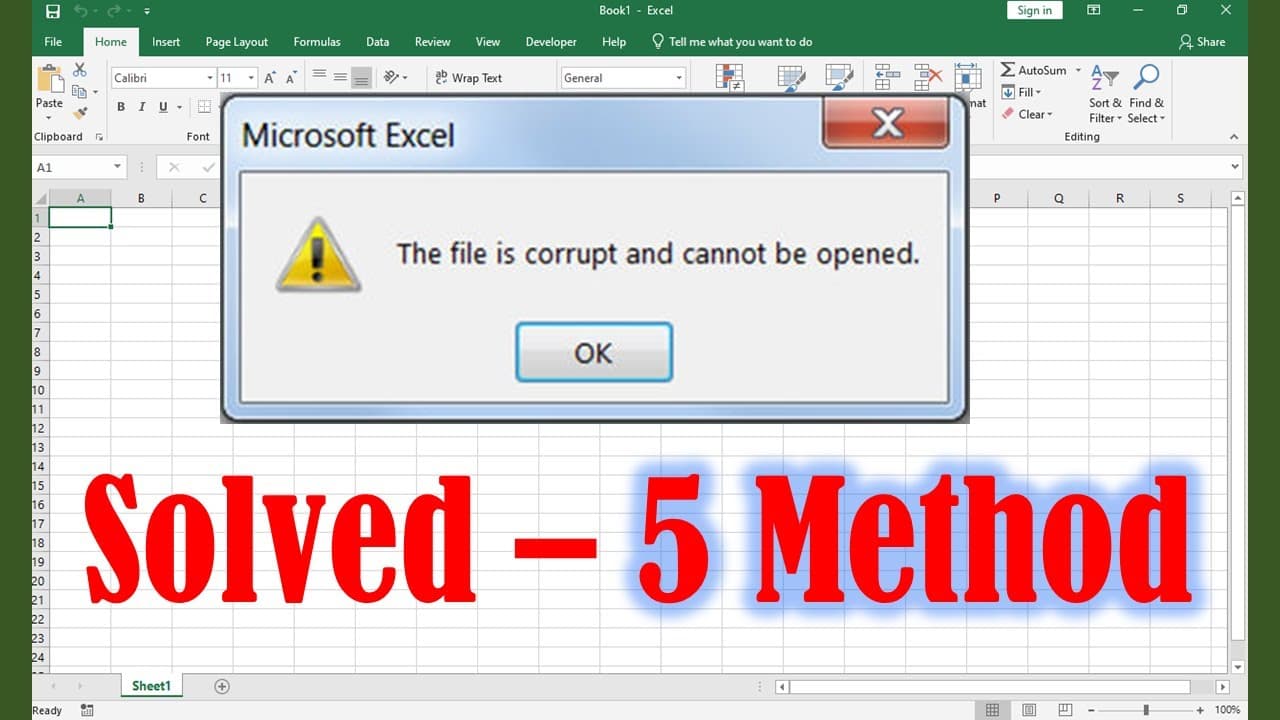
5 way to Solve – the file is corrupted and cannot be opened Excel 2019
TL;DR
Explore various methods to open corrupted Excel files safely.
Transcript
remember before you'll try these options you'll make a copy of the original one first. right click, copy, paste. so it won't affect the original one. the first method is to change the file extension. so right now is a xlsx. we right click and the delete the last letter x. OK. select yes and try to open it. Method 2 you open Excel program first. the... Read More
Key Insights
- 📁 Always back up the original file before attempting any repairs to ensure data integrity.
- 📂 The method of changing file extensions is a simple yet effective troubleshooting step for opening corrupted files.
- 🫵 Disabling protected view settings in Excel can facilitate access to files that the program initially blocks for safety.
- 📂 The "Open and Repair" feature is a built-in solution that can effectively recover many types of file corruption errors.
- 👤 User permissions can often prevent access to files, making it essential to configure these settings before attempting repairs.
- 📁 Configuring system properties using dcomcnfg can address file access issues related to system settings.
- 🥳 Third-party repair tools are valuable resources when built-in methods fail, often providing comprehensive recovery features.
Install to Summarize YouTube Videos and Get Transcripts
Explore YouTube Video Summarizer or Get YouTube Transcript Extractor
Questions & Answers
Q: Why is it important to make a copy of the original file before attempting repairs?
Creating a copy of the original Excel file is crucial because repairs can potentially lead to data loss or further corruption. By working on a copy, you preserve the original data in case the repair methods fail or exacerbate the issues, ensuring you have a fallback option.
Q: How does changing the file extension help in opening a corrupted Excel file?
Changing the file extension can sometimes trick Excel into attempting to read the file in a different format. For example, deleting the final "x" in an "xlsx" file might allow Excel to interpret it differently, potentially bypassing certain corruption issues that prevent normal opening.
Q: What role does the Trust Center play in accessing Excel files?
The Trust Center in Excel is a security feature designed to protect users from potentially harmful files. By disabling protected view settings, users can open files that Excel may have previously flagged as unsafe, which can be particularly useful for accessing corrupted files that are still safe to open.
Q: What does the "Open and Repair" feature do, and when should it be used?
The "Open and Repair" feature in Excel is designed to scan a potentially corrupted file for any issues and attempt to fix them automatically. This option should be used when a file is known to be corrupted or if standard opening methods fail, providing a straightforward solution to recover damaged spreadsheets.
Q: How can adjusting user permissions help with opening Excel files?
Adjusting user permissions enables full access rights for the user attempting to open the file. This is particularly helpful if the file is protected or hidden due to restrictions, allowing the user to bypass those barriers and access the content without additional hurdles.
Q: What are some recommended third-party Excel repair tools?
Popular third-party Excel repair tools include Stellar Repair for Excel, Kernel for Excel Repair, and EaseUS Data Recovery Wizard. These tools often offer more advanced recovery options for severely corrupted files and can provide a user-friendly interface to streamline the repair process.
Summary & Key Takeaways
-
The content provides a step-by-step guide for opening corrupted Excel files without affecting the original. It emphasizes making a copy of the file before attempting any fixes.
-
Multiple methods are detailed, including changing file extensions, adjusting Excel settings to disable protected view, and using the "Open and Repair" feature within Excel.
-
Additional methods include configuring system settings for file access permissions and suggesting the use of third-party Excel repair software if previous solutions fail.
Read in Other Languages (beta)
Share This Summary 📚
Summarize YouTube Videos and Get Video Transcripts with 1-Click
Try YouTube Summary with ChatGPT & Claude or YouTube Transcript Generator
Explore More Summaries from E Micro Tech 📚

Summarize YouTube Videos and Get Video Transcripts with 1-Click
Try YouTube Summary with ChatGPT & Claude or YouTube Transcript Generator