Creating a Ring in uMake - Part 2
TL;DR
Learn to create and embellish a ring using uMake.
Transcript
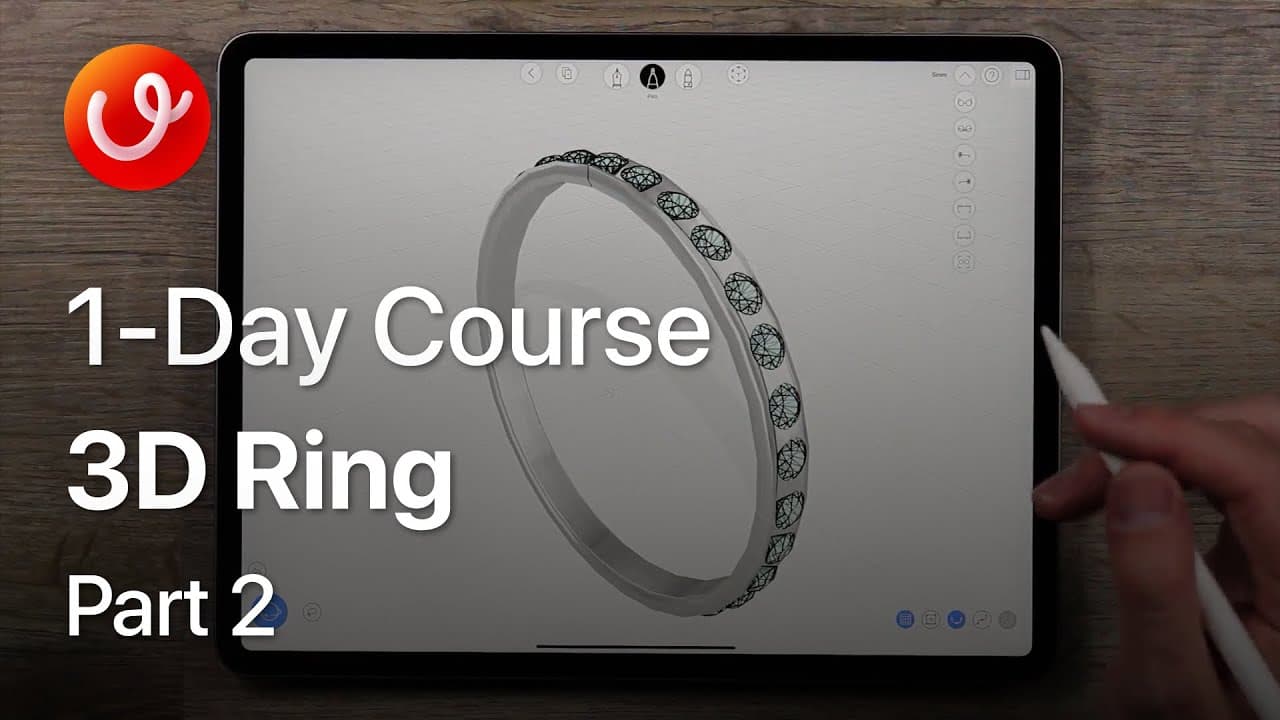
Hello and welcome to the second part of the how to create a ring in uMake Tutorial series, my name is Nyko and in this section of the tutorial we are going to basically take this curve that we drew, this profile curve and create a revolved surface around it and then start adding some details to the ring. So to jump in I've edited this curve... Read More
Key Insights
- The tutorial focuses on transforming a profile curve into a revolved surface to form the base of a ring using uMake.
- Mirroring and merging curves are essential steps to create a single, continuous curve for the ring design.
- The revolve tool is used to create a 3D surface from the profile curve, forming the ring's body.
- Color customization of the ring is demonstrated, with options for silver and gold finishes.
- The array tool is crucial for creating multiple gemstone copies around the ring, ensuring even spacing.
- Handling unexpected issues, such as split circles, is addressed with practical workarounds.
- Layer management is highlighted as a method to simplify the selection and organization of design elements.
- The tutorial encourages creativity, inviting users to share their designs and experiment with additional embellishments.
Install to Summarize YouTube Videos and Get Transcripts
Explore YouTube Video Summarizer or Get YouTube Transcript Extractor
Questions & Answers
Q: How do you create a revolved surface in uMake?
To create a revolved surface in uMake, first ensure you have a single, continuous profile curve. Switch to the front view, select the curve, and use the revolve tool. Adjust the axis to align with the design's origin, then finalize the revolved surface by tapping the green check mark.
Q: What is the purpose of using the array tool in this tutorial?
The array tool is used to replicate gemstones around the ring, ensuring they are evenly spaced. By selecting the gemstone and using the array tool, you can create multiple copies around a central point, adjusting the number of copies and their placement for a balanced design.
Q: How do you handle split circles when creating an array?
If a circle gets split during design, it can cause issues with centering arrays. The tutorial suggests drawing a new circle and using snap-to-grid to ensure proper alignment. This new circle serves as a reference point for centering the array accurately.
Q: What tips are provided for managing design elements in uMake?
Layer management is recommended for organizing design elements. By assigning elements like curves and surfaces to specific layers, you can easily hide or select them, simplifying the design process. This technique helps prevent accidental movements and ensures a cleaner workspace.
Q: How can you customize the appearance of the ring in uMake?
The tutorial shows how to change the ring's appearance by selecting the surface and applying different materials, such as silver or gold. This customization allows users to visualize different aesthetic options and select the one that best fits their design vision.
Q: What should you do if you accidentally move elements when selecting them?
If elements are accidentally moved during selection, the tutorial advises using layers to manage selections more efficiently. By hiding non-essential elements and carefully selecting the desired ones, you can avoid accidental adjustments and maintain the design's integrity.
Q: What additional features can you add to the ring design?
The tutorial encourages experimenting with additional features, such as posts around the gemstones and other embellishments. These customizations can enhance the ring's visual appeal and allow for unique, personalized designs that reflect the creator's style.
Q: How can users engage with the tutorial creators and community?
Users are invited to share their ring designs and provide feedback through comments on platforms like YouTube, Facebook, and Twitter. The creators encourage community interaction and are interested in seeing the diverse designs users create, fostering a collaborative and creative environment.
Summary & Key Takeaways
-
This tutorial demonstrates how to transform a profile curve into a ring using the revolve tool in uMake. It covers mirroring, merging, and connecting curves to create a single smooth design. Users are guided through customizing the ring's appearance with different materials.
-
The array tool is introduced to replicate gemstones around the ring, ensuring they are evenly spaced. The tutorial addresses potential issues with split circles and provides solutions for maintaining design accuracy. Layer management is used to simplify the process.
-
Viewers are encouraged to personalize their designs with additional features like posts and embellishments. The tutorial concludes by inviting users to share their creations and provides contact information for feedback and community engagement.
Read in Other Languages (beta)
Share This Summary 📚
Summarize YouTube Videos and Get Video Transcripts with 1-Click
Try YouTube Summary with ChatGPT & Claude or YouTube Transcript Generator